
How To Topic 16 · AR Markers
How to Add Information Labels and the CALL Marker
The Actions panel also opens two specialised Story tools. Label adds readable creator-written information in AR. CALL positions the summon point for a visible Time Machine asset—it is not a telephone call, contact button or general-purpose scene marker.
What this guide achieves
Create a useful information label, optionally link it to an asset and place a safe, testable Time Machine summon point without mistaking virtual collision checks for real-world protection.
- Topic
- 16
- Starting point
- A staged local AR Experience Story; include a visible Time Machine asset before configuring CALL
- Guide time
- About 11 minutes
- Screen status
- Development feature guide
Quick walkthrough
Add labels and an optional Time Machine CALL point in twelve steps.
Use the Label branch for explanatory content and the CALL branch only when the staged Story contains the required Time Machine asset.
- 01
Open and stage the local Story
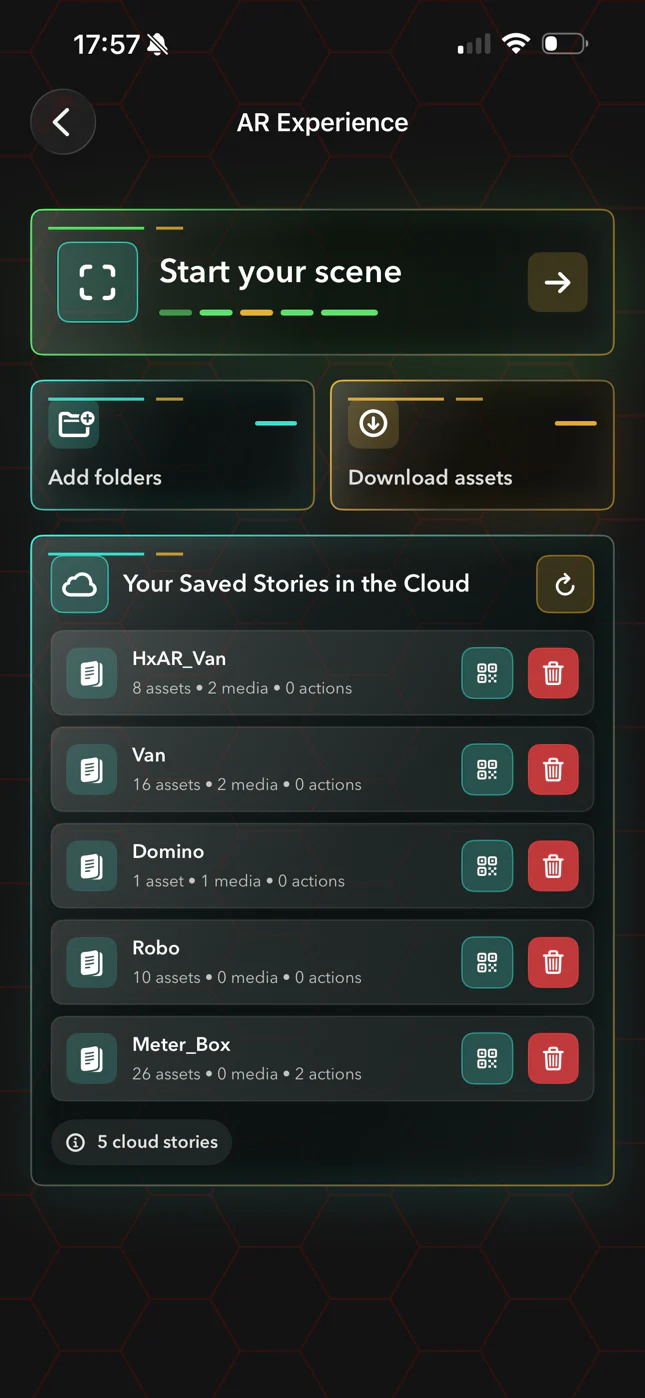
Open the editable scene through AR Experience and Start your scene, arrange it and complete Set The Stage.
- 02
Open the Actions panel
Select Animate, then Actions. The Call and Label controls appear in the Actions header.
- 03
Aim before adding a label
Choose Label and aim the crosshair where the information marker should begin.
- 04
Create the label
Select +. HxAR creates Info 1, Info 2 and so on approximately 36 centimetres along the crosshair ray.
- 05
Write the information
Use the pencil to enter a short title and a clear information body, then Save. Do not include private or unlawful content.
- 06
Position the label
Choose it from the Labels menu and use the six directions. Each press moves the selected label by 15 millimetres.
- 07
Optionally link an asset
Use the link control to choose a Story asset. You can then switch the movement target between the label and that linked asset.
- 08
Add the Time Machine asset before CALL
Return to the staged scene and confirm a visible Time Machine model exists. CALL is unavailable without it.
- 09
Open Call
Use Animate → Actions → Call. The default summon marker begins about 30 centimetres in front of the camera.
- 10
Move the summon point
Use the six directions to move it by 20 millimetres per press. Holding a direction repeats the movement.
- 11
Set travel behaviour
Adjust Time Machine speed from 0.5× to 2.5× and maximum travel distance from 0.75 to 3 metres.
- 12
Test before uploading
Leave Call collision on while authoring, test the summon route and every label, then upload again only when the Story behaves as intended.
Information Labels place creator-written text in the AR scene
Aim the crosshair and select +. A new label is created approximately 36 centimetres along that ray with the next Info number. Use the pencil to replace the temporary title and add the information people should read.
There are no enforced title or body length limits in this authoring flow, so write concise text that remains readable on a small device. One exact development label name can insert draft gas-safety wording automatically; treat any automatic text as editable material requiring professional review before publication.
Choose a label from the menu, move it in six directions by 15 millimetres per press, edit it or delete it. Deletion is immediate, with no confirmation or undo.
A linked label can help a visitor carry or drop its Story asset
Use the link menu to attach the selected label to an asset. In the shared experience, selecting that linked label can toggle whether the visitor carries or drops the attached asset.
After linking, choose whether the movement pad affects the label or the linked asset. Clear the attachment through the same menu when the relationship is no longer wanted.
Test the label’s placement and linked interaction after moving or replacing the asset. Shared Story upload can anchor labels to nearby assets for stability, but that does not guarantee a perfect position on every device.
CALL is a Time Machine summon point, not a telephone feature
A visible asset matching HxAR’s Time Machine model must be in the staged Story. Without it, the app reports that the CALL button is not available.
The marker begins about 30 centimetres in front of the camera and moves in camera-relative directions by 20 millimetres per press. Speed ranges from 0.5× to 2.5× and maximum travel distance from 0.75 to 3 metres.
When saved and shared, the marker position can be associated with the nearest Story asset so it can be reconstructed more consistently in another session.
Call collision checks virtual Story assets only
Collision On prevents the Time Machine parking point being placed too close to visible Story assets. Collision Off bypasses that authoring check. The choice returns to On when a Story reloads; it is not saved as part of the Story.
The check does not understand the room, walls, people, furniture, traffic or steps. It is not physical-world obstacle detection. Keep it on while authoring, then inspect the entire virtual route and the real space yourself.
The current collision warning flashes for five seconds at roughly 2.8 full on-and-off cycles per second. That animation and its lack of Reduce Motion handling need app-side review; stop immediately if it causes discomfort.
Uploaded label text becomes public Story content
Label titles and information, CALL placement and other scene settings are local until the owner uploads or reuploads the Story. Upload places them in HxAR’s public CloudKit Story record; it does not upload the live camera view.
Call or Labels by themselves do not make a Story upload-ready. The current readiness rule still needs an Action, a valid Drive Group, a valid Gaming Group or a media item.
Public creator text needs filtering, reporting and blocking coverage under Apple’s user-generated-content rules. HxAR’s Shared Story flow does not yet provide complete in-app protection, so use the website reporting route if preview content is unsafe.
Use clear text and keep the physical route clear
Work in a well-lit, obstruction-free space, stop walking while writing or positioning text and keep the Time Machine’s apparent path away from real people and objects. Virtual distances are not engineering measurements.
The authoring controls have several useful VoiceOver labels, but crosshair placement, small 3D text, spatial marker selection and linked-object movement still lack a complete nonvisual equivalent. Keep label titles short and do not convey meaning by position alone.
No separate HxElectrum or Hexagon Token charge was found for Labels or CALL in the reviewed build.
Guide path
Move through HxAR one topic at a time.
New topics will be linked back into earlier guides whenever one action leads naturally to another.
Helpful now