
How To Topic 15 · AR Actions
How to Set The Stage and Create AR Actions
Set The Stage records how an AR Experience should look when it opens. Actions then give a selected asset a forward movement and a return control. This is a focused interaction builder, not a general animation timeline or physical collision-safety system.
What this guide achieves
Save a dependable opening Stage, create one clearly named Action between two distinct assets and test both its forward and return states before uploading the Story.
- Topic
- 15
- Starting point
- A named, device-local AR Experience scene containing at least two distinct 3D assets
- Guide time
- About 14 minutes
- Screen status
- Development feature guide
Quick walkthrough
Set the opening Stage and build an Action in thirteen steps.
Save the baseline first, move one asset to its end position, complete the Action details and test both controls before sharing.
- 01
Open the local scene
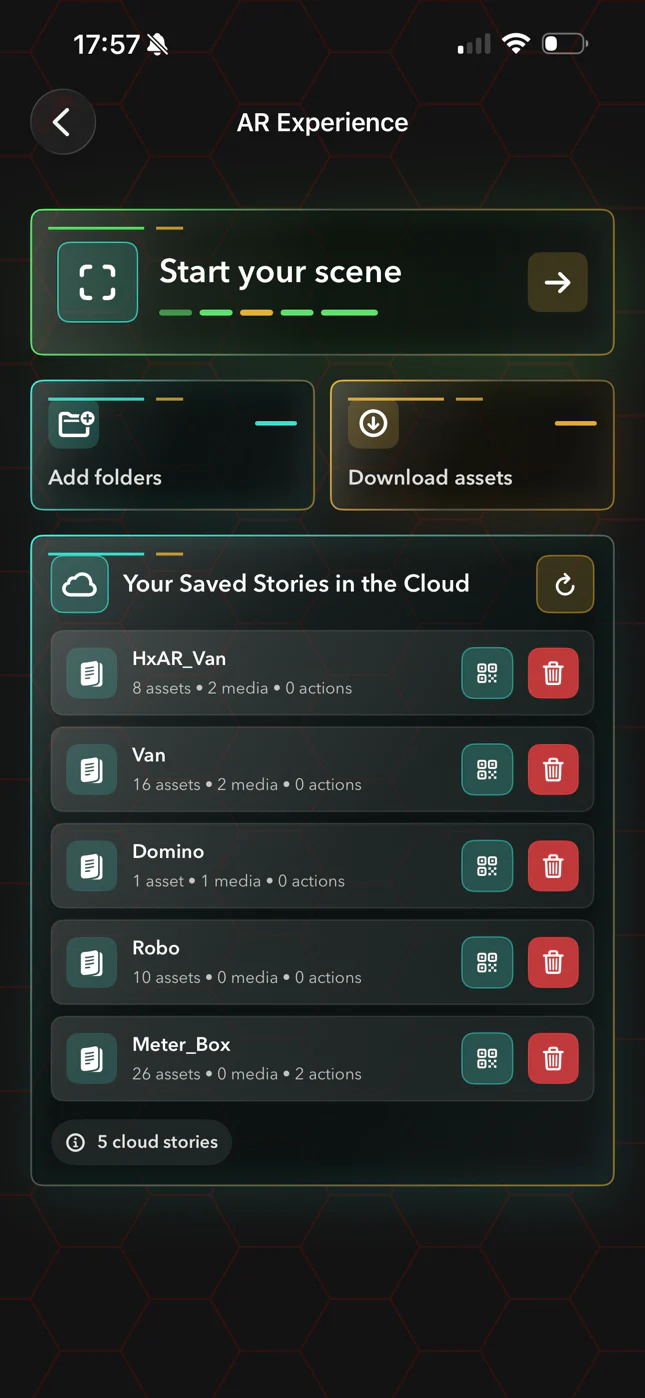
Open AR Experience, select Start your scene and use the scene controls to open the editable device-local scene. Cloud Story rows are not editing shortcuts.
- 02
Check the name and assets
Use a non-empty, distinctive scene name and at least two separate 3D assets. A functional Action needs one moving asset and a different pivot asset.
- 03
Arrange the opening view
Place every asset where it should be when the experience begins. Save the local scene before building behaviour.
- 04
Open Animate
Select the play-rectangle Animate control, then choose Set The Stage. HxAR checks the Story name online before it saves the opening snapshot.
- 05
Open Actions
After the Stage has been saved, select Actions. Choose One Asset for the clearest first workflow. Whole Scene lets you edit the complete finishing layout, but the resulting Action still uses a primary moving asset and pivot.
- 06
Set the end position
Select the moving asset, move or turn it to a genuinely different finishing position and save that position. An unchanged position cannot produce a valid pivot Action.
- 07
Continue to Action Setup
Select Continue to Action Setup only after the required position has been saved.
- 08
Name both controls
Enter a short, unique forward Action name and a different short, unique return name. Reusing either name can replace an existing Action.
- 09
Choose movement and pivot
Confirm the moving asset, choose a different pivot asset, select Wheel, Clock or Vertical rotation and choose Tight, Close, Normal or Far control-marker spacing.
- 10
Add optional stretch
If needed, choose extra objects, an X, Y or Z axis and a signed millimetre change. Avoid extreme values and preview the result.
- 11
Add optional visibility changes
Choose objects to show or hide With Action, After Main Move or After All Movement.
- 12
Save or add another Action
Save Action, then choose Another Action or Completed. The current editor allows one primary Action for each target asset.
- 13
Test forward and return
Open the Story experience, aim at each 3D control marker and test the forward and return states from more than one viewing angle before uploading.
Set The Stage records the opening arrangement
Set The Stage becomes available after the scene has a name and at least one asset or media item. It saves the opening scene snapshot that Actions, Drive Groups and Gaming Groups use as their baseline. The Story name is checked against HxAR’s public cloud namespace, so a connection failure can prevent staging even though the editable scene is local.
Tapping Set The Stage again updates that opening baseline while preserving existing Actions, Call, Labels, Drive and Gaming data. It does not revalidate those behaviours. Re-test or rebuild every affected interaction after moving, replacing, renaming or deleting an asset.
Set The Stage and Actions do not show a separate Hexagon Token or HxElectrum charge in the reviewed build.
A usable Action needs two distinct 3D assets
The clearest workflow moves one asset around a different pivot asset. A scene with only one 3D asset can be staged, but it cannot complete that Action setup because the moving object cannot also be its pivot.
Set an end position that is genuinely away from the pivot. The editor may let you continue after saving a position, but final validation rejects an unchanged result with Move the asset away from the pivot.
The primary movement follows a pivot or arc. It is not a free-form path editor, skeletal character animator or promise that an asset will avoid every other virtual or physical object.
Use short, unique names for forward and return controls
The Button Names step creates the words shown on the two in-scene controls. Give the forward Action and its return control distinct, concise names that have not been used by another Action.
The current Story store can replace an existing Action when either its forward name or return name matches. There is no dedicated duplicate-name warning, and long words can be clipped on the small 3D marker.
Tight, Close, Normal and Far change the marker distance around the target. They do not change the physical safety of the movement.
Build the main move before adding optional effects
Choose the moving asset, a different pivot and Wheel, Clock or Vertical rotation. The saved opening Stage is the start state and the position you set is the end state.
Extra Object Stretch can change additional objects on X, Y or Z by a signed millimetre value. The authoring field has no practical maximum; runtime protection only prevents a result below one millimetre. Extreme values can therefore make a scene unusable. A stretched object may also need a separate Reset marker rather than returning with the main Action.
Visibility Changes can show or hide selected assets With Action, After Main Move or After All Movement. Test the complete order because a hidden control or pivot can make the next step difficult to understand.
One primary Action belongs to each target asset
After Save Action, choose Another Action or Completed. The editor disables a target already used by another primary Action unless that Action is being edited.
Use Story mode to aim the crosshair at each floating control and trigger it with the blue target button. Test the forward state, its return state, every visibility change and any reset control from more than one angle.
If an asset, its Stage position or its pivot changes later, do not assume the preserved Action is still valid. Reopen it, check every selection and repeat the test.
Treat virtual motion as a visual effect, not a safety check
Action movement does not validate the room around the user. Work in a well-lit, obstruction-free space, stop walking before editing, keep people and pets clear and pause if tracking drifts or anybody feels uncomfortable.
Most authoring buttons have useful accessibility labels, but the RealityKit markers, crosshair targeting, small fixed 3D text and spatial positions do not yet provide a complete nonvisual journey. No Reduce Motion handling was found for Action movement.
The website repeats every step in readable text, but HxAR still needs real-device VoiceOver, Larger Text, contrast, motion and switch-control testing before claiming full accessibility.
Guide path
Move through HxAR one topic at a time.
New topics will be linked back into earlier guides whenever one action leads naturally to another.
Helpful now