
Keep it useful for you
Add a private label, organise the entry and use My Experience for private notes and photos stored on this device.
Beginner’s Guide · HxAR 2.0
Sign in, record who recommended you if that applies, find and assign your first virtual HexTile, then visit the HxAR world at your own pace. This is the short, friendly route—not everything the app can do.
HxAR 2.1 is now available on the App Store. These earlier screenshots remain useful for the basics; labels, costs and availability can change in later app updates, so check the confirmation shown in HxAR before completing an action.
Step 01 · Sign in and create a profile
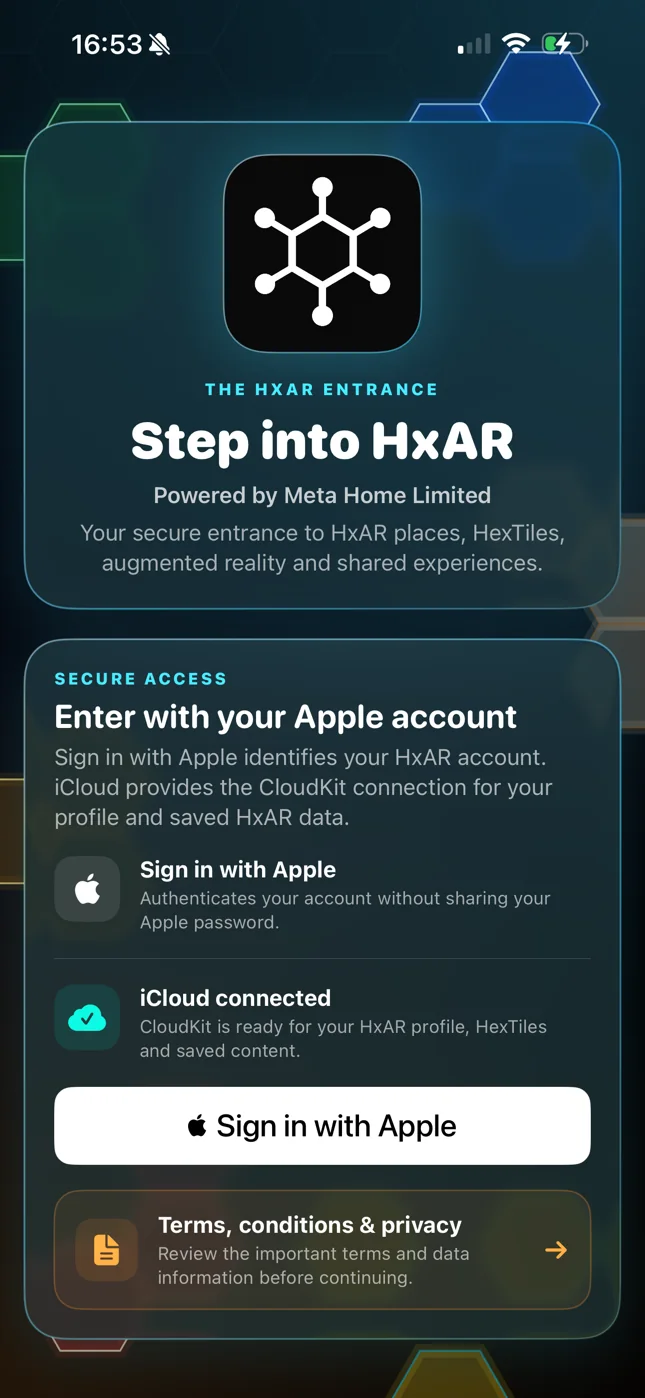
On the HxAR entrance screen, check for iCloud connected, then choose the official Sign in with Apple button. HxAR uses Apple to identify the account without receiving your Apple password, while iCloud connects the profile and saved HxAR data to CloudKit.
Your starting screen
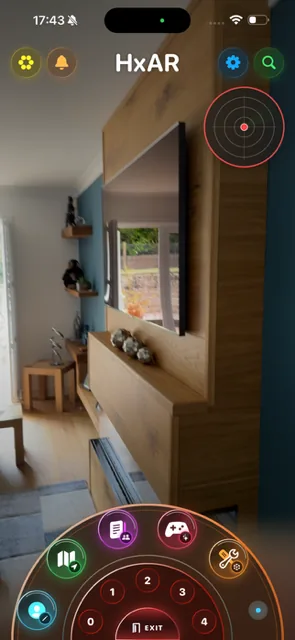
The yellow Hexagon Vault and orange notifications sit at the upper left. Settings and Search sit at the upper right. The outer dial is the main route into HxAR features; rotate it, let it settle, then choose the destination you want.
Learn every dashboard controlYour starter route
Follow these in order for a simple first journey, or use the links to open a detailed How To guide whenever you want more explanation.
Open Hx Vault
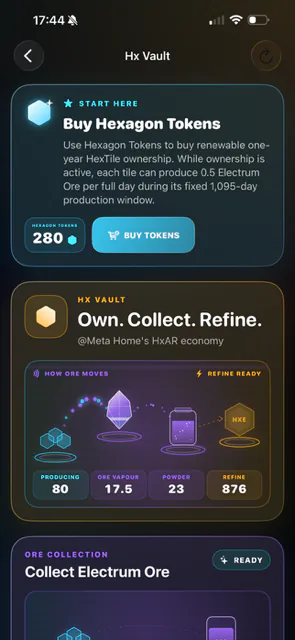
From the dashboard, tap the yellow Hexagon Vault control and choose Open Hx Vault. The BUY TOKENS button opens Apple’s purchase sheet, where the displayed product and local price are the authoritative confirmation.
Buying is optional. You can explore the map, assign a tile and use private My Experience notes without buying Tokens. Tokens are needed only when an eligible, unowned HexTile requires them for renewable virtual ownership.
Find a HexTile
On the dashboard’s bronze outer dial, rotate until Map is visible, let it settle and choose it. HxAR then offers two routes:
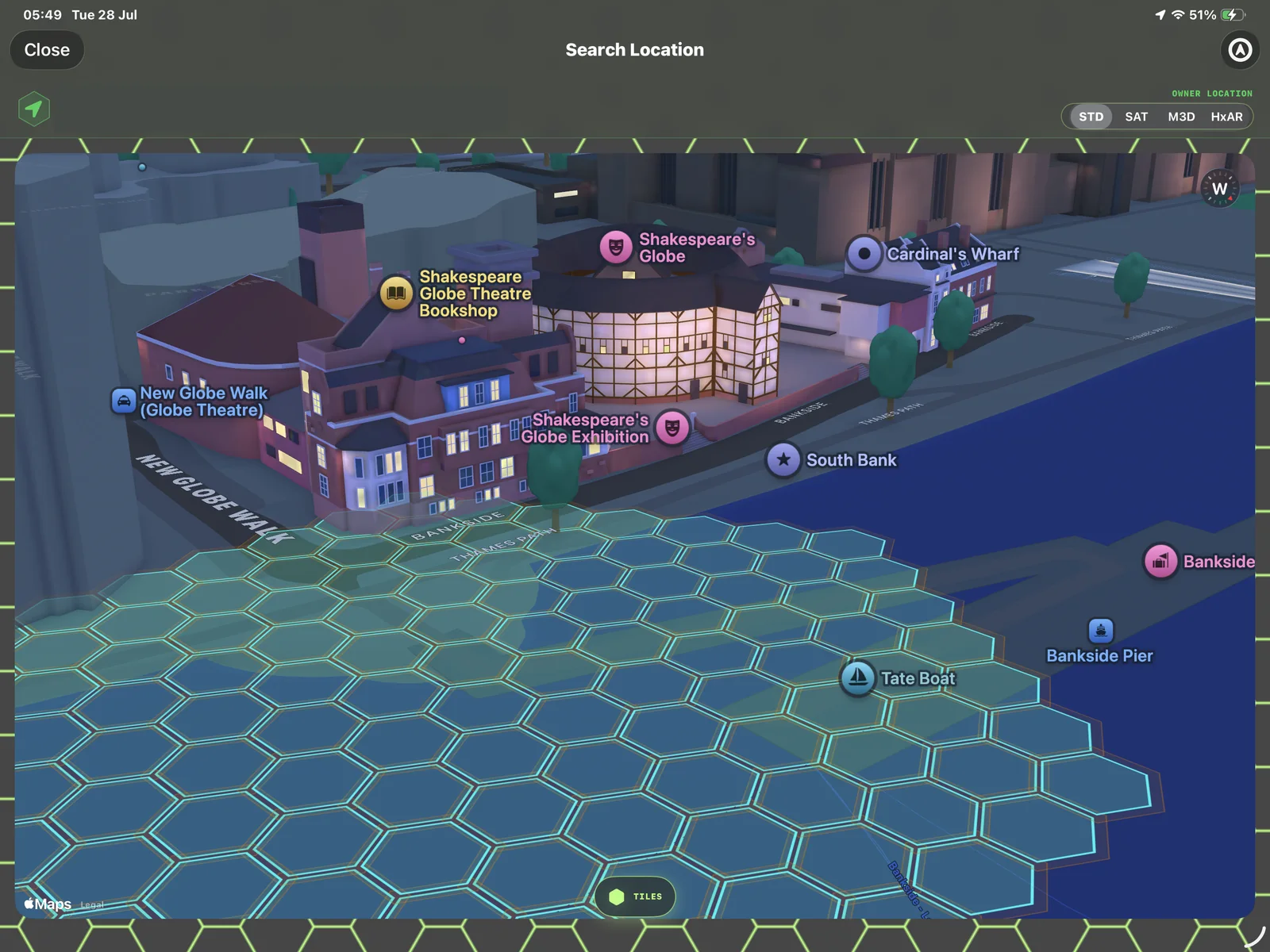
Choose TILES when available to reveal the local grid, then orient the map before selecting a HexTile. Stop moving before reading or using map controls.
Learn Map Search, Tracker View and HexTiles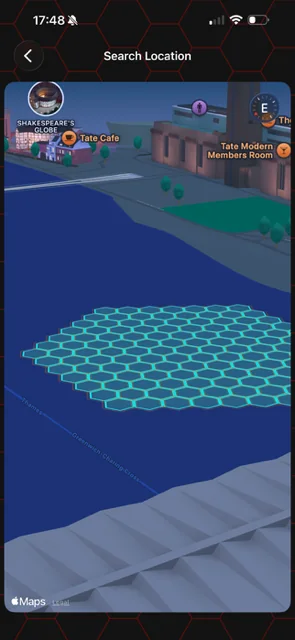
Select, review, then assign
Tap the intended HexTile, open Details or Options, read its location and ownership state, then choose Assign to My Properties. Assignment adds a personal Property Management record; it does not make you the owner.
Add a private label, organise the entry and use My Experience for private notes and photos stored on this device.
If HxAR’s live ownership check confirms the assigned tile is still unowned and you hold enough Hexagon Tokens for its category, BUY THIS TILE can purchase renewable one-year virtual ownership. It never grants physical access or land title.
You can assign a tile that somebody else owns, but you cannot buy it again. Other people can also privately assign or visit a virtually owned tile.
Return through Property Management
From the HxAR dashboard, rotate to Property Manager. It opens Property Management, where you can see the individual properties and groups you have assigned or own. Choose an entry to review its private organisation, ownership state and available property tools.
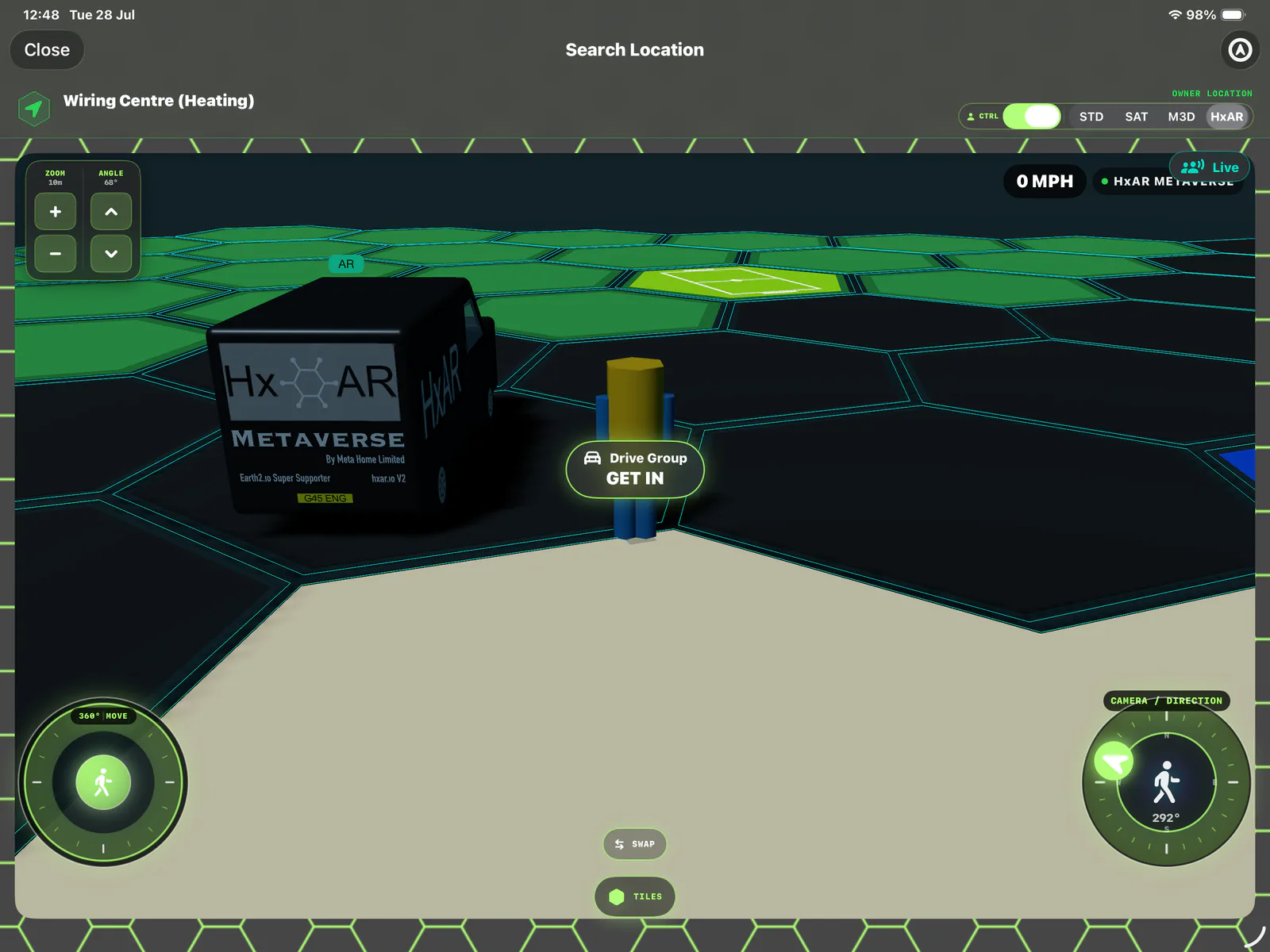
For an actively owned, eligible property, choose VISIT LOCATION. Not every assignment offers that action. During a Property Visit you can reveal nearby HexTiles, select them, assign eligible entries and buy an available tile if you decide ownership supports your plan.
In HxAR Metaverse, you can inspect the four base terrain colours and any of the twelve additional active colour types. An unowned tile can currently be changed by a signed-in user; active ownership restricts management to its owner. The additional colours and patterns work now; the behaviour associated with them may evolve.
See the wider map idea
HxAR Maps explains how the 22 active colour choices can build a recognisable visual picture of an area over time. Each app HexTile corresponds to one logical Pixel Maps cell; its colour comes from red, green, blue and alpha channels—not four separate website pixels.
The current Central London Pixel Maps canvas is a read-only live colour viewer. Its protected app-to-website feed layers sparse explicit colour overrides saved to HxAR’s Production database over the shared London base pattern.

Optional Live Multiplayer
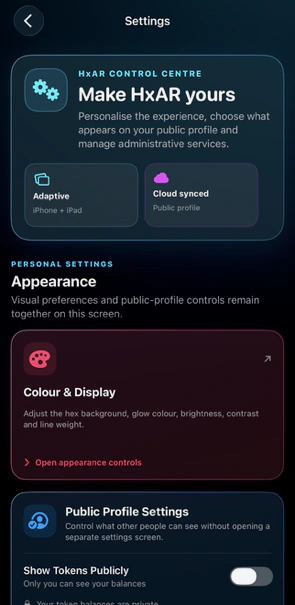
Open the blue dashboard gear, scroll in Settings to Live Play → Multiplayer and read the explanation. Live Multiplayer is off by default, and the preference is stored for that device. When the live service is available, confirm with Apple if you choose to turn it on.
While a supported Search Location or VR Building is open, other opted-in people in the same live space can see an avatar name and colour with short-lived virtual movement. HxAR uses a pseudonymous participant identifier that may remain stable across sessions; your private Apple account identifier is not shown to other players.
You can turn Live Multiplayer off in Settings at any time. Signing out also turns it off on that device. Live mode does not create a general movement history, grant real-world access or make every HxAR screen multiplayer.
That is enough to start
HxAR also includes Radar, Shared Stories, the AR Gallery, USDZ uploads, collectables, virtual buildings, spatial tools and games. Choose whatever sounds interesting next.