
How To Topic 13 · AR Experience
How to Use AR Experience in HxAR
AR Experience is HxAR’s complete spatial-authoring area. Its opening screen is a hub rather than one long task: prepare local asset folders, download models, enter the camera-based scene editor and manage Stories that you have uploaded to HxAR’s cloud catalogue.
What this guide achieves
Understand what each AR Experience route does and complete the safe basic journey from a device-local asset folder to a saved scene and an intentionally shared cloud Story.
- Topic
- 13
- Starting point
- Signed-in HxAR dashboard with AR Experience visible on the outer navigation dial
- Guide time
- About 15 minutes
- Screen status
- HxAR 2.0 release guide
Quick walkthrough
Follow the AR Experience journey in eleven steps.
Prepare the local library first, create and save the scene, then treat cloud upload and QR sharing as separate, deliberate actions.
- 01
Open AR Experience
Rotate the dashboard’s outer dial until AR Experience appears, allow the dial to settle and select it.
- 02
Prepare a clear AR space
Before entering the editor, check the lighting and clear people, pets, furniture, steps and other hazards from the area where you will stand or move.
- 03
Create a local asset folder
Select Add folders, enter a unique folder name and use the plus control. AR Experience needs a local destination folder before it can download a USDZ asset.
- 04
Download the models you need
Select Download assets, choose the destination folder and browse your AR Gallery folder, profile-public assets or the Global Public Gallery. Download each model individually.
- 05
Start your scene
Return to the hub and select Start your scene. Open the scene controls, enter a distinctive name and use Add to Scene for 3D Assets, Floors/Tables or Media.
- 06
Place and arrange the content
Selected content appears automatically about 500 millimetres in front of the camera, facing you. Use the movement, turn, scale, appearance and selection controls to compose it.
- 07
Save the editable scene
Save after adding at least one asset or media item. The first save creates the device-local scene; later normal edits autosave after approximately 0.8 seconds.
- 08
Reopen the local scene when needed
Use Start your scene, open the scene controls and select Open. The cloud rows on the hub are not editing shortcuts.
- 09
Set the Stage and add behaviour
Save the intended opening arrangement with Set The Stage, then add an Action, a valid Drive Group, a valid Gaming Group or media before the Story can become upload-ready.
- 10
Upload before sharing the QR
Upload the Story while signed in, then use the QR shown after success or the QR control on its cloud row. A QR made before upload cannot retrieve a Story that is not yet in the cloud catalogue.
- 11
Manage local and cloud copies separately
Refresh the hub to check uploaded Stories. Delete only after reading the warning: cloud deletion prevents future retrieval but does not erase your local scene or copies another person already downloaded.
The AR Experience screen is a four-way hub
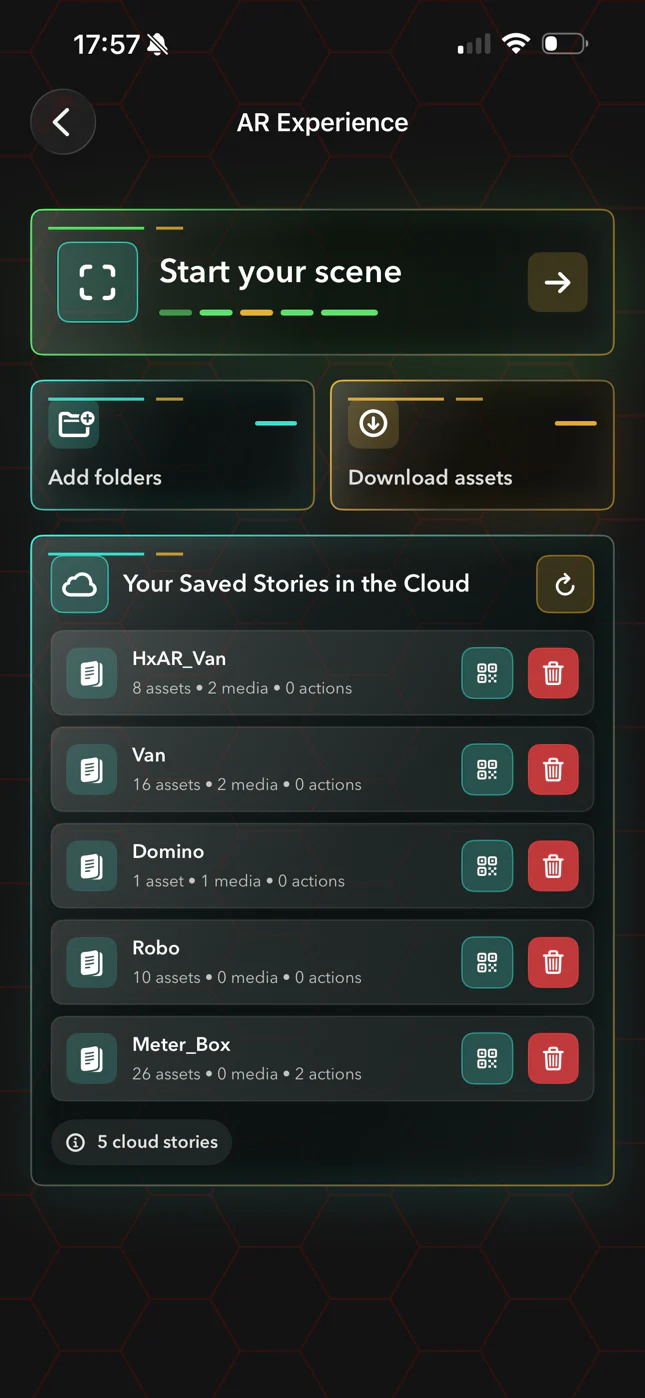
Open AR Experience from its shortcut on the rotating outer dashboard dial. The hub shown above does not display every editor control at once; it separates preparation, creation and cloud management into four clear routes.
Folders, downloaded USDZ files and editable saved scenes are stored locally on this installation. Your Saved Stories in the Cloud is a different list: it shows Stories that this signed-in owner has uploaded to HxAR’s CloudKit public database.
Start your scene
Enters the camera-based editor with a fresh in-memory workspace. Use its scene controls to name, save, reopen or delete editable scenes stored on the device.
Add folders
Creates and manages device-local folders for USDZ models downloaded into AR Experience. These are not the cloud folders shown in AR Gallery.
Download assets
Copies eligible USDZ models from HxAR cloud sources into one of the local AR Experience folders. It does not import an arbitrary Files-app document.
Your Saved Stories in the Cloud
Lists this owner’s uploaded Stories newest first, with unique asset-name, media and action counts plus QR and Delete. The rows themselves do not open an editable scene.
Use this as the parent guide for a connected AR Experience series
AR Experience includes local asset preparation, scene composition, media, lighting, collision geometry, animation, driving, gaming, cloud upload and Shared Story opening. One article would make its important controls difficult to find and harder to read.
This parent page explains the complete journey and the boundaries between local and cloud content. Focused guides now cover Collision Builder, Set The Stage and Actions, Information Labels and the Time Machine CALL marker, Lighting AR, Drive Groups, Domino Gaming Groups and the complete Shared Story publishing and opening journey.
Published now · AR Experience overview
Use this page to choose the correct branch and understand the end-to-end creation and sharing order.
Published now · AR Collision Builder
Use the advanced guide for Point, Flat and 3D collision shapes, the 1,000-point limit, dimensions, asset locks and an important current save warning.
Published now · Set The Stage and Actions
Save the opening baseline, create a pivot Action between two distinct assets, name the forward and return controls and test optional stretch and visibility changes.
Published now · Labels and Time Machine CALL
Add creator-written information, link a label to an asset and position the summon point for a visible Time Machine model.
Published now · Lighting, Drive and Gaming
Use the focused guides for simulated Bulb and Panel lights, multi-asset virtual vehicles and the current domino-run Gaming Group.
Published now · Shared Stories
Upload a tested Story, share its QR or exact title, find and save public Stories, resolve missing assets and understand updates and deletion.
Create local folders before downloading USDZ assets
Select Add folders, enter a name and use the plus control. Names cannot be empty or duplicate another local folder when letter case is ignored. Open a folder to inspect its USDZ files, move an asset to another local folder or delete it.
Swiping a folder exposes Delete. Deleting a populated folder removes that folder and every local USDZ file inside it from this device. It does not delete the original asset from AR Gallery or HxAR’s cloud catalogue.
Folders cannot currently be renamed and are not synced through iCloud. They are also not separated by HxAR account on the same app installation, so sign out does not create a new local library for the next account.
Download each asset into the right local folder
Download assets requires a signed-in account and at least one destination folder. Choose Download into, then choose Search from: one of your AR Gallery folders, assets you have made Public on Profile or the Global Public Gallery.
The source selector is not a keyword-search box. Choose All or Not Downloaded and download the models individually; there is no bulk-download control. A model already matched by cloud record or canonical title is presented as an update and can replace the local copy.
A public asset remains someone else’s creative work. Public visibility allows the supported in-app discovery and download route; it does not automatically grant permission to extract, resell, redistribute or use the file outside HxAR.
Create, save and reopen an editable scene on this device
Select Start your scene, open the scene controls at the upper right and enter a name. HxAR checks that name against cloud Stories even for the first local save, so use a distinctive name. If an obviously unique name is rejected, check the connection before assuming somebody else owns it.
Use Add to Scene to choose 3D Assets, Floors/Tables or Media. A selected item appears automatically about 500 millimetres in front of the camera and faces you; there is no separate placement tap. Use the movement and object controls to position, turn, scale, rename, hide, reorder or remove content.
The first save needs a name and at least one asset or media item. After it succeeds, normal changes autosave after approximately 0.8 seconds. To edit later, return through Start your scene, open the scene controls and select Open. Do not tap a cloud row expecting it to open the editor.
Set the opening stage before adding interaction
Set The Stage records the intended opening positions and angles. The editor can then add Actions, whole-scene or single-object movement, Drive Groups, Gaming Groups, Call markers, information Labels, Lighting AR and collision shapes.
A static scene containing only a model is not ready for cloud upload in the current development build. After staging it, add at least one Action, a valid Drive Group, a valid Gaming Group or media. Media by itself currently satisfies the readiness check even though some on-screen wording mentions only actions and driving.
Collision Builder is a specialised editor and has its own guide because its geometry, point budget and current save limitation need careful explanation.
Local scenes and uploaded Stories have different deletion rules
Deleting a local scene does not remove its uploaded cloud Story. Deleting the cloud Story removes the owner’s uploaded record and is designed to remove its attached cloud media, preventing future cloud retrieval. It does not delete the editable local scene, the owner’s downloaded asset library or copies another HxAR user already saved.
Uploaded Stories can include asset arrangements, actions, collision shapes, lighting, imported images or videos, information-label text, remote-media links, Drive Groups and Gaming Groups. The format does not save the live camera feed or GPS coordinates, but user-supplied media can still reveal people, places or embedded information.
The reviewed account-deletion routine does not explicitly remove uploaded ARStory and ARStoryMedia records or clear local Story and scene files, despite broader in-app deletion wording. This is an app-side privacy and retention gap that still needs correction; the website does not claim that account deletion erases these Stories.
Shared Stories are user-created public content. HxAR still needs complete in-app filtering, reporting and blocking coverage for this flow. Upload only content you own or can lawfully share, and use the website reporting route if the preview exposes an unsafe Story.
Create in a clear space and check every result before repeating it
AR Experience uses the camera and ARKit; LiDAR can assist when available but is not required. Move the device slowly, stop walking before reading or editing, keep the floor and exits clear and never treat a virtual collision shape as protection from a real object.
Several buttons have useful accessibility labels, but the complete RealityKit canvas, object selection, QR image, long Story titles, Larger Text, contrast, reduced motion and VoiceOver journey still need real-device testing. This guide repeats small interface labels in readable HTML but does not claim complete nonvisual parity.
If a unique scene name fails, check the network. If Download assets is empty, confirm the source, account and destination folder. If a cloud upload fails, keep the local scene, check the connection and refresh the cloud list before trying again. Never repeat a destructive delete simply because the list has not refreshed yet.
Guide path
Move through HxAR one topic at a time.
New topics will be linked back into earlier guides whenever one action leads naturally to another.
Helpful now