
How To Topic 36 · Build in the Metaverse
How To Create Lampposts in the Metaverse
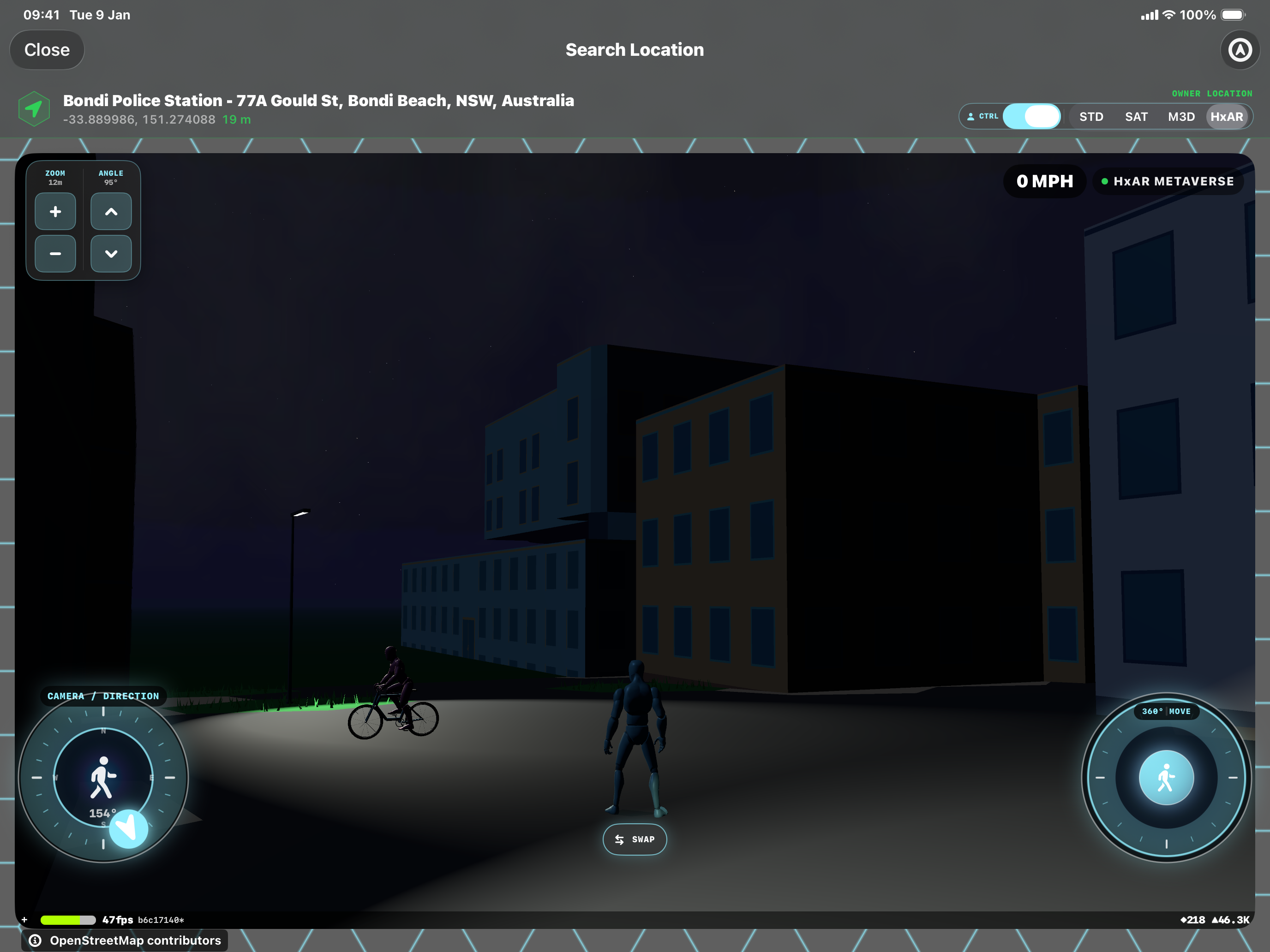
Add light to the HxAR Metaverse with a lamppost on a suitable Grass or Property Land HexTile. Open the tile’s Services menu to create it, then tap the land or the standing pole to aim its light and adjust the coverage. The app calls the fixture a Lamp Post and switches its light with the local Metaverse day and night cycle.
What this guide achieves
Create a lamppost, aim its light and save its settings.
- Topic
- 36
- Starting point
- Signed in to HxAR, with an eligible HexTile you can manage
- Guide time
- About 6 minutes
- Screen status
- Next app update preview
Quick walkthrough
Create and adjust a lamppost in seven steps.
The menu path is Services → Add Lamp Post. To adjust an existing lamp, return to Services → Lamp Post Settings.
- 01
Open the normal HxAR Metaverse view
Open your location in Search Location and select the HxAR map mode. If the status badge says LAND VIEW, tap it to return to HXAR METAVERSE. Use the normal world view to open the tile’s editing options.
- 02
Choose suitable Grass or Property Land
Find a clear individual Grass HexTile—the green terrain—or a Property Land HexTile. Read the tile’s type instead of relying only on its colour. Adding a lamp needs a clear placement point without another tile plan or occupied building anchor. On actively owned land, you need permission to manage that tile.
- 03
Open Services and add the lamp
Tap the HexTile to open its options cube, turn the cube if needed and choose Services. Select Add Lamp Post and wait for the save to finish. The lamp stands on the existing ground; adding it does not change the tile’s terrain type.
- 04
Tap the tile again and open Lamp Post Settings
Tap the same HexTile again, or tap the standing lamp’s pole. Choose Services, then Lamp Post Settings. The settings panel leaves the lamp visible so you can preview your adjustments in the scene.
- 05
Adjust direction, tilt and coverage
Use Direction to rotate the head and beam. Tilt from vertical aims from straight down towards the surrounding ground. Coverage changes the approximate area reached on level ground. Watch the preview as you move the sliders; the beam is easiest to judge at night.
- 06
Save the settings you want to keep
Choose Save and wait for the operation to finish. The settings belong to that lamp. Cancel, or closing the panel without saving, restores its saved appearance. Reset beam to defaults resets tilt and coverage while keeping your selected direction; choose Save to keep that reset.
- 07
Check the result in the world
View the lamp after sunset to inspect its pool of light. During daylight the pole remains visible and the light stays off. Reopen Services → Lamp Post Settings whenever you want to make another adjustment. To take the fixture away, use Services → Remove Lamp Post.
Which HexTiles can have a lamppost?
Each HexTile can have one Lamp Post. Adding a lamp and opening its settings require eligible Grass or Property Land. A green-looking tile is not enough by itself: check its actual type and whether its placement point is clear. A tile with another plan or an occupied building or shop anchor does not offer a new lamp.
Signed-in players can manage a lamp on eligible unowned land. On actively owned land, management is restricted to the owner or an administrator. Unowned land is shared, so another permitted player may later change or remove its lamp. The current land owner controls a lamp even if someone else originally created it.
Tiles grouped into a Big Property retain their Property Group management route; a lamp does not unlock individual land-editing controls for grouped tiles. If Services does not offer Add Lamp Post, check the selected tile and its permissions rather than repeatedly tapping the same option.
What do the adjustment controls do?
Lamp Post Settings previews changes locally before you save. Each lamp has its own direction, tilt and coverage, so you can aim neighbouring lamps differently.
Direction
Rotate through a full circle from 0° to 360°, with compass labels to help you aim. North is 0° or 360°, east is 90°, south is 180° and west is 270°.
Tilt from vertical
Choose from 0° straight down to 45° outward. The default is 22.5°. A greater tilt directs the light farther to one side of the pole.
Coverage
Adjust the approximate area on level ground from 109 m² to 870 m². The default is about 435 m². These are estimates: uneven terrain, nearby objects and the soft edge of the light affect the visible result.
Reset beam to defaults
Restore the default tilt and coverage without changing the direction you selected. This is still a preview until you choose Save.
Check the beam at night and keep your changes
Lamp Posts follow the Metaverse’s local solar day and night cycle. They light up around sunset and switch off after sunrise. During a daytime settings preview, the fixture rotates but its light remains off. You do not need to create a replacement lamp when the time of day changes.
Move close enough to inspect the ground under the lamp. The app limits the number of nearby lamps that cast full spotlights, so a distant glowing head does not necessarily show a visible pool of light from your current position.
Save keeps the current settings. Cancel or closing the panel discards the preview. If saving fails, read the message and retry while your draft is still open. Returning to the location or tapping the tile again refreshes the saved lamp details.
Remove a lamp or find a missing option
Tap the lamp’s pole or its land, open Services and choose Remove Lamp Post. You still need permission to manage it. An existing lamp can remain removable even after the tile’s type changes, although its adjustment settings may no longer be available.
If a building or another experience opens when you tap, return and select visible ground on the intended tile. If LAND VIEW is active, switch back to the normal HxAR Metaverse view. Allow the location and saved lamp information to load before reopening Services.
If the lamp is present but appears unlit, check the local time of day and move closer. If an add, edit or removal fails, check the displayed message and your connection. A menu being open does not guarantee that the tile’s ownership is still the same when you save.
Guide path
Move through HxAR one topic at a time.
New topics will be linked back into earlier guides whenever one action leads naturally to another.
Helpful now