
How To Topic 23 · HxAR Metaverse
How to Walk, Explore and Drive in the HxAR Metaverse
HxAR Metaverse turns an outdoor Property Visit into an interactive virtual world. A procedural avatar can walk across streamed HexTiles, selected Shared Story assets can appear around their assigned properties, and a valid nearby Drive Group can be boarded and driven. Everything here is virtual-world movement—not physical navigation or vehicle control.
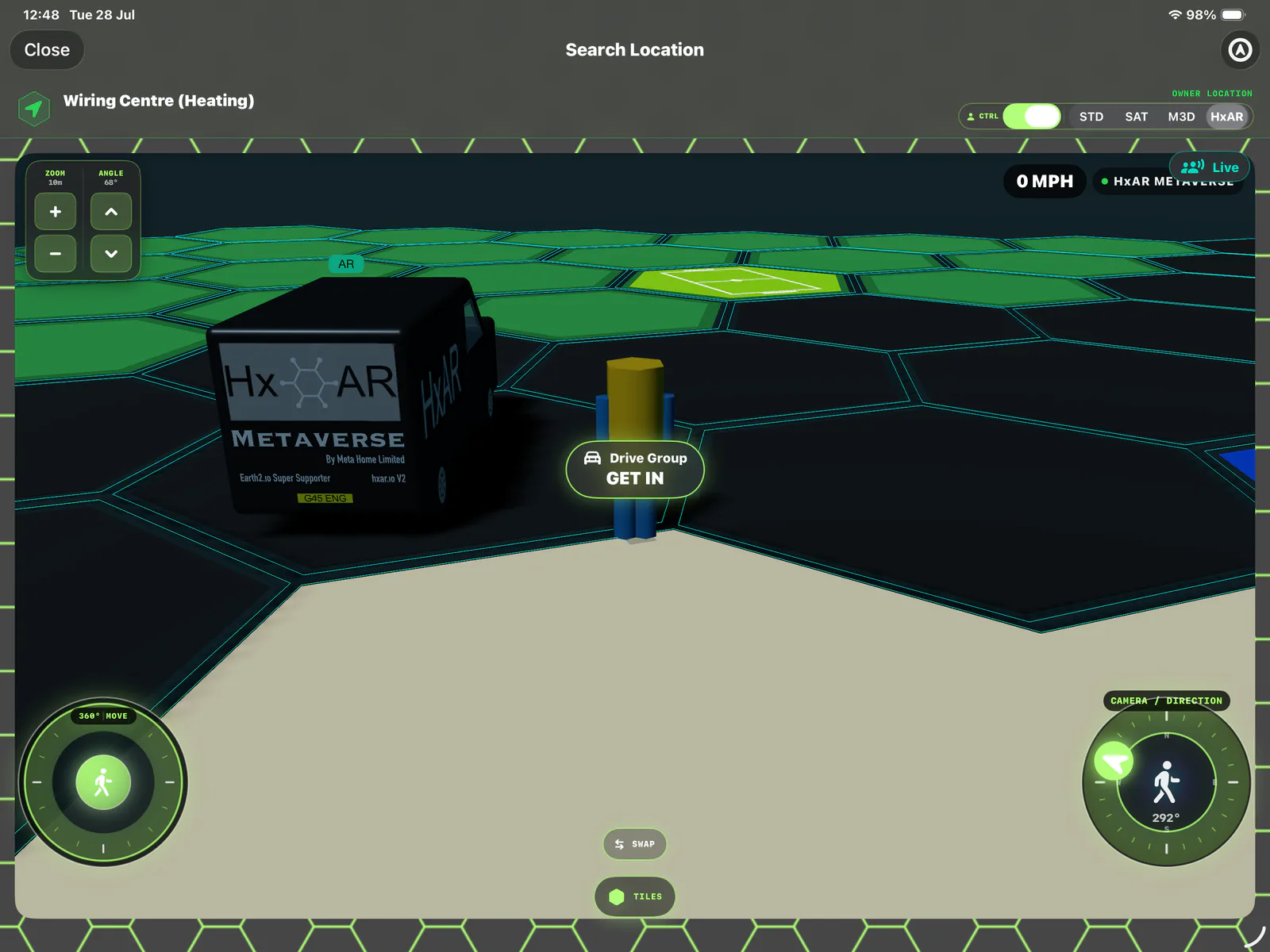
What this guide achieves
Move the avatar safely, board and leave a supported Drive Group, recognise terrain behaviour and understand when a configured VR Building can open.
- Topic
- 23
- Starting point
- An outdoor Visit Location screen for an actively owned property, with HxAR selected
- Guide time
- About 12 minutes
- Screen status
- Development feature guide
Quick walkthrough
Walk, board and drive through the HxAR world in eleven steps.
Set a clear view, learn the two avatar controls, approach only a valid Drive Group and treat a VR Building doorway as a separate destination.
- 01
Open Visit Location
From an actively owned individual property, choose Visit Location. A grouped property with a saved VR Building may open that building directly instead of this outdoor view.
- 02
Set and save the first view
If HxAR asks for a view direction, adjust the heading and camera, then save it. Direction, distance and pitch are stored locally for this property, user and mode.
- 03
Keep HxAR selected
The outdoor visit opens in HxAR by default. Avatar walking, HxAR terrain behaviour, nearby boarding, Live presence and vehicle auxiliary controls belong to this mode.
- 04
Show the controls with CTRL
Turn CTRL on if the movement controls are hidden. CTRL changes only their visibility; it does not enable ownership or control another person.
- 05
Walk with 360° MOVE
Drag the left movement joystick in the direction you want to travel. Movement is relative to the current camera heading and stops when you release it.
- 06
Turn the camera and swap the layout if needed
Use CAMERA / DIRECTION to change the view heading. SWAP moves the movement and direction controls to opposite sides; it does not swap the avatar, vehicle or map mode.
- 07
Use TILES to read the ground
Show the grid and identify Road, Grass, Water, Property Land or an additional active colour pattern before moving. The additional colour works visually now; only the underlying base terrain controls the currently implemented movement behaviour.
- 08
Approach a valid Drive Group
Walk to within 8 metres of a loaded primary Drive Group. GET IN appears only when HxAR can resolve a supported nearby Shared Story vehicle.
- 09
Tap GET IN and use the vehicle’s controls
Boarding stops avatar movement and starts that Story Drive Group. A car can show throttle, steering, gear, indicators, lights and configured doors; simpler groups show forward, reverse, turn and stop.
- 10
Use GET OUT when stationary
Stop the virtual vehicle and choose GET OUT. HxAR places the avatar about 2 metres to the vehicle’s right and keeps the parked group available only while its tile remains in the streamed range.
- 11
Enter only a configured building doorway
A compatible grouped-property VR Building opens after a deliberate outside-to-inside crossing through its central doorway. The detailed rooms, floors and building controls will be covered in a separate guide.
Continue with the HxAR 2.1 guides
This guide records earlier avatar and vehicle controls. HxAR 2.1 adds wading through Water, River and Lake at up to 5 mph; Sea retains sink-and-return behaviour. See the new water guide before following the earlier Water description below.
An outdoor Property Visit begins with the HxAR avatar
Visit Location is currently shown for an actively owned individual property after its details load. A grouped property with no saved VR Building can also open the outdoor Search Location route; one with a saved building may go directly to that separate destination.
Property Visit opens in HxAR. On a first visit, HxAR can ask you to choose and save a view direction. The camera direction, distance, pitch and offset are stored locally for the current user, property and map mode.
The property editor still calls the non-driving choice Plane, but the HxAR renderer resolves it to the procedural walking avatar. Do not look for a separate Avatar mode in that editor.
360° MOVE controls the avatar; CAMERA / DIRECTION controls the view
Drag the 360° MOVE joystick to walk relative to the camera heading. The farther the control moves from its centre, the greater the requested walking speed; releasing it stops the movement command.
Use CAMERA / DIRECTION to rotate the view and movement reference. Zoom and Angle are separate camera-framing controls. SWAP only moves the two main controls to opposite sides, and CTRL only hides or reveals them.
Avatar position is temporary session state. HxAR does not currently promise to reopen at the last place you stood after leaving the visit, changing renderer or making the app inactive.
Selected Shared Story assets can appear around their property HexTiles
HxAR projects only the visible, selected assets from a property’s assigned Shared Story around that property’s virtual coordinate. Nearby local and CloudKit property records can contribute assets as the outdoor view streams around the avatar.
Nearby assets do not all load at once. The current lifecycle begins loading around 50 metres, releases content beyond about 85 metres, keeps no more than 36 loaded at once and performs one model load at a time.
A large, unavailable or unsafe model may remain as a DOWNLOAD marker. Automatic preparation is bounded to 64 MiB for one model and 128 MiB combined; an explicit download can still fail. A virtual asset is not proof that a physical object exists at that location.
GET IN appears only near a valid loaded Drive Group
Walk within 8 metres of a loaded primary Drive Group and HxAR can show GET IN. If the Story, required assets or Drive Group configuration cannot be resolved, a model merely looking like a vehicle is not enough to become driveable.
Boarding stops the avatar and moves control to the Story Drive Group. Car assemblies can expose throttle, steering, forward or reverse gear, indicators, headlights, interior lights and owner-configured doors. Simple, Robot or other supported groups use the smaller forward, reverse, turn and stop control set.
GET OUT stops the vehicle and places the avatar about 2 metres to its right. The parked vehicle can be boarded again while it remains within the visible tile range; leaving that streamed area releases the parked copy.
Active terrain changes the virtual movement rules
Car Drive Groups currently use a virtual maximum of 70 mph forward and 20 mph in reverse. Simple, Robot and Bike groups use their configured speed. Grass imposes a separate 10 mph terrain limit on every grounded group.
Before HxAR 2.1, a grounded avatar or vehicle entering Water would submerge and return to the last recorded non-water coordinate, or the nearest visible non-water tile when one was available. A Bridge colour alone did not establish a traversable deck in that earlier workflow. For HxAR 2.1 water and bridge-deck behaviour, follow the updated water guide.
These are HxAR Metaverse rules, not real speed guidance or a promise that the virtual path follows a physical road. Never use HxAR while operating a real vehicle.
A configured VR Building opens through its central doorway
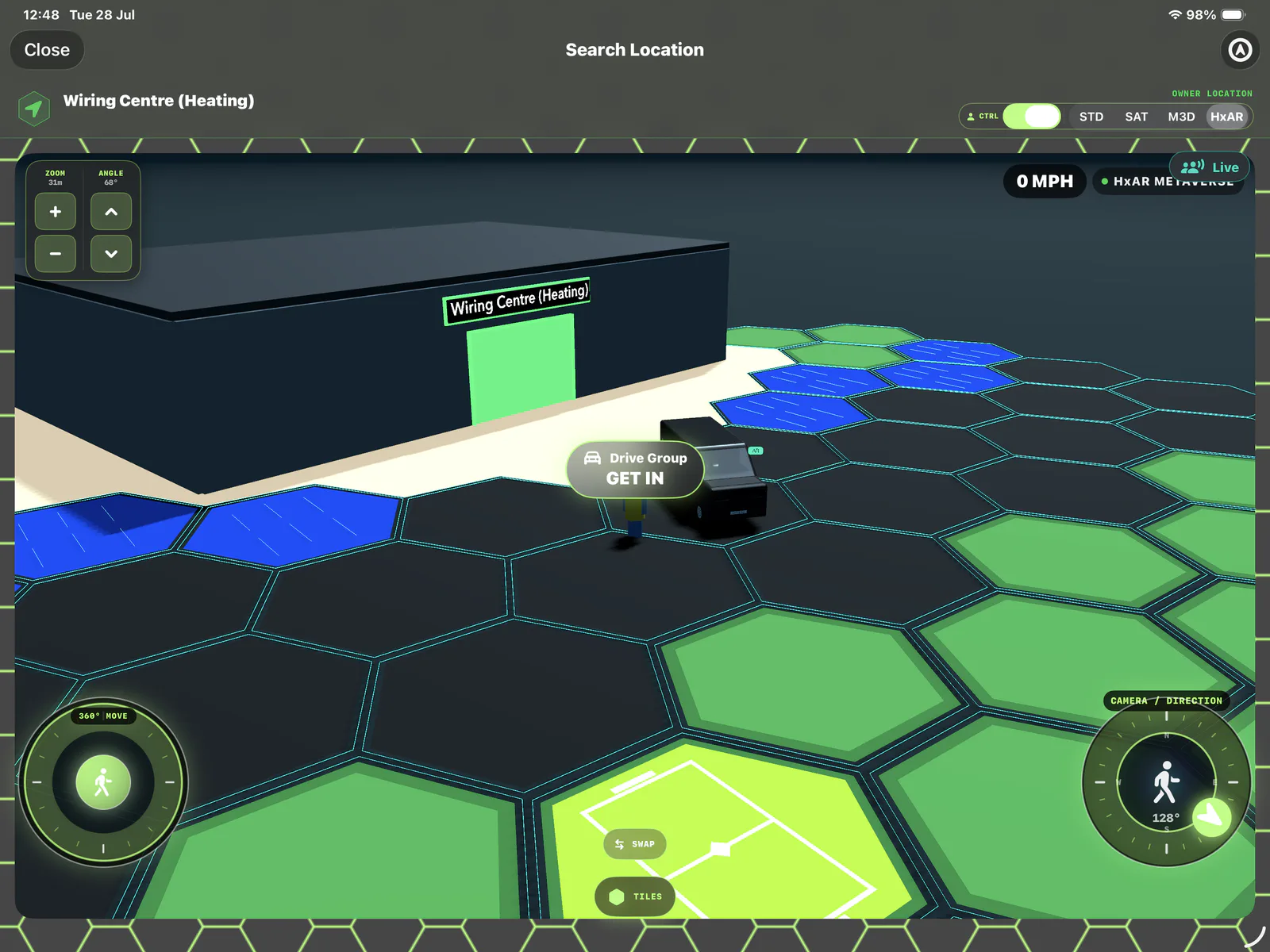
A supported grouped-property building opens only after the avatar or Drive Group makes a deliberate outside-to-inside crossing through its configured central doorway. Side-wall crossings, airborne entry and large movement jumps are rejected.
The procedural exterior shell blocks and slides movement around its configured walls, but that does not mean every Story asset, door or visible surface has collision. Crossing the valid opening starts a separate full-screen VR Building route and restores the traveller outside when that route closes.
The screenshot shows the approach to a building; it does not demonstrate its rooms or say that every property has one. Floors, rooms, portals and interior travel belong in the later VR Building guide.
Property setup saves; live movement normally resets
The assigned Story and selected assets are saved with the property. Per-mode camera framing is saved locally, but the selected map mode resets to HxAR on a new Property Visit. Avatar and vehicle position, a parked van, door states, lights and indicators are temporary session state and should not be presented as a resume-from-the-last-position feature.
Switching away from HxAR stops HxAR-only avatar walking, procedural-building interaction and optional multiplayer. Selected assets and an active Drive Group can continue to appear in provider views. Leaving or backgrounding the visit stops live movement and clears transient effects.
A creator changes the vehicle assembly or shared asset selection in the original Story and property setup, then tests and republishes deliberately. Driving around as a visitor does not rewrite the creator’s cloud Story.
Live presence is optional; virtual movement is not physical guidance
HxAR Live Multiplayer is a per-device option and is off by default. While HxAR is open and Live is enabled, it can share an opaque pseudonymous participant identifier—not the private Apple account ID—plus the display name, colour and short-lived virtual position, direction and speed. The participant identifier may remain stable across sessions, while live presence expires and this route does not retain a movement history. The current client is profiled for up to three rendered remote avatars, subject to the building or Search Location capacity plus scope and distance filtering.
The main controls have accessibility labels and compact layouts keep important targets near Apple’s general 44-point size, but the SceneKit world, individual assets and spatial relationships remain highly visual. Real-device VoiceOver, Larger Text, Switch Control, colour, motion and one-handed-use testing is still required.
Use this mode while stationary or seated where possible. It does not grant physical access, follow real roads, detect every real obstacle, control a real vehicle or make a building safe to enter. Stop if distracted or uncomfortable, and respect people, traffic, steps, water, restricted areas and private property.
Guide path
Move through HxAR one topic at a time.
New topics will be linked back into earlier guides whenever one action leads naturally to another.
Helpful now