
How To Topic 28 · Sign Posts
Raise a Sign Post and Explore Nearby Places in HxAR
A HxAR Sign Post names the local area and points towards nearby places in the virtual world. Its six arms use the surrounding map information to provide direction and distance. This guide explains where a post can stand, who can manage it, how to choose Miles, KM or Meters, and how to correct the area name.
What this guide achieves
Raise a Sign Post where it is permitted, read its directions, and manage the shared name without confusing wayfinding with land ownership.
- Topic
- 28
- Starting point
- HxAR Metaverse → an eligible Public Plaza HexTile → HxAR Options → Sign Post
- Guide time
- About 8 minutes
- Screen status
- HxAR 2.1 release guide
Quick walkthrough
Create and read a Sign Post in seven steps.
Choose a Public Plaza, check whether it already has a nearby post, then use the shared wayfinding controls.
- 01
Open the local HxAR world
Use World View or a property visit to enter the HxAR Metaverse. Wait for the local world to prepare.
- 02
Select a Public Plaza HexTile
Tap an eligible Public Plaza tile and open Sign Post in HxAR Options.
- 03
Check ownership and nearby posts
Check your editing rights and whether a post already stands nearby. A post within 100 metres prevents another.
- 04
Raise the post
Choose Raise a Sign Post. HxAR creates a wooden post from the surrounding place information; read any save error.
- 05
Choose distance units
Under DISTANCES, choose Miles, KM or Meters. Settings → Distance Units uses the same device preference.
- 06
Read or correct the name
Read the panel and arms. If permitted, use Correct the Name, enter a correction and choose Save Name.
- 07
Remove only when appropriate
Use Remove Sign Post only when it should come down. The tile remains a Public Plaza.
A free wayfinding feature on Public Plaza land
Raise a Sign Post is a free action. A post is shared wayfinding for the locality, rather than a personal advert or a claim to the ground beneath it. Raising one does not buy a HexTile, assign a property or make you its owner.
The Public Plaza plan makes the option available. An unowned plaza is open to signed-in users under the shared editing rules. If somebody actively owns the HexTile, only that owner or an administrator can raise, rename or remove its post. The person who originally raised a post does not retain exclusive editing rights on unowned land.
Read the area panel and six directional arms
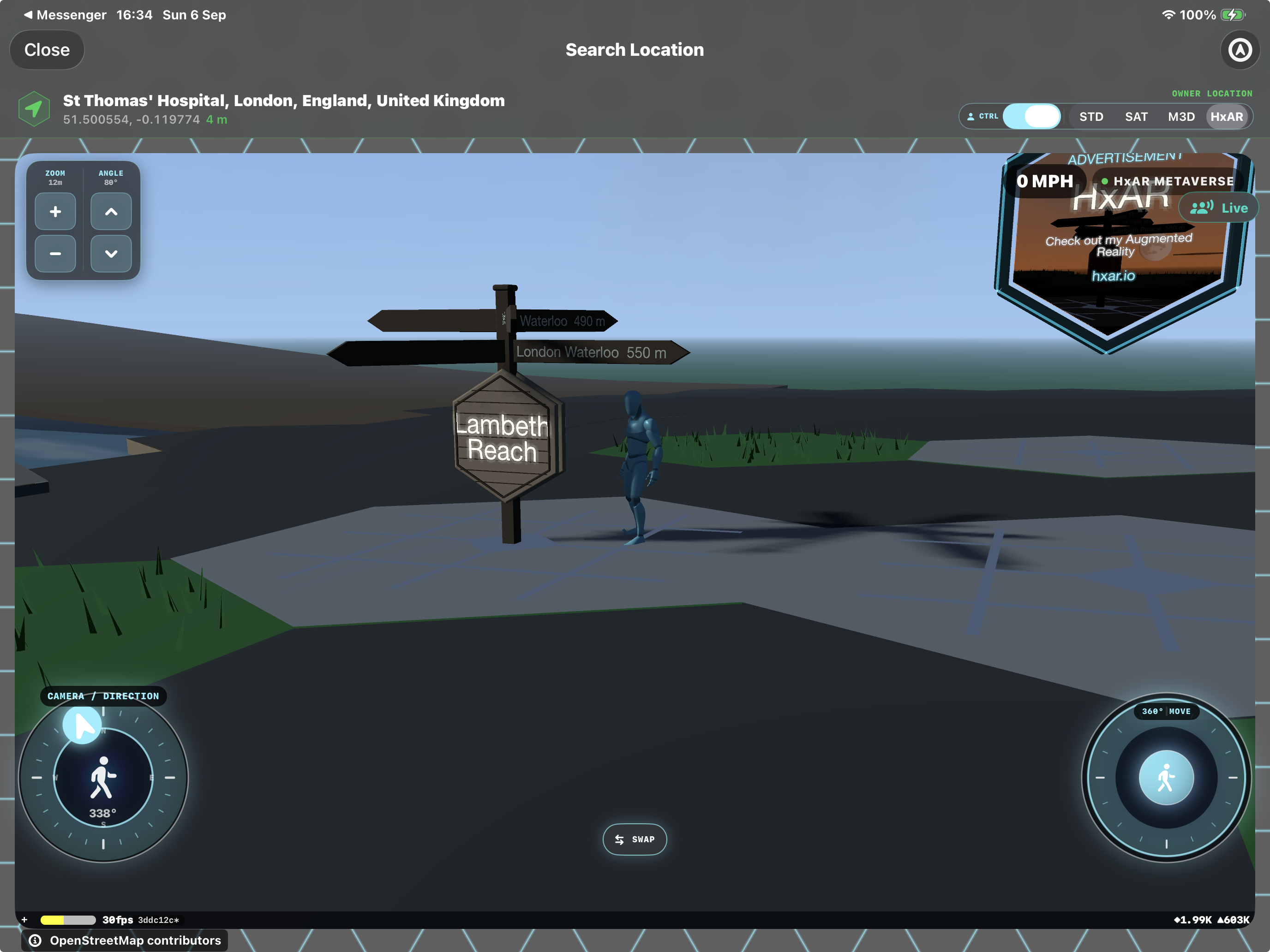
The hexagonal panel carries the area name. Each arm points along one of the six directions of the HexTile grid. HxAR chooses nearby named places from the surrounding map information, so the wording depends on where the post stands and what local data is available.
The screenshot shows Lambeth Reach on the panel, with Waterloo and London Waterloo on two arms. Your chosen area will show different places. You do not type six destination labels.
Where an arm has no suitable named destination, it can show a compass direction such as NNE or W without a distance. That is an expected fallback. The arms provide bearings and approximate geographic distances; they do not describe a pavement route, travel time or accessible entrance.
Switch between Miles, KM and Meters
The DISTANCES segmented control uses the same setting as the dashboard’s blue Settings gear → Distance Units. Miles is the default. Changing the selection updates how a standing Sign Post writes its distances on this device.
Other visitors can use different units. This preference does not move destinations or change the shared name. Set it separately on each device if you want matching labels.
Miles
Longer distances use mi. A distance below 0.1 mile is written in metres instead, which makes a nearby place easier to judge.
KM
Longer distances use km. Distances below 0.1 kilometre appear in metres.
Meters
Distances use m throughout. The selector spells the option Meters, while the guide uses metres in explanatory text.
Why another Sign Post may be unavailable
HxAR keeps posts at least 100 metres apart. If a nearby post already serves the area, the panel may show its area name followed by already has a Sign Post. Move to a different locality that needs wayfinding instead of placing several beside one another.
Sometimes Raise a Sign Post is initially visible but the save finds a nearby post and refuses the placement. Follow the resulting message. The spacing rule is based on distance, so two differently named places very close together can still share one post.
Correct the shared area name
Choose Correct the Name only when the panel’s area name needs a useful correction. The field opens empty, with the existing name shown as a prompt. Enter the actual local name and select Save Name. The correction is visible to everyone who visits that post.
Names must contain between 1 and 64 characters after surrounding spaces are removed. Saving the unchanged map-derived name can produce That is already the name on the sign. Cancel leaves the current name alone. The correction changes the area panel; it does not replace the automatically chosen destination arms.
On unowned land, other signed-in users can also correct the post. Choose a recognisable local name.
Check saves and remove a post carefully
The post can appear while HxAR saves it. If Sign Post Wasn’t Raised appears, that placement was not accepted and the new post is removed. Check the connection and the reported reason, including active ownership or a nearby post, before trying again.
Remove Sign Post takes down the shared object. If removal fails, HxAR restores it and shows Sign Post Wasn’t Taken Down. The Public Plaza itself stays in place. A missing editing option on somebody else’s land is an ownership restriction, not a reason to change a neighbouring tile.
For a business message, use an Advert Board on your own eligible plaza. Sign Posts remain focused on helping visitors understand the area.
Guide path
Move through HxAR one topic at a time.
New topics will be linked back into earlier guides whenever one action leads naturally to another.
Helpful now