
How To Topic 34 · World and sky
How to Explore the Day and Night Cycle in the HxAR Metaverse
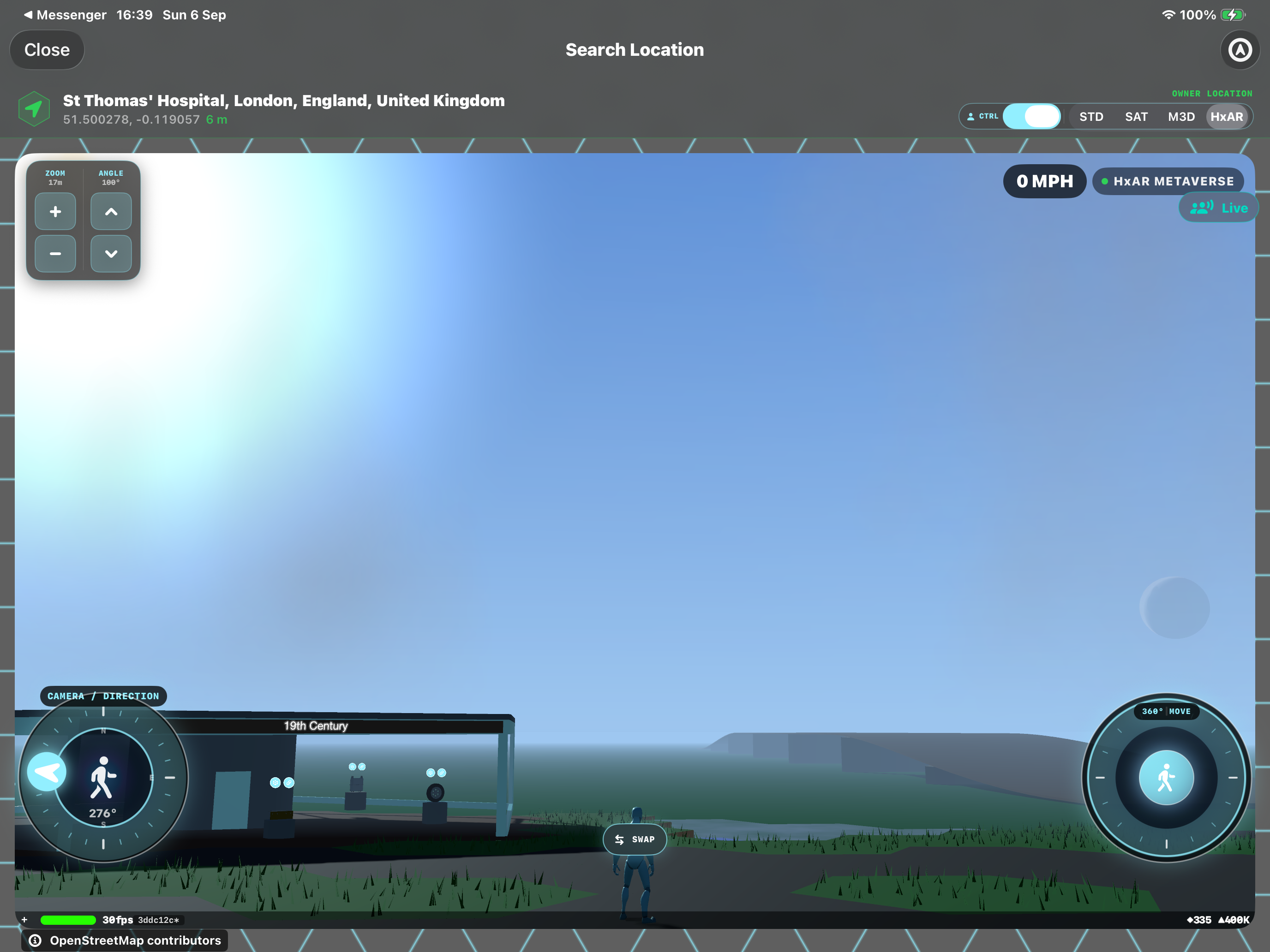
The HxAR Metaverse sky changes with the time and the virtual place you are visiting. Sunlight, shadows and the horizon respond together, while the Moon, stars and drifting clouds give the world a changing atmosphere. You explore that cycle through the normal camera controls.
What this guide achieves
Observe the changing HxAR sky and understand which effects follow time and location automatically.
- Topic
- 34
- Starting point
- A local HxAR Metaverse view entered through World View or Visit Location
- Guide time
- About 7 minutes
- Screen status
- HxAR 2.1 release guide
Quick walkthrough
Inspect the sky in five steps.
You do not need to own a building or save a setting to see the day and night cycle. Camera controls depend on the visitor view you have opened.
- 01
Open the HxAR world at a location
Use Map → World View to choose a place and enter the HxAR Metaverse, or open Visit Location from your actively owned property. Make sure HxAR is selected in the local map controls, because the sky described here belongs to that virtual world.
- 02
Stop somewhere with a clear view
Pause your Avatar when one is available. Choose a view with some open sky above the horizon and a nearby building or patch of land, so you can compare the sky with the light on the ground.
- 03
Angle the camera towards the sky
Use ANGLE’s upward control to look towards the horizon and sky. Turn CAMERA / DIRECTION to inspect other directions. Use the downward ANGLE control to bring the ground back into view and ZOOM to adjust the framing.
- 04
Compare sunlight, shade and the horizon
Look at lit walls, shaded walls, the ground and the distance. At a lower sun the colours become warmer and the world darkens towards twilight. Cloud cover can soften or suppress strong shadows, so a cloudy scene may look different even at a similar time.
- 05
Return at another time or visit another place
Revisit the location later to compare daylight, twilight and night. Alternatively, close the local view and choose a distant location through World View. The sky follows the virtual place and current time, so a place elsewhere on Earth can have a different lighting phase.
The day and night cycle runs automatically
HxAR uses the current time and the location of the virtual world to place the Sun and set the lighting. When an Avatar is travelling, the lighting follows its virtual position. You do not need to tap a day/night switch each time you move or reopen a location.
The cycle is not a short repeating animation that promises sunset after a few minutes. Leave time between comparisons if you want to see a substantial change. The date and latitude also affect the Sun’s path, so the same place does not have an identical daylight period throughout the year.
The ordinary visitor interface does not offer a public time-of-day slider or a permanent daylight setting. Owning a HexTile or building does not give you control over the outdoor Sun. No save action is required to watch the lighting change.
What changes from daylight to night
Look beyond the sky colour. The illumination on objects and terrain changes with it, and the distant haze follows the same transition. Keeping a building and the horizon in one view makes these changes easier to recognise.
Daylight
A higher Sun produces stronger daytime illumination. Rotate around a structure to compare its sunlit and shaded sides. The apparent brightness still depends on cloud cover and what the camera is facing.
Low Sun and golden-hour light
Near the horizon, the sunlight becomes warmer and weaker. Walls, ground and distant haze respond to the lower Sun together; the scene is not simply a daytime world with an orange background.
Twilight and night
After sunset the world dims progressively. Some ambient illumination remains, and stars become more visible as the sky darkens. Strong sunlight shadows are not expected when the Sun is too low or the cloud cover is heavy.
The Moon, stars and clouds have their own visible changes
The Moon’s position and illuminated shape depend on the date, time and virtual location. It can appear in a daytime sky, as in the supplied screenshot. A missing Moon does not by itself mean something failed: it may be below the horizon, faint or obscured.
Stars fade in as the sky becomes sufficiently dark and are less prominent under cloud. Their orientation responds to the location and time, so looking from another part of Earth can give you a different view of the night sky.
Clouds drift and their coverage varies gradually with place and time. These are simulated conditions for the HxAR world, not a live local weather forecast. Rain outside your window does not require an identical sky above the virtual location.
Make a useful day-to-night comparison
Choose a recognisable feature such as a building, Sign Post or shop and keep it in the frame. Note the location, viewing direction and approximate time when you take a screenshot. Return to a similar camera position later so you can compare the light on the same surfaces.
Avoid comparing only a close-up wall in one visit with an open sky in another. Camera direction, shade and cloud cover can change how bright the scene looks even before the time of day changes significantly.
If the sky looks unexpected
First confirm that you are in HxAR rather than STD, SAT or M3D. Check the virtual location in Search Location: a remote destination can be at a different point in its solar day from your physical location.
If you cannot see the sky, angle up or turn away from a nearby building. If you cannot see the ground, angle down. These camera changes do not alter the actual day/night phase.
A dark scene at night, a pale Moon in daylight or reduced shadows under cloud can all be normal. If the local world has not finished loading, let it prepare before judging the sky; use the available retry action if entry fails.
Guide path
Move through HxAR one topic at a time.
New topics will be linked back into earlier guides whenever one action leads naturally to another.
Helpful now