
How To Topic 30 · Build in the Metaverse
How to Replace Mapped Buildings in HxAR
HxAR 2.1 lets an owner create a Studio replacement for a mapped building. Begin with either a Micro Mapped Property or a larger mapped property that you own, open its Building controls, and design from its existing footprint. The final step is selecting the sent design so it becomes the building standing in the Metaverse.
What this guide achieves
Create and place an enterable replacement for your mapped building, while checking its dimensions, pictures and saved revision.
- Topic
- 30
- Starting point
- An owned Micro Mapped Property or larger mapped property in Property Management
- Guide time
- About 15 minutes
- Screen status
- HxAR 2.1 release guide
Quick walkthrough
Replace a mapped building from its property overview.
Verify ownership, design the replacement, send it, select it for the land, then inspect it in the world.
- 01
Open the mapped property you own
In Property Management, open Mapped Plots and select your Micro Mapped Property or larger mapped property. Check Owned by You. A Micro Mapped Property uses one Anchor HexTile; a larger mapped property has its own CORE ownership details. Use this mapped-property card rather than starting with an unrelated ordinary HexTile or Big Property group.
- 02
Check Building Measurements
Under More controls, choose Building Measurements. Inspect the footprint dimensions, height, orientation, ground area and position. Note any estimated height. These are measurements from the mapped representation that will seed the replacement, so checking them now helps you recognise the correct building and plan doors and facade pictures.
- 03
Choose Building, then Design a replacement
Return to the overview and open Building. Wait while HxAR checks the exact mapped building. Under Replace it, select Design a replacement. HxAR opens the 3D Design Studio with the source shape already prepared. If the building cannot be verified, refresh the property and try again after the mapped data is available.
- 04
Create the doorway and finish the surfaces
Use the Studio on iPad to prepare the replacement. Add a drawing plane to a suitable wall, draw a rectangular door panel at ground level, project it onto the wall and mark that panel as a doorway into the building. Add colours, materials and any facade pictures you want in the replacement. The mapped starting shape does not automatically copy pictures or doorways from an earlier Studio building.
- 05
Send the completed design to the service
Finish the active drawing, projection or surface edit. Open the top-right Save menu and choose Send to Service. Wait for the send operation and any picture uploads to finish. HxAR requires a saved, walkable doorway for a mapped-building replacement; if it reports a doorway problem, correct the selected panel and send again.
- 06
Select the newly sent design in Building
Close Studio to return to Building. Under Your designs, check the sent date, revision, doorway count and picture count, then tap the new entry. Pull to refresh if it has not appeared. Choosing a design places its saved copy on the land; simply sending a new Studio revision does not update an existing standing building.
- 07
Review an existing replacement before overwriting it
If a Studio building already stands here, check any replacement prompt carefully. Where compatible, Keep pictures and replace can combine the standing facade pictures with the new design. If HxAR reports that the walls do not match, use Design from this building to return to the measured route. A red option to replace and delete pictures removes those pictures from the standing copy.
- 08
Inspect the building and test its doorway
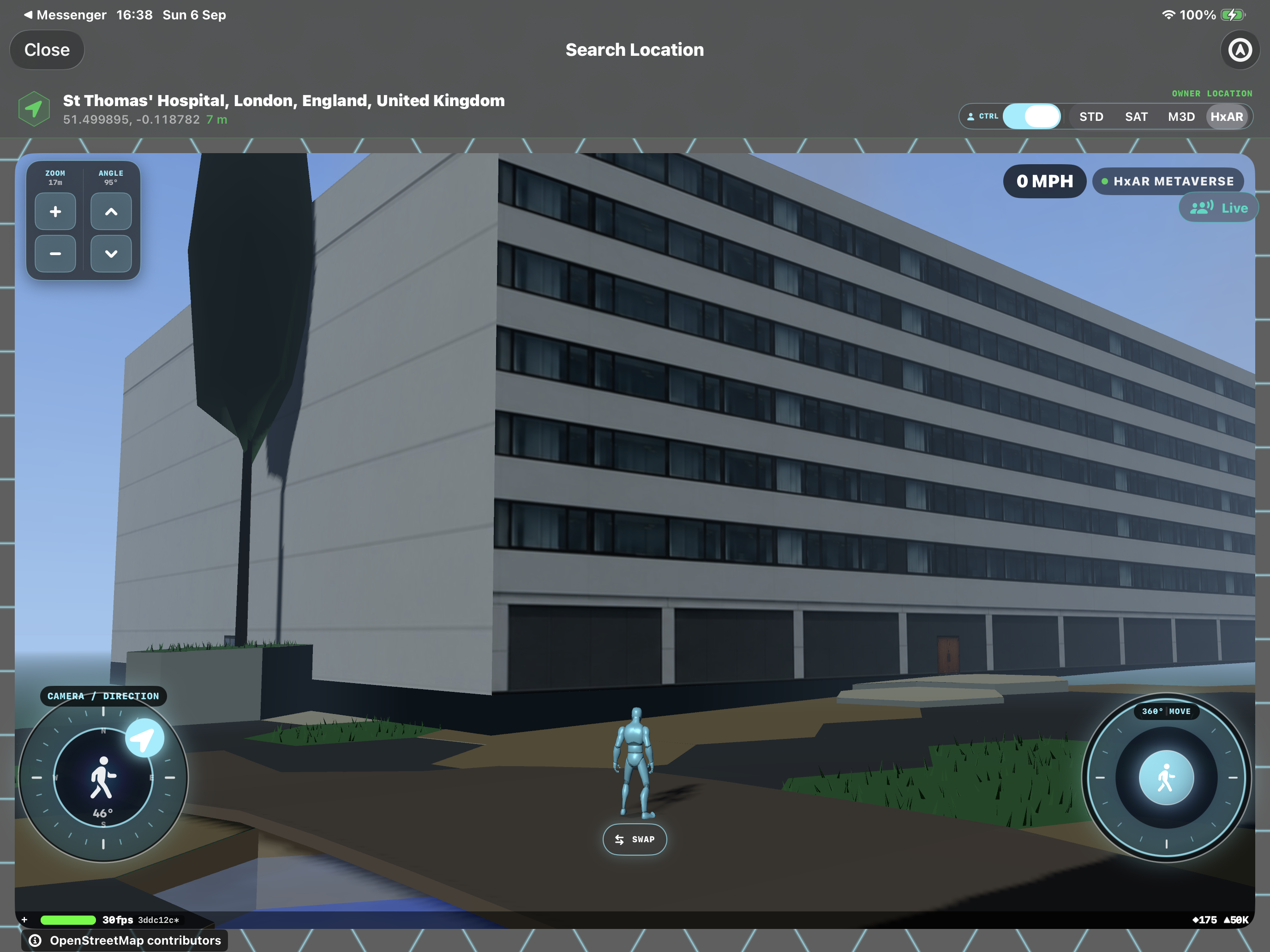
Return to the property location in the HxAR Metaverse. Walk around the outside using the avatar controls, check the building against its surroundings and approach the doorway on foot. Cross the doorway to enter the Studio room, then use Exit to return outside. If the old version remains, recheck which revision is marked Standing in Building.
What changes when you replace a mapped building?
A placed Studio design replaces the visible mapped shell at that building’s location. The mapped building’s existing collision remains, so keeping the replacement aligned with its source footprint is important. A surface that looks open is not automatically a route through the building: the Studio doorway is the explicit entrance into its room.
HxAR uses the mapped building’s position for placement. A replacement can sit away from the middle of a HexTile because the original building is not necessarily centred on the tile. The Where it goes section explains the placement and shows the offset. This is expected positioning, not a reason to shift the design away from its source.
Micro and larger properties use the same owner workflow
Both begin at the property overview and continue through Building → Design a replacement. For a larger mapped property, HxAR checks that the design belongs to that exact purchased building before offering it for placement.
Use the correct building guide
Mapped-building replacement is separate from constructing and decorating a VR Building on an ordinary property group. Those room-building controls are covered in the VR Buildings guide; they are not the route to designing this mapped replacement.
Understand sent designs, standing copies and pictures
The design list and the building on the land are separate. Your designs contains the versions you have sent. On this plot describes the saved copy currently standing there. The exact matching row is marked Standing; other eligible entries can replace it.
Names alone may not distinguish two designs. Compare the revision, sent time, doorway and picture counts before selection. After an edit, send the new design and select that new row. A previous standing copy will keep its previous doorway and pictures until you replace it.
Preserve pictures only when HxAR offers it
Keep pictures is available only when HxAR can match the standing pictures to the replacement’s walls and the new design has a valid doorway. It creates the combined design before replacing the land copy. If it is unavailable, do not assume the old pictures will transfer.
Replacement has no placement undo
The Building screen does not keep an undo copy of the standing building. Review the replacement and picture-loss information before confirming. Keep the photographs you used available so you can apply them again when needed.
Troubleshoot a missing design or blocked entrance
If Your designs is empty, complete Send to Service in Studio and refresh Building. If the source property changed or cannot be checked, reopen the property and let HxAR verify it again. A design associated with a different larger mapped building will not be offered as a matching replacement.
No saved doorway
Return to 3D Preview, select the projected rectangular panel and activate Make this surface a doorway into this building. A dark rectangle or a photograph of a door is not sufficient. Send the corrected design and select its new revision.
The avatar meets an invisible wall
The original mapped collision still applies around the building. Approach the actual saved doorway on foot and allow the building detail to load. If the doorway is raised, too small or missing from the standing revision, correct and replace the design.
Remove the Studio copy
Building includes Take it down for the building on this plot. Use it when you intend to remove that standing Studio replacement. This is a separate action from closing Studio or leaving the location.
Guide path
Move through HxAR one topic at a time.
New topics will be linked back into earlier guides whenever one action leads naturally to another.
Helpful now