
How To Topic 24 · VR Buildings
How to Create, Decorate and Explore an HxAR VR Building
HxAR 2.0 currently provides one configurable Simple Portal VR Building for a valid Big Property. Owners choose its size, direction, colours, permitted floors and room names, then decorate saved spaces for visitors. Optional Live presence can bring people together, but the 2–4 person capacity applies to the whole building—including you—not to every room separately.
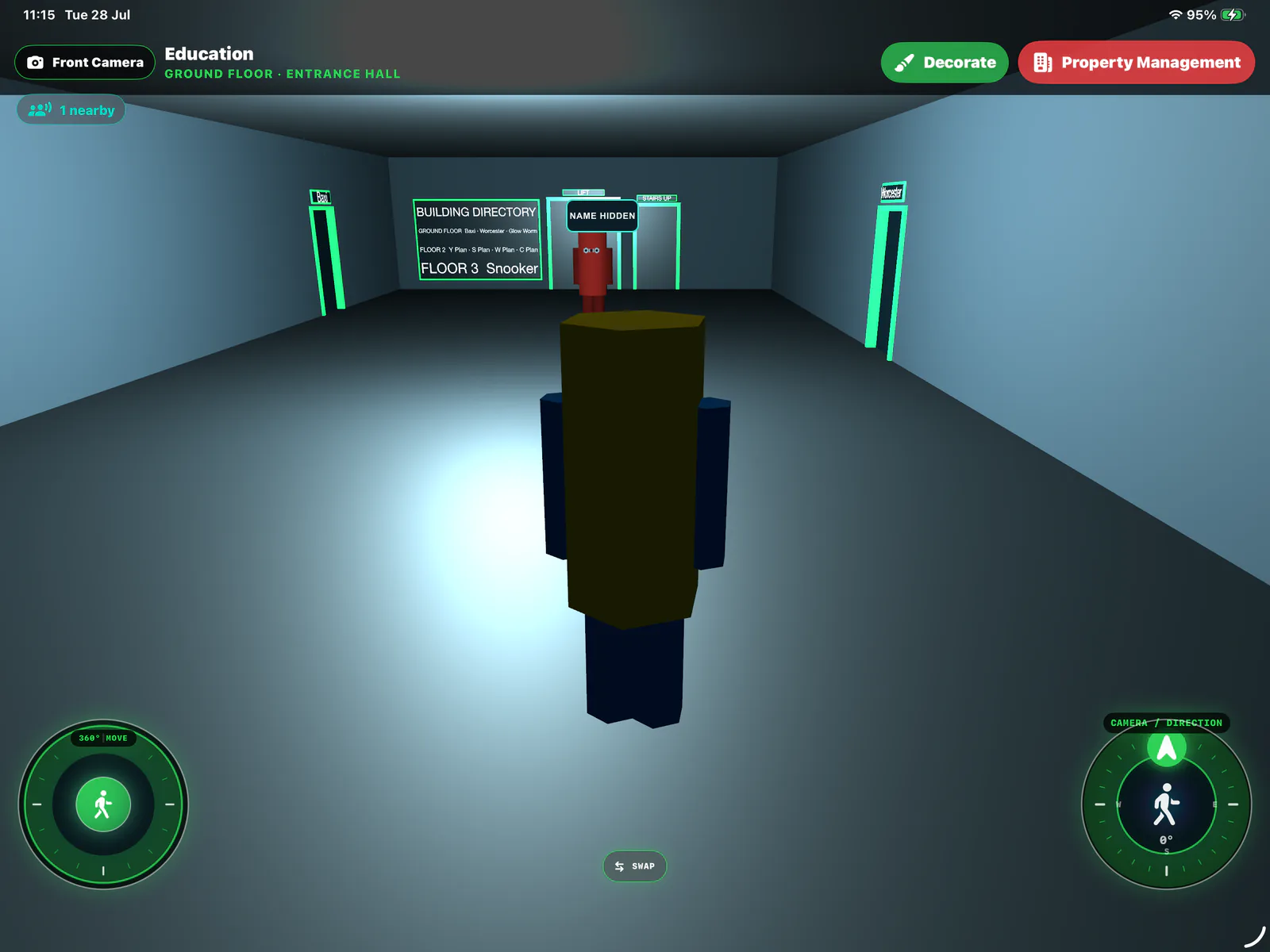
What this guide achieves
Create a valid VR Building, move between its entrance hall, floors and rooms, add supported visitor content and understand the exact Live capacity and privacy boundary.
- Topic
- 24
- Starting point
- Property Management → a named Big Property made from at least two adjoining, actively owned HexTiles
- Guide time
- About 14 minutes
- Screen status
- Development feature guide
Quick walkthrough
Create and prepare a VR Building in eleven steps.
Begin with valid owned HexTiles, choose the building and modular layout, then decorate named rooms and enable Live presence only if you want it.
- 01
Build a valid Big Property
Group between 2 and 100 unique, adjoining HexTiles that you actively own. They must form one connected footprint in the same local reference frame, contain no enclosed gap and not already belong to another Big Property. Assignment alone is not ownership.
- 02
Open the VR Building editor
Open the named Big Property in Property Management and choose its building controls. HxAR checks the group owner, current tile ownership and footprint again when the configuration is saved.
- 03
Choose the current exterior
Select Simple Portal Building. It is the only configurable exterior style in the present development build; HxAR does not yet offer separate house, shop, school or office shell presets.
- 04
Set its size, colours and front direction
Choose the footprint and visual colours, then point the front direction towards the intended portal opening. The complete shell and sign must fit inside the real grouped-HexTile mesh.
- 05
Choose the room layout
Use the modular layout for an entrance hall, named rooms, stairs and lift. Older saved legacy buildings remain one full-size room and are not converted automatically.
- 06
Choose floor height and permitted floors
Select Compact, Standard or Grand floor height, then choose only the number HxAR allows for this footprint. Each newly added floor currently requires 1 HxElectrum; removing a funded floor does not refund it.
- 07
Name at least one room on every floor
Rooms are generic spaces that you name for their intended use. The names appear above doors and in the ground-floor directory; the labels shown in these screenshots are examples, not fixed room templates.
- 08
Save, visit and enter
Save the configuration, then use Visit Location or deliberately cross the configured outside doorway on foot or in a grounded virtual vehicle. A saved grouped-property building can open directly from its property record.
- 09
Use doors, stairs or the lift
Enter a room through its matching doorway, use stairs for one adjacent floor at a time or choose any real floor in the lift. Basement remains visible as unavailable in the current build.
- 10
Decorate the current space
As the exact Big Property owner, tap Decorate to add supported wall media, pedestal USDZ assets, Saved Wired AR plans or the current AR Snooker game label. Visitors can view and interact but cannot edit or delete the room.
- 11
Enable Live only when wanted
Live multiplayer is off by default. After enabling it in Settings and confirming with Apple, a building can use the service-wide capacity of 2, 3 or 4 people total, including you; the current default is 2.
One configurable building style, with owner-named rooms
The current creation option is Simple Portal Building. Owners can change its width, length, front direction, building colour, portal-frame colour, sign colour, floor-height preset, permitted floor count and room names. It should not be described as a catalogue of ready-made houses, schools, shops or offices.
Creation begins with a valid Big Property of 2–100 actively owned adjoining HexTiles. The footprint must be connected, have no enclosed gap, stay in one local reference frame and use tiles that are not already in another group. HxAR rechecks ownership and geometry on save; a personal assignment does not qualify as ownership.
New buildings use the modular layout by default. Existing legacy configurations retain one full-size room until the owner deliberately changes their setup; HxAR does not silently convert them.
The footprint decides how many floors and rooms will fit
The editor’s outer width and length range is 4–250 metres and the saved height range is 3–120 metres, but those are not promises that every size will fit. The complete rendered building, including its sign and corners, must remain inside the grouped HexTile footprint—even when that footprint is concave.
Compact floors are 3.0 metres floor-to-floor, Standard floors are 3.4 metres and Grand floors are 4.0 metres. The application hard limit is 40 floors, while the real allowance can be much lower because it also depends on building width, length, height, owned-tile count and the entrance core.
More than one floor requires a valid six-metre entrance, stair and lift core plus enough remaining room depth. Each floor needs at least one room. Current room capacity is calculated from the available frontage and depth rather than selected from a fixed catalogue.
One HxElectrum funds each newly added floor in the development build. Changes to an already funded room, colour, size or direction do not add another floor charge; removing floors or the complete building does not refund funded capacity. A separate Big Property merge charge may also apply when the group is formed or enlarged.
The entrance hall connects rooms, stairs and the lift
A modular visit starts in the Ground Floor entrance hall. The directory uses the owner’s room names, while room doors, lift and stairs lead to the saved destinations. Basement is not a usable destination in the current build.
Stairs move one adjacent floor at a time. The lift can select any real floor in the building. HxAR keeps only the currently needed building module prepared, unloading the previous hall or room and returning the visitor through the matching doorway.
A room can begin preparing as the avatar approaches its door. If a module cannot be prepared, HxAR shows an unavailable state rather than treating a wall as a working entrance.
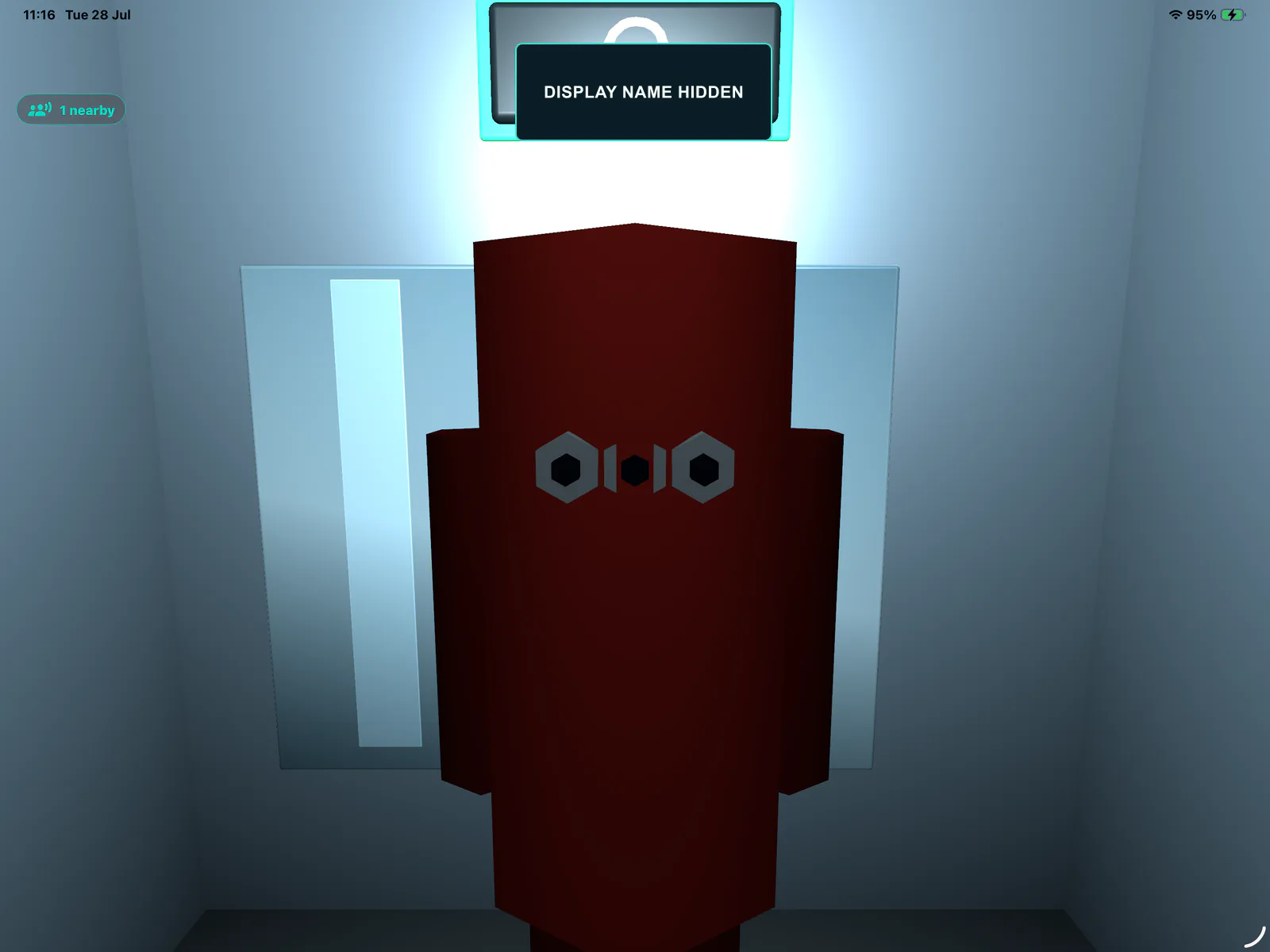
Owners can add wall media and pedestal USDZ assets
Wall Images & Videos accepts photos or image files, native video files, YouTube links and direct HTTPS video links. An owner can choose the back, left or right wall, then position, resize or remove the item. Native videos can be configured to autoplay, loop or start muted.
A room supports up to 60 wall-media placements. Imported images are limited to 35 MB and resized so their longest dimension is no more than 4,096 pixels; a native video file can be up to 750 MB. Online and remote media still depends on a connection and an available source.
Pedestal Assets does not import an arbitrary file directly from the room. First download or save a compatible CloudKit USDZ through AR Experience, then choose it for a pedestal. The owner can move, replace or remove it. Actual capacity depends on safe device memory and available floor space, with a defensive maximum of 60 placements.
Entrance halls support wall media and pedestal assets only. HxAR reserves clearance around doors, the lift, stairs, directory and main route so a decoration cannot be saved across those protected areas.
Named rooms can contain Saved Wired AR plans and game labels
Code-Generated 3D Groups currently opens the owner’s Saved Wired AR Plans. A complete plan can be placed only in a named room—not in the entrance hall—then moved, raised, lowered and rotated. It remains at original scale and cannot be split into individual parts.
A named room can hold up to 12 complete Wired AR groups when they fit. Each exhibit has a separate visitor-visibility choice. The shared room copy removes the owner’s private plan name, website link and saved date; it does not expose the private Saved Wired AR library.
The current Games decoration is an AR Snooker label. It opens the separate Snooker journey rather than turning every room into a new game type. Do not infer other building games from room names shown in a directory.
Wired AR remains an educational planning and practice experience. It is not accredited training, electrical certification, a substitute for manufacturers’ instructions or permission to work on live equipment.
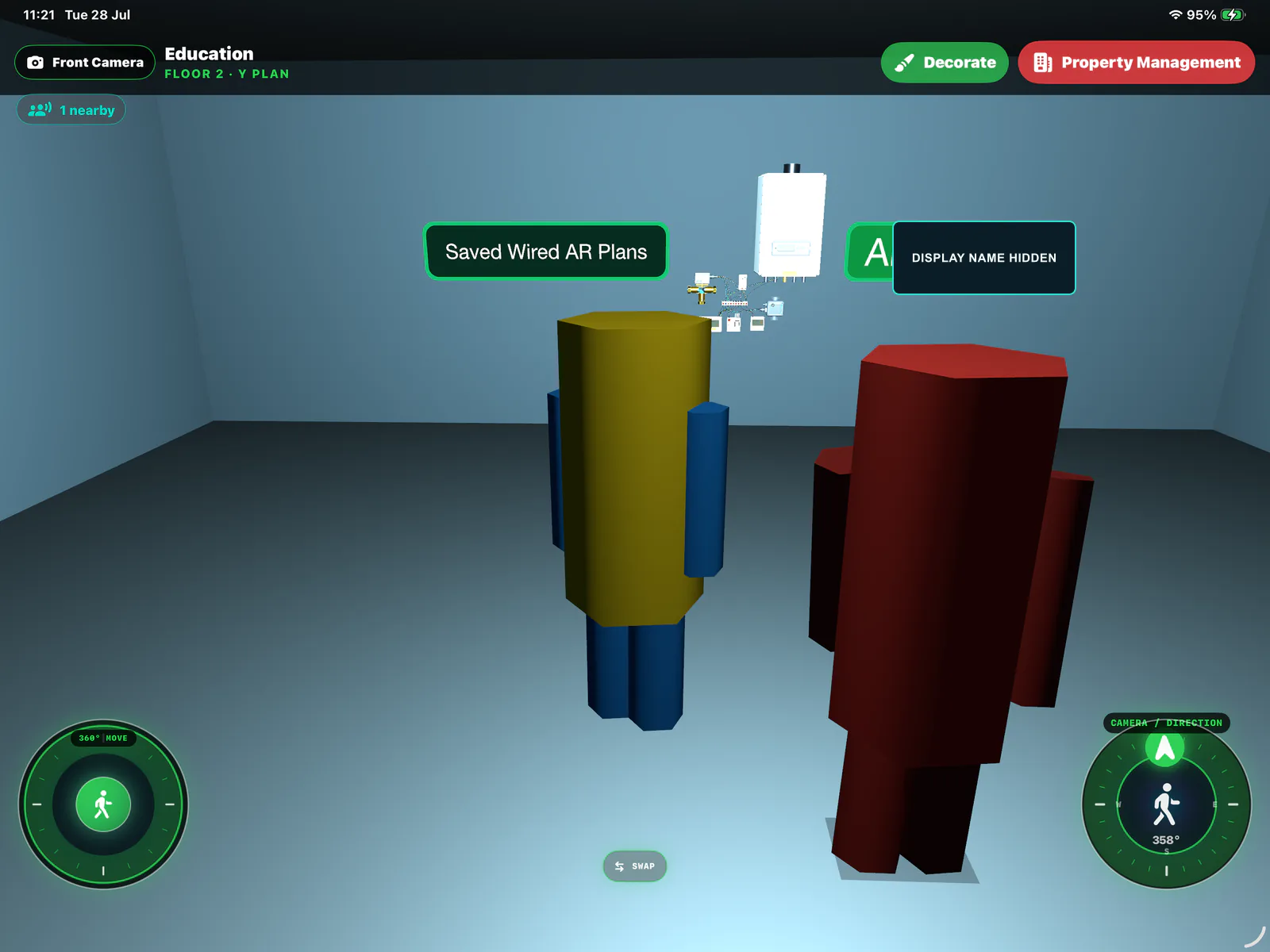
Live capacity is 2–4 people for the whole building
Live multiplayer is optional, off by default and saved as a device preference. The service-wide building capacity can be set to 2, 3 or 4 people total, including the local visitor; its current default is 2. One whole VR Building shares that maximum across every floor and room, so it is not 2–4 people per room.
People in the same building occupy one live service room, while module and floor filtering determines which remote avatars are rendered in the current loaded area. “1 nearby” therefore means one other avatar is currently visible to the local visitor; these screenshots demonstrate two people, not four.
After the user enables Live and confirms with Apple, other opted-in visitors can receive an opaque pseudonymous participant identifier—not the private Apple account ID—plus the avatar display name and colour, short-lived virtual position, direction and movement, and shared lift selection. The participant identifier may remain stable across sessions; indoor updates also carry the building’s real exterior-door fallback coordinate. Disable Live in Settings to clear the live credentials and stop sharing.
There is no text or voice chat, but the current preview also has no building host, private invitation list, kick, mute, block or report control. Broad social release still needs suitable name filtering, reporting, blocking and moderation. Use Live only where you are comfortable being visible to other opted-in visitors.
If the live service disconnects, the VR Building can still be explored; only remote visitors disappear while HxAR reconnects. The app does not yet promise a distinct “building full” message when the service rejects a new join.
Room layouts save for visitors, but remote content can fail
Only the exact Big Property owner can use Decorate or delete room content. A save replaces that room’s complete layout in CloudKit after ownership and room scope are checked again. Concurrent edits can create a save conflict, so finish and confirm one change set before editing the same room elsewhere.
Visitors prepare shared room media and missing USDZ assets when needed. One room remains warm at a time; unavailable downloads display a placeholder or retry state. YouTube, direct video and remote files can stop working when the connection or original source is unavailable.
Saved room content is intended to be visible to building visitors. Upload only material you own or have permission to use, and never place confidential information, private addresses or personal data in a public-facing room.
Big Property and room names are also owner-written public-facing text. The present normalisation removes unsafe control characters and limits room names to 40 visible characters, but it is not a complete content filter and the reviewed building flow has no report or block route. Those user-generated labels need the same moderation safeguards as avatar names before broad public access.
Provide text alternatives and treat the building as a virtual space
The website repeats the important controls and limits in readable text because an image or a 3D room should never be the only explanation. HxAR does not currently generate captions, transcripts or alternative text for uploaded room media, so owners should provide descriptive names and equivalent caption or transcript content themselves.
Buttons and nearby status have accessibility labels, but procedural rooms, avatar names, individual assets and spatial relationships remain highly visual. Real-device VoiceOver, Larger Text, Switch Control, contrast, colour, motion and performance testing is still required before claiming complete accessibility.
A VR Building is a virtual destination. It does not prove a physical building exists, grant access, show a surveyed boundary, detect every obstacle or make device use safe while walking or driving. Stop before reading controls, stay aware of people and hazards and leave any physical place where access is restricted.
The three supplied development screenshots contain no visible address or coordinate. Their original display names are covered with opaque privacy labels and the website WebPs contain no EXIF, XMP, ICC or GPS metadata. The remaining demonstration room and brand labels must still be reviewed before any public FastHosts release.
Guide path
Move through HxAR one topic at a time.
New topics will be linked back into earlier guides whenever one action leads naturally to another.
Helpful now