
How To Topic 29 · Build in the Metaverse
How to Own and Use HxAR Micro Mapped Properties
A Micro Mapped Property gives a small mapped building its own virtual property entry in HxAR, linked to one Anchor HexTile. The updated purchase method starts with the building itself: use its information-board paper where available, or double-tap the mapped building from outside. This guide explains how that shared method works for Micro properties, how to check the offer, and where to find the building controls after purchase.
What this guide achieves
Find an available Micro Mapped Property, understand exactly which HexTile is owned, and use its property controls to begin a Studio building replacement.
- Topic
- 29
- Starting point
- Signed in to HxAR, exploring a location in the HxAR Metaverse
- Guide time
- About 12 minutes
- Screen status
- Next app update preview
Quick walkthrough
Find, acquire and manage a Micro Mapped Property.
Open the building’s property review, confirm whether it is a Micro Mapped Property, and check the current offer. Apply to Buy begins the review; the final purchase needs a separate confirmation.
- 01
Find the location in the HxAR Metaverse
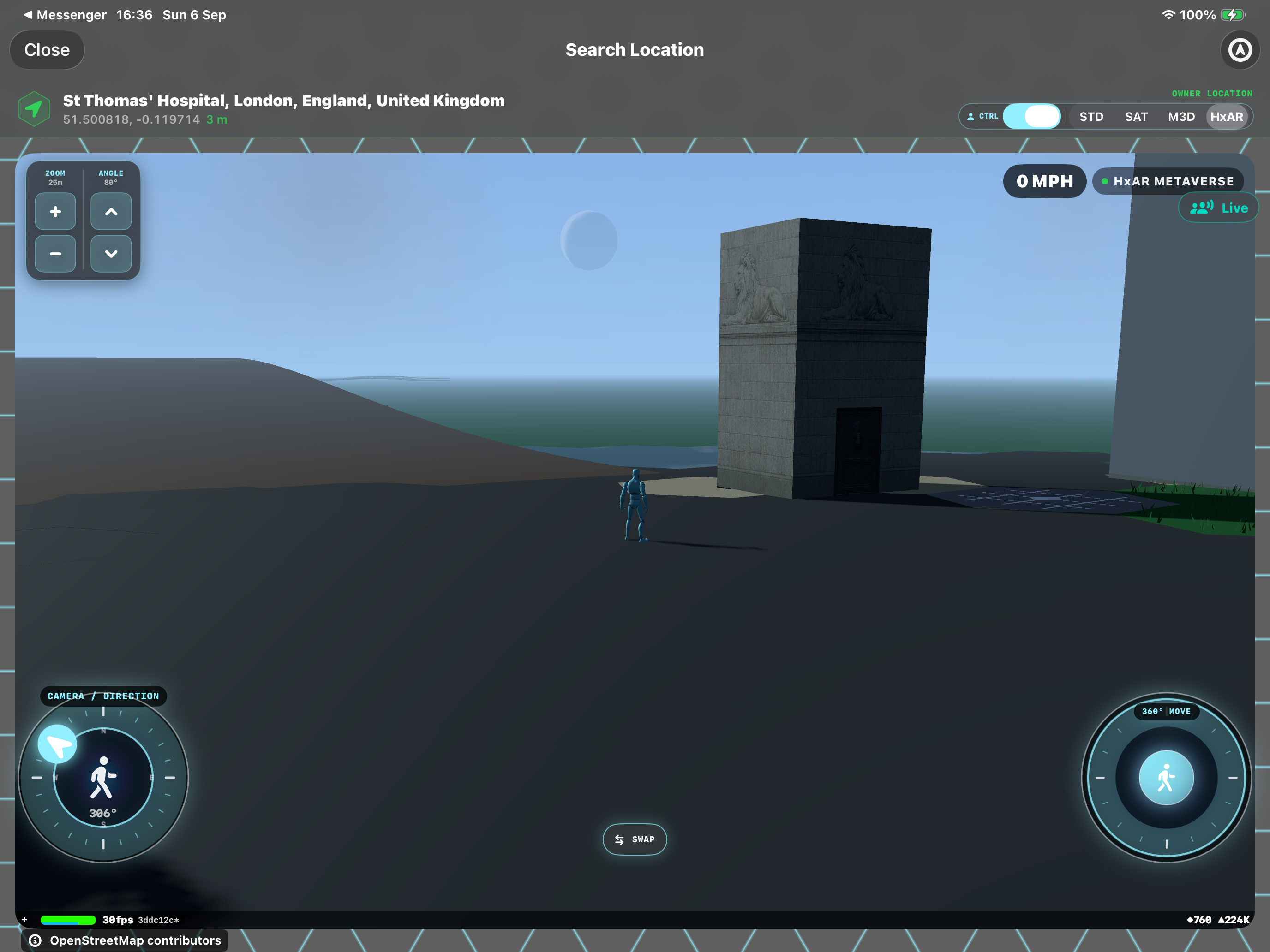
Use World View to reach the location you want to explore, or open a location through an existing property visit. In Search Location, select the HxAR map mode. Let the surrounding buildings and land finish loading, then position the camera so you can recognise the small mapped building and its surroundings.
- 02
Show the HexTile boundaries if useful
Tap the HxAR METAVERSE status badge to switch to LAND VIEW. On iPhone the badges are shortened to HxAR and LAND. The blue HexTile boundaries appear while mapped buildings remain visible and enterable where an entrance is available. You can open a building’s property review in either view.
- 03
Use the information board or double-tap the building
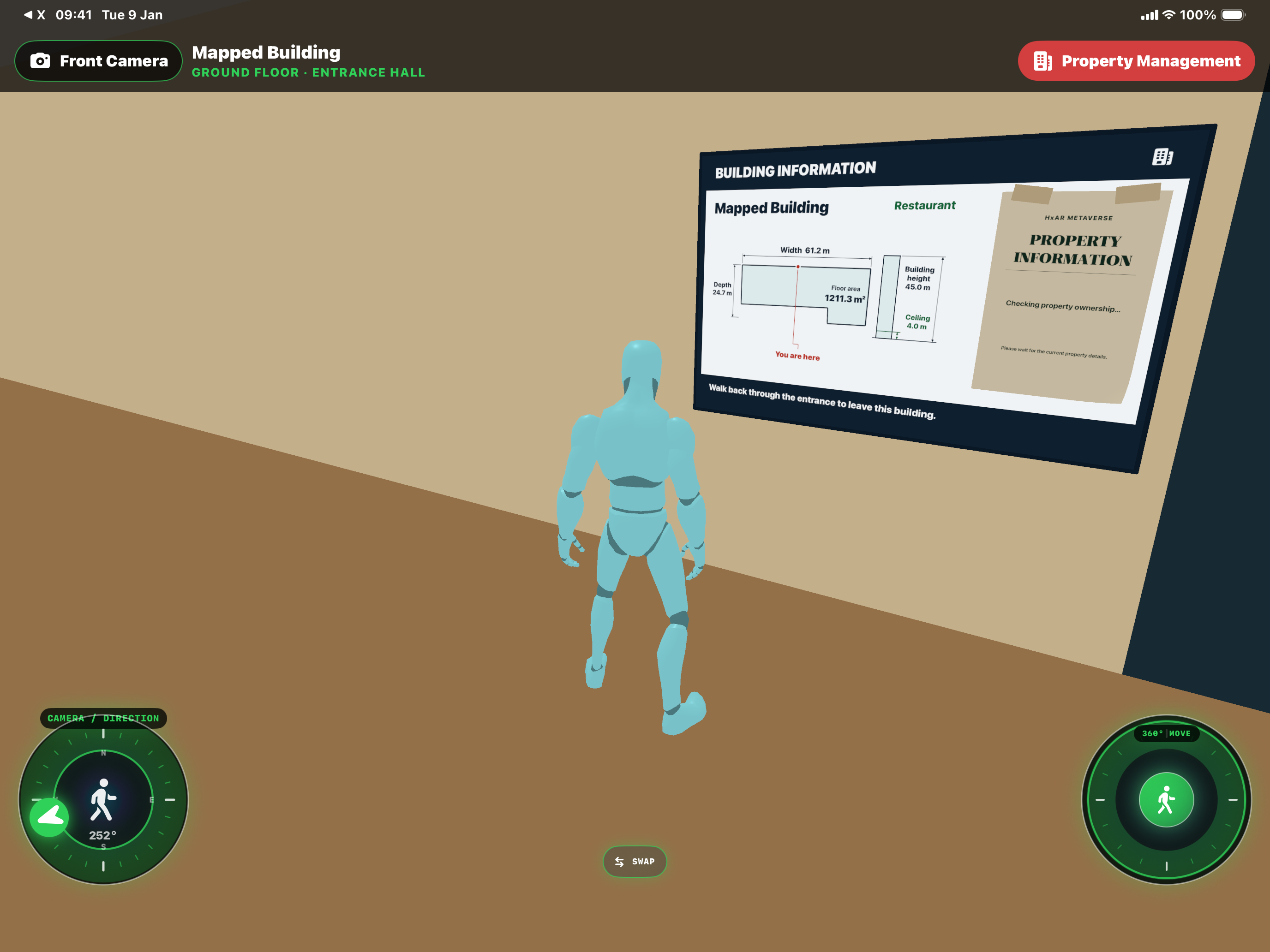
If the building has an accessible interior, walk through its entrance and look for the BUILDING INFORMATION board. Its paper checks the property’s ownership. If you cannot enter or find a board, double-tap the visible mapped building from outside to open the same property review. This outside route also works for very small Micro Mapped Properties.
- 04
Apply to Buy and identify the property type
For an available property, the paper shows PROPERTY TO BUY, the included HexTile count and APPLY TO BUY. Tap the paper’s Apply to Buy area. If you opened the review from outside, choose Apply to Buy there. In checkout, look for Micro Mapped Property and 1 Anchor HexTile. The paper itself may say 1 HexTile included. A larger mapped property instead opens Mapped Plot Bundle with its complete CORE membership.
- 05
Wait for the current offer and check its price
HxAR rechecks ownership and prepares the property’s price. This can still take time, even when you start from the board. For a Micro property, check the Anchor price breakdown, any displayed discount, the Bundle price and your Wallet balance. Read the FRINGE boundary-overlap explanation. The included count describes ownership membership; the final offer shown in the app confirms the Token cost.
- 06
Complete the purchase and wait for confirmation
If you want to proceed and the balance is sufficient, use the Buy complete Plot button showing the Token total. Wait for “Micro Mapped Property acquired”. If HxAR offers Reconcile saved purchase after an interruption, use that recovery route to check the existing operation. A pending result is not a reason to start another purchase.
- 07
Open the property in Property Management
Return to Property Management and open Mapped Plots. Refresh the list if the new receipt has not appeared yet, then open the Micro Mapped Property card. Check that the overview says Owned by You and shows 1 owned Anchor HexTile. The property card is where you return to manage the building after purchase.
- 08
Name it and inspect the mapped measurements
Under More controls, use Edit Property Name if you want a recognisable private name. Open Building Measurements to inspect the footprint, height, ground area and orientation before designing. A height marked estimated is an estimate from the mapped source. Close the measurement screen when you are ready to continue.
- 09
Begin a replacement through Building
In the property overview, choose Building, wait for the mapped building to be verified, then choose Design a replacement. This opens HxAR 3D Design Studio using the mapped shape as a starting point. Use an iPad for the Pen workflow described in the Studio guide, and add a walkable doorway before sending the design.
- 10
Send, place and visit the finished building
In Studio, choose Save then Send to Service and wait for the operation to finish. Close Studio to return to Building, then select the newly sent entry under Your designs to stand it on the property. Return to the HxAR Metaverse to inspect the result. Sending a design and placing it on land are separate actions.
What is a Micro Mapped Property?
HxAR identifies a Micro Mapped Property from the mapped building and its relationship to the HexTile grid. Its ownership entry contains one Anchor HexTile. The building can look taller or wider than that single tile, because the mapped footprint and the ownership record describe different parts of the experience.
The Anchor is the one priced and owned member. Other boundary overlaps may appear as FRINGE, with an audit/display-only explanation. They are not additional owned land simply because they are shown beside the property. Read the Anchor and FRINGE information together before confirming a purchase.
A small property can start the Studio workflow
You do not need to own a large mapped property to create a replacement building. Ownership of the Micro Mapped Property gives you the property route to Building and Design a replacement.
Ownership belongs to HxAR’s virtual world
The property controls manage the HxAR representation at that location. They do not change the physical building, its real-world ownership or the underlying OpenStreetMap data.
Does the information-board method work for Micro properties?
Yes. The building review supports both Micro Mapped Properties and larger mapped properties. A Micro property uses one Anchor HexTile; a larger mapped property uses its complete CORE HexTile membership. The new entry point does not change that distinction.
Some small mapped buildings have no usable doorway, and some interiors have no suitable wall for a board. You do not need to enter those buildings to review them: double-tap the visible mapped building from outside.
Read the board’s current state
The diagram shows the mapped footprint and measurements, with You are here marking the board’s position. The green label identifies the building’s mapped use, and an address appears when available. Checking property ownership means HxAR is still verifying the details; it is not a confirmed sale or purchase.
An owned property shows a certificate
When complete ownership is verified, the paper shows CERTIFICATE OF OWNERSHIP and the owner’s public display name where available. Tap the paper to read the property information. An uncertain or partly owned property is not offered as a complete-property sale.
Select the building as one property
The Micro Anchor and a larger property’s CORE members cannot be tapped individually beneath the mapped building. Use the paper or outside double-tap to review the property together. Other FRINGE overlaps are not included in that ownership and remain subject to the ordinary land rules.
Which controls should you use next?
Building Measurements is the reference view. It helps you understand the shape already standing at the mapped location. Building is the working route for making a replacement, selecting a sent design and managing the copy standing in HxAR.
Keep a useful private property name
Edit Property Name changes the name you see in Property Management. It does not rename the mapped building for everyone or alter your purchase receipt. A short name tied to the location helps you find the right card when you own several properties.
Keep the mapped footprint as your starting point
Design a replacement starts with the source building’s footprint, height and orientation. The replacement belongs at the building’s position, which can be offset from the centre of the Anchor HexTile. You do not need to reposition it manually to compensate for that offset.
Why is a Micro Mapped Property unavailable?
HxAR must identify the complete mapped property and check ownership before offering a purchase. Incomplete map coverage, an unavailable footprint or existing ownership can prevent a sale. Allow the local world to finish loading, then reopen the building’s property review.
There is no entrance or information board
A small building may not have enough space for either. Double-tap its visible mapped exterior instead. Do not try to select individual HexTiles underneath it.
The paper keeps checking or the price takes time
Opening from the board avoids having to find a tile beneath the building, but ownership and price checks still need to finish. If a check cannot complete, read the explanation and use Check Again or the offered price-preparation control. Apply to Buy alone does not spend Tokens or confirm ownership.
A tap opens an ordinary HexTile screen
You may have tapped neighbouring ground or a FRINGE overlap. Double-tap the mapped building itself, then check the property type and included membership before proceeding.
The purchase button is disabled
Check the displayed Token shortfall and whether the offer has expired. Resolve the balance issue or prepare a current offer using the controls provided. Do not treat an expired offer as a confirmed purchase.
The property or Studio design is missing
Refresh Property Management after the completed purchase. In Building, pull to refresh after sending a design. If the mapped building cannot be verified, close Building, let the map load and open it again.
Guide path
Move through HxAR one topic at a time.
New topics will be linked back into earlier guides whenever one action leads naturally to another.
Helpful now