
How To Topic 26 · World View
Earths 3D Metaverse World for AR & VR
Start with the whole Earth, then choose a place to explore. World View is HxAR 2.1’s 3D globe entrance to the HxAR Metaverse, connecting worldwide discovery with local HexTiles, virtual places and HxAR’s AR and VR experiences.
What this guide achieves
Choose a location on the 3D Earth and enter the HxAR Metaverse when the local area is ready.
- Topic
- 26
- Starting point
- HxAR dashboard → Map → World View
- Guide time
- About 6 minutes
- Screen status
- HxAR 2.1 release guide
Quick walkthrough
From Earth to the HxAR Metaverse in six steps.
Explore at your own pace. Searching and zooming choose the location; the final entrance button opens the virtual world.
- 01
Open World View
On the signed-in dashboard, rotate the outer dial to Map and tap it. In HXAR MAPS, choose World View — Explore the 3D Earth.
- 02
Explore the globe
Drag to move around Earth and pinch to zoom towards the place you want. The Explore the world prompt guides you while you are still looking at a broad area.
- 03
Search or use your location
Tap the magnifying glass to Search the world by address or coordinates. Alternatively, tap the arrow to Go to my location. Either action focuses the globe on an area so you can keep zooming in.
- 04
Zoom close and release
Keep zooming towards your chosen place until HxAR ready appears with Release the map to enter the HxAR Metaverse. Lift your fingers to let HxAR prepare the local area.
- 05
Enter the HxAR Metaverse
Wait for the location to be ready, then tap Enter the HxAR Metaverse. If preparation needs attention, use the action shown on the screen, such as Retry or Close.
- 06
Explore locally or return to Earth
Explore the available HexTiles and virtual places. Close the local view to return to the globe. If Zoom out to reset appears, follow its instruction to move beyond 1.5 km, then zoom in again.
Choose World View from Map
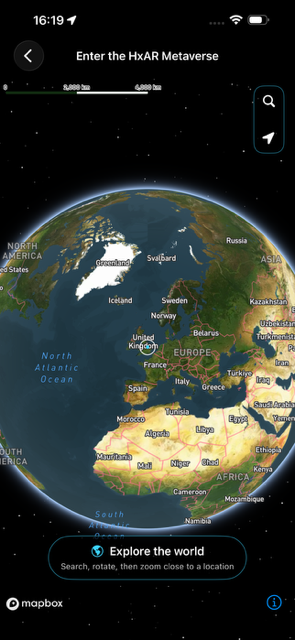
The Map shortcut opens three choices: World View for the 3D Earth, Map Search to find a HexTile, and Tracker View for your current location. Choose World View for the globe entrance shown above.
The title Enter the HxAR Metaverse describes where this journey leads. At first you are exploring Earth and choosing the place to enter.
Search, rotate and zoom towards a place
You can browse Earth manually without starting from your own location. Drag the globe to find a region, then pinch to move closer. The scale at the top helps you judge how much of the world you are viewing.
Search the world
The magnifying glass opens Search Location. Use Address Search to enter a place or address and select its result, or enter latitude and longitude. Check the map preview, then tap Search Coordinates.
Go to my location
The arrow focuses Earth on your device’s location when it is available. If HxAR cannot obtain a location, you can still search or move around the globe manually.
Back
Use the back arrow at the top left to leave World View.
Map attribution
Keep the Mapbox logo and attribution controls visible when sharing a globe screenshot. The information symbol at the bottom belongs to the map attribution.
Zoom close, then confirm entry
Searching for a location moves the globe towards the area. Keep zooming until the prompt changes to HxAR ready, then release the map. HxAR prepares the chosen local area before offering the final entrance button.
Tap Enter the HxAR Metaverse when it becomes available. On unowned land, you may enter a HexTile exploration view without an Avatar. Owned virtual land can open the visitor experience with an Avatar.
World View is the globe navigator for the journey. AR and VR experiences are reached through the relevant features and virtual places after entering; there is no AR/VR mode switch on this globe screen.
Return to Earth and choose another location
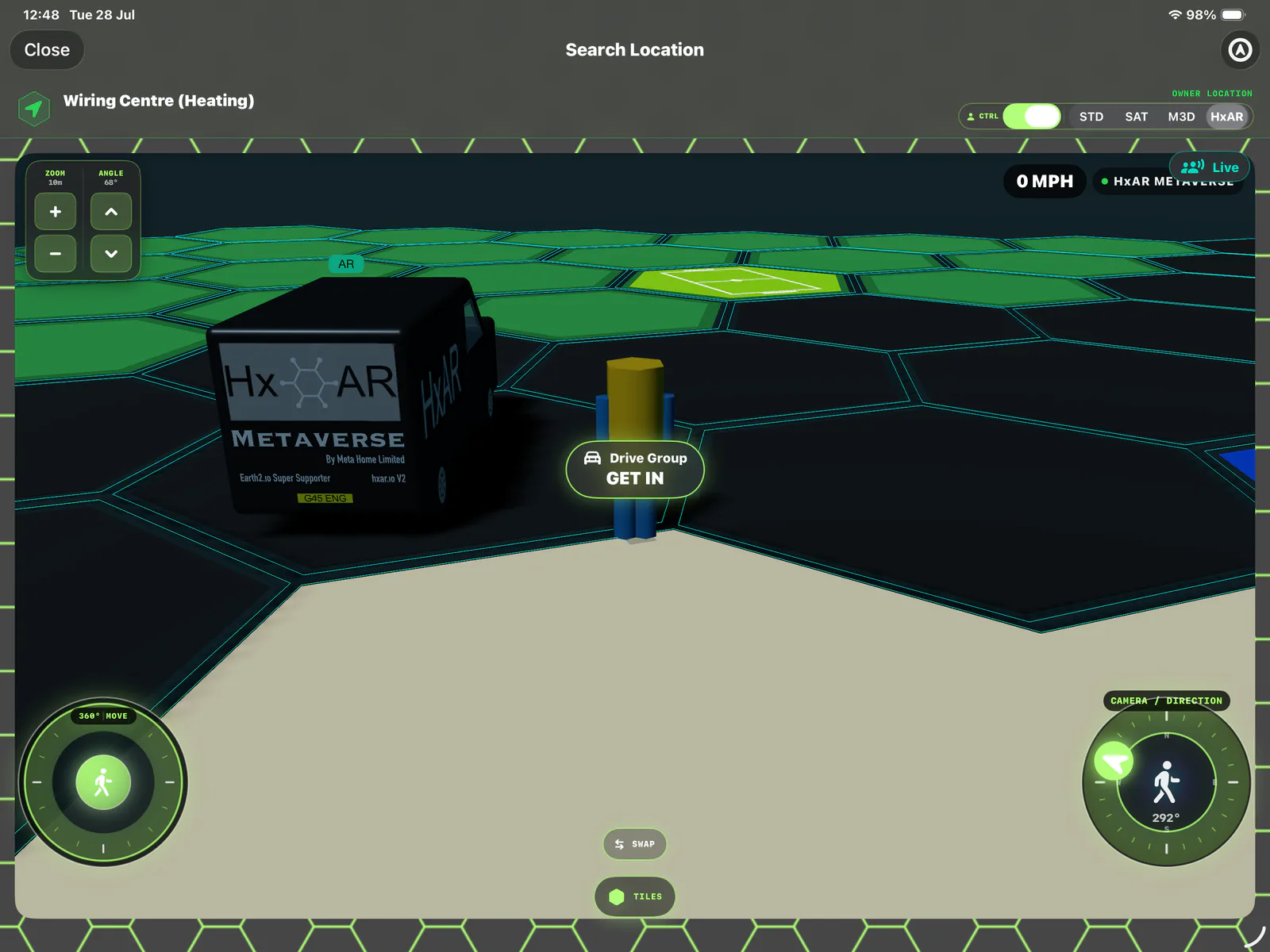
Close the local Metaverse view to return to World View. If the globe says Zoom out to reset, follow the message Move beyond 1.5 km, then zoom in again. This lets you make a fresh entrance selection.
You can then rotate Earth, search for another place or use your location before zooming close again. Use the top-left back arrow when you are finished with World View.
Choose the distance units used by Sign Posts
In HxAR 2.1, open the dashboard’s blue Settings gear and scroll to Distance Units. Under Measure distances in, choose Miles, KM or Meters for Sign Post and wayfinding labels. The choice is remembered on that device.
The globe’s scale has its own display, so it can still show kilometres even when you have selected Miles for wayfinding. The Settings guide explains the options and short-distance formatting.
If the local world is not ready
If you only see Explore the world, zoom closer. If HxAR ready appears, release the map and wait for preparation to finish. Use Retry when it is offered, or Close to return and choose a location again. Continue Offline appears only when that option is available.
Near the poles, Outside HxAR range asks you to move below 85° latitude to enter the Metaverse. Move towards the equator and try again.
Explore while stationary and remain aware of the space around you when opening AR experiences. A virtual destination or HexTile does not give permission to enter the physical location.
Guide path
Move through HxAR one topic at a time.
New topics will be linked back into earlier guides whenever one action leads naturally to another.
Helpful now