
How To Topic 33 · Water and terrain
How to Explore Water, Rivers and Lakes in the HxAR Metaverse
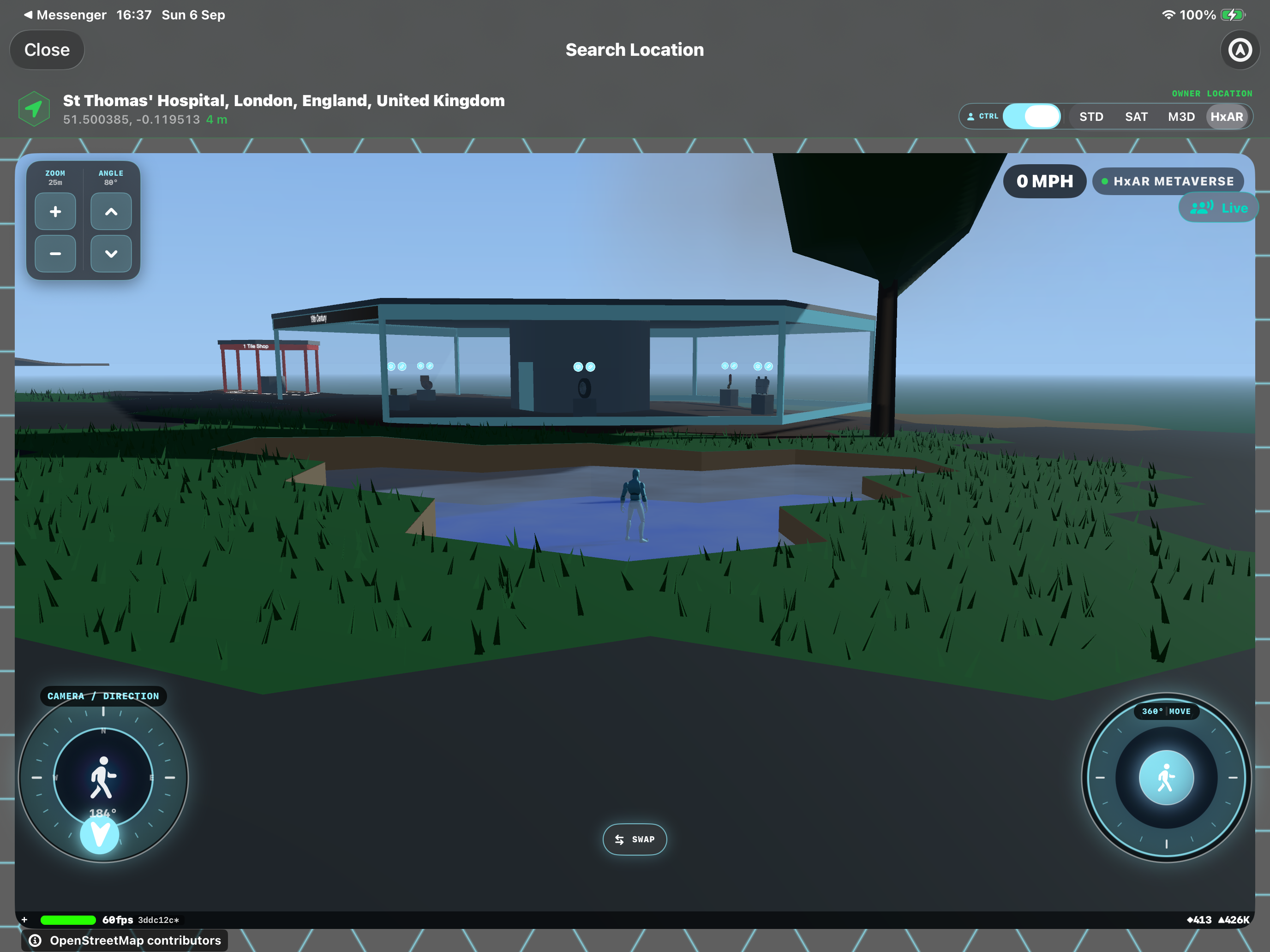
Water is part of the landscape you can explore in HxAR 2.1. Your Avatar can wade through Water, River and Lake terrain, with a visible waterline and movement ripples. Sea terrain behaves differently, so knowing the type beneath your feet helps you choose your next virtual route.
What this guide achieves
Explore inland water with an Avatar, recognise the difference between wading and Sea terrain, and understand which water features can be changed.
- Topic
- 33
- Starting point
- Search Location → HxAR, with an Avatar available; or Property Management → your actively owned property → Visit Location
- Guide time
- About 8 minutes
- Screen status
- HxAR 2.1 release guide
Quick walkthrough
Explore virtual water in six steps.
Start beside an inland water feature so you can compare the bank, water surface and Avatar movement clearly.
- 01
Enter a local HxAR world
Open Map → World View from the dashboard, choose a location and enter the HxAR Metaverse. For an Avatar visit, you can also open your actively owned property in Property Management and tap Visit Location. Select HxAR if you have switched to STD, SAT or M3D.
- 02
Find a water feature and inspect the view
Look for water beside the surrounding land. Use ZOOM to move the camera closer or farther away and ANGLE to look down towards the bank. If tile options are available, check the terrain label; Water, River, Lake and Sea do not all have the same movement rules.
- 03
Approach with your Avatar
Use CAMERA / DIRECTION to orient the view and the 360° MOVE control to approach the shoreline. In Water, River or Lake terrain, continue into the feature: the Avatar stands on the submerged bed with the water surface crossing the body.
- 04
Watch the wading response
Move a short distance, turn and stop. Inland water limits virtual movement to 5 mph, so the Avatar slows compared with unrestricted movement on land. Movement disturbs the surface and leaves ripples; allow those ripples to fade when you stop.
- 05
Return to the bank or use a bridge
Move back onto dry terrain to leave the wading area. Where a traversable bridge deck exists, approach along the deck rather than entering the water below it. Standing on an actual deck keeps the actor out of the water interaction underneath.
- 06
Treat Sea terrain separately
A grounded Avatar or vehicle entering ordinary Sea terrain submerges and is returned to a safe virtual position. Let that sequence finish before choosing another direction. Use a visible route along the shore or an available bridge instead of expecting Sea to behave like a lake.
Water, River and Lake support wading; Sea has a different rule
The underlying HexTile terrain determines the interaction. A decorative colour or an additional tile type does not automatically replace that underlying terrain. If a feature behaves differently from its appearance, inspect the selected tile’s current type and information before changing your route.
Water
The general Water type is used by existing water features and can be selected where terrain editing is permitted. In HxAR 2.1 it supports wading, with the Avatar standing below the visible surface.
River
Rivers follow the surrounding terrain as channels. You can wade through River tiles, and the water surface can change elevation along the course rather than forming one flat lake.
Lake
Lake terrain supports wading and forms a level water surface within a connected body. Use the camera angle to see how the bank surrounds the water and where the Avatar stands.
Sea
Ordinary Sea terrain retains the submerge-and-return interaction for grounded actors. It is not a swimming mode. The return point is chosen from available safe virtual positions, so it may be different from the exact spot where you entered.
Use the same movement controls on land and in water
There is no separate wading button. Walk into an inland water tile with the normal Avatar movement control, then walk out again. The terrain applies the slowdown automatically. The 5 mph figure describes a virtual movement ceiling; it is not a prediction of a person’s real wading speed.
The translucent inland surface lets you see the submerged part of the Avatar. A lower camera angle makes the waterline easier to inspect; a higher angle helps you see the shape of the bank. ZOOM and ANGLE change your view, not the water’s depth.
Movement ripples make the water respond to the Avatar. A stationary Avatar does not continuously create the same wake as a moving one. Existing rings fade after movement stops, so a calm surface is expected when you pause.
Changing a water HexTile and changing its height are separate actions
To change an eligible individual tile, tap its ground in the HxAR view and open the current type face on the HxAR Options cube. Choose a permitted water terrain from HexTile type. Selecting a new type starts its save immediately; wait for the update to finish and check the result.
Unowned tiles can be edited by signed-in users. Active ownership protects an owned tile’s type so its owner manages the change. This changes the shared virtual landscape; it does not alter the real river, lake or coastline.
The Height option cannot raise a water tile in this version. Water level is handled by the world, and the panel explains that raising the bed is not available yet. You do not need to buy a property or create a Studio replacement building simply to observe the water.
If water behaves differently from the example
Check that you are using HxAR 2.1 and the HxAR view. Earlier water behaviour and other map views can differ. If you entered through World View and see no Avatar or movement dials, use an available Avatar visitor experience or Visit Location on your own active property to try the wading steps.
If you submerge, verify whether the terrain is Sea. If you are above water without wading, check whether the Avatar is standing on a bridge deck. A Bridge label alone is not proof that you are occupying a deck.
Keep physical movement separate from virtual exploration. An HxAR water feature is not a water-depth measurement or a guide to entering real water.
Guide path
Move through HxAR one topic at a time.
New topics will be linked back into earlier guides whenever one action leads naturally to another.
Helpful now