
How To Topic 32 · Shopping
Open a HxAR Shop, Display Products and Visit in AR
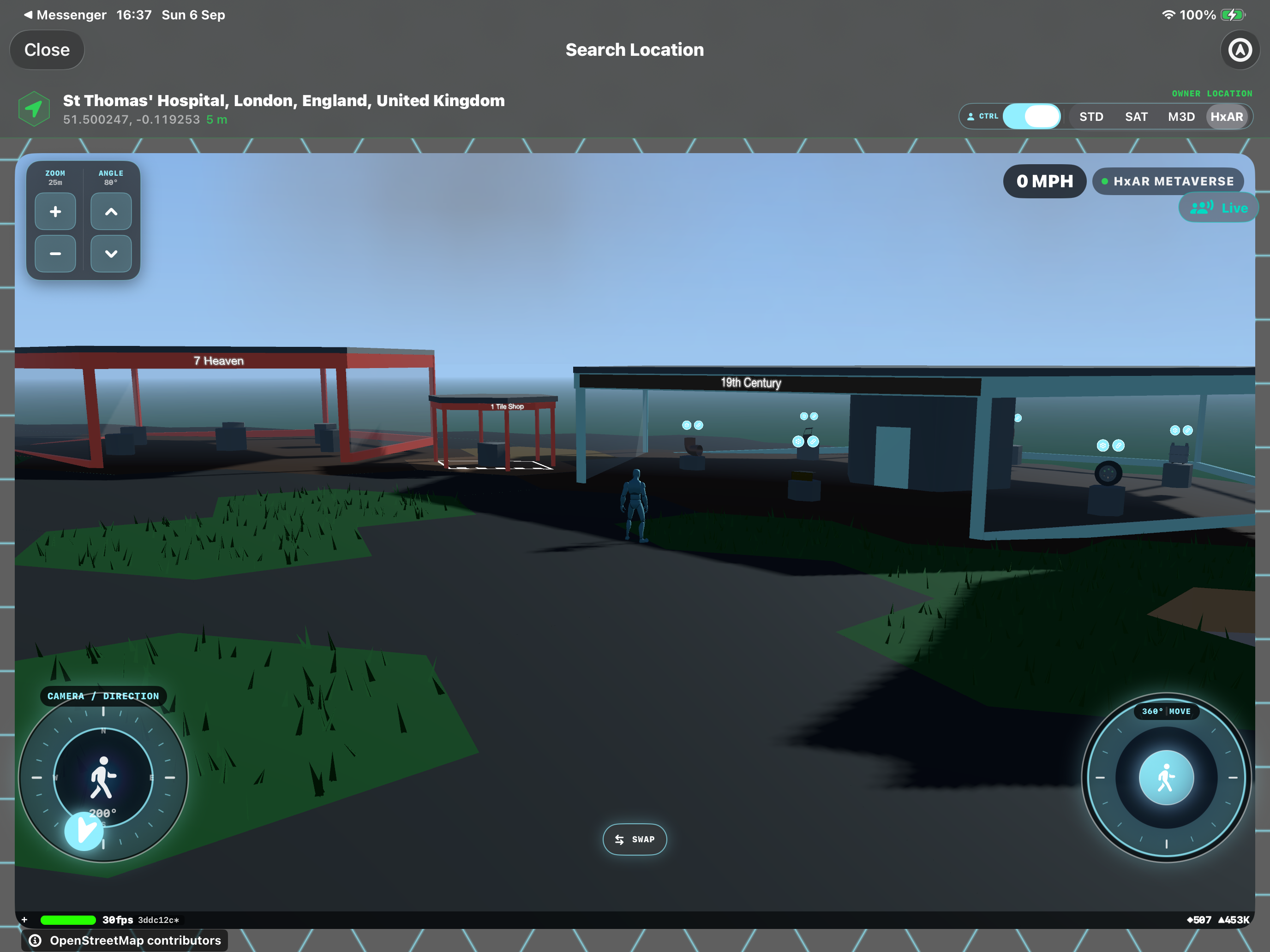
HxAR Shops bring business displays into the Metaverse, from a single-tile stall to a glass showroom with an underground virtual space. Owners name the shop and stock USDZ product displays. Visitors can inspect products, preview models in AR and deliberately open the business’s website. Product purchases take place outside HxAR.
What this guide achieves
Understand the three shop sizes, open a shop on eligible owned land, stock its displays and recognise the visitor’s AR and website choices.
- Topic
- 32
- Starting point
- HxAR Metaverse → actively owned Shop HexTile land
- Guide time
- About 11 minutes
- Screen status
- HxAR 2.1 release guide
Quick walkthrough
Open, stock and visit a shop in nine steps.
Prepare the exact footprint first, review the opening fee, then create a useful display for visitors.
- 01
Prepare the owned land
Use actively owned Shop land: one standalone tile for HxStall, or complete grouped footprints of seven or nineteen tiles.
- 02
Open the shop editor
Select your Shop land. The Shop panel offers Open HxStall Here, Open Small HxShop Here or Open VR HxShop Here when applicable. A valid grouped plot can open the editor directly.
- 03
Name and face the shop
Enter Business name and choose Facing. The editor shows the Shop tier and Footprint determined by the land.
- 04
Add the business website
Add the optional Website. If its check fails, choose Edit Address or Save Without Website.
- 05
Review the opening fee
Review Opening fee, available HxE and the payment button. Confirm the quoted fee to open the shop.
- 06
Stock the displays
Open the shop information, choose Manage → Stock Displays, select models and optional product details, then Save.
- 07
Inspect a product as a visitor
Tap a product or its On display row. Read the card and choose View in AR when fetching finishes.
- 08
Choose whether to visit a website
Use Visit Product Page or Visit Business Website. Review the destination before choosing Open in Safari.
- 09
Maintain or close the shop
Use Manage → Edit Shop or Stock Displays. Close Shop asks for confirmation before Close and Delete.
Choose the right Shop HexTile footprint
Every tile must have the Shop plan and the same active owner. Group the larger footprints in Property Manager: their rings must form a complete block around one centre.
A Studio building cannot occupy the same shop land. Resolve any existing building before opening a shop.
HxStall: 1 tile
One standalone Shop HexTile creates an open-sided stall for a hero product. Visitors remain outdoors.
Small HxShop: 7 tiles
One centre and all six surrounding tiles form a glass-fronted shop with an entrance and display space.
VR HxShop: 19 tiles
One centre, six inner tiles and twelve outer tiles form the larger glass shop, with a central HexWall lift leading to an additional underground HxShop.
Name the shop and review its HxElectrum fee
Business name allows 40 characters and appears on the shop. Facing turns a stall’s sign or positions a larger shop’s entrance. The footprint determines the tier.
The normal one-off opening fees are 1, 3 or 8 HxE for the three tiers. Read the actual quote in the editor before confirming. Ordinary name, facing and stock edits are free. Growing a paid shop around the same centre charges the difference to the larger tier when applicable.
Closing a shop does not refund the opening fee, and opening a new shop there later incurs a new fee. The shop-opening payment is separate from obtaining and maintaining the required land.
Add a website visitors can choose to open
Website is optional. Enter the address, then tap the opening or Save button to check it. Correct an invalid address; if the site cannot be reached, choose Edit Address or Save Without Website and add the link later.
Visitors see the destination host before choosing Open in Safari. A website check establishes that it answers; the business’s own site supplies prices, stock and trading terms.
Stock USDZ models with names, captions and product pages
Manage → Stock Displays shows the available positions. Choose a library Model for each, or Empty to clear it. If No USDZ Models appears, add suitable USDZ models to your library first.
A product Name can contain up to 40 characters and Caption up to 140. Leaving Name blank uses the model’s title. The optional Page can point to that particular product; when blank, the product link falls back to the shop website.
Save stores the display choices. An unreachable product page can offer Save Without That Page or Save Without Those Pages. Check the saved card afterwards.
View products in AR and continue to the business
Tap a product or an On display row. The Product card shows its name and caption. Fetching Model becomes View in AR when ready. Open the USDZ preview in a clear space and follow its camera guidance.
A product-specific link uses Visit Product Page. Otherwise the card can offer Visit Business Website or show No Website Added. HxAR provides product information and model previews, with no product-price, basket or checkout flow inside these cards.
If Model Unavailable appears, try again later. No Longer on Display means the item has been removed, the shop closed or the display changed before the card could open.
Explore a VR HxShop’s underground showroom
The largest tier includes the central lift door. Its stops are Shop Floor and Underground HxShop, with the underground level marked B. This adds space for USDZ assets, pictures and video media while keeping the outdoor glass shop visible.
With multiplayer enabled, visitors can share the underground HxShop. Content depends on what its owner has prepared. Return by lift to Shop Floor.
Keep the shop available and understand deletion
Manage → Edit Shop changes business details. Manage → Close Shop asks before deletion. Close and Delete removes the shop name, facing and display stock, plus a VR HxShop’s underground pedestals, pictures and video panels. The land keeps its Shop plan.
Keep the underlying ownership and grouped footprint valid. Selling or releasing the land, an expired lease or unmerging the group can close the shop. Read any Shop Closed notification before planning a replacement. Visitors can report a shop or product and use the shop’s hide control if necessary.
Guide path
Move through HxAR one topic at a time.
New topics will be linked back into earlier guides whenever one action leads naturally to another.
Helpful now