
How To Topic 20 · Shared Stories
How to Upload, Share and Open Shared Stories
Shared Story is the visitor side of AR Experience. A creator uploads a tested scene to HxAR’s public cloud; another person can find it by its complete title or scan its QR, download the available content and open the interactive result in AR. There is no public browse-all catalogue in the reviewed build.
What this guide achieves
Publish a tested Story, share it without implying private access, open a creator’s latest available copy and understand what saving, updating and deleting actually do.
- Topic
- 20
- Starting point
- A tested, staged AR Experience Story that is ready to upload—or a compatible Shared Story QR or complete Story title
- Guide time
- About 14 minutes
- Screen status
- HxAR 2.0 release guide
Quick walkthrough
Upload or open an HxAR Shared Story in fourteen steps.
Creators begin in AR Experience; visitors use the Shared Story destination to search, scan, resolve required assets and reopen saved experiences.
- 01
Finish and save the local scene
In AR Experience, give the scene a distinctive name, arrange its assets and media, save it locally and complete Set The Stage.
- 02
Make the Story upload-ready
Add at least one Action, a Drive Group with a member, a Gaming Group containing a domino, or a media item. Labels, CALL, lights and collision shapes do not make an otherwise static model upload-ready in the reviewed build.
- 03
Test the complete local result
Open Story mode and test every Action, label, light, vehicle control, door and game state before publishing. A ready indicator is not proof that each behaviour works.
- 04
Upload from the Animate panel
While signed in, open Animate and select Upload Story. HxAR saves the upload snapshot, sends it to the public CloudKit Story catalogue and marks that local version as uploaded after success.
- 05
Wait for success and check the cloud row
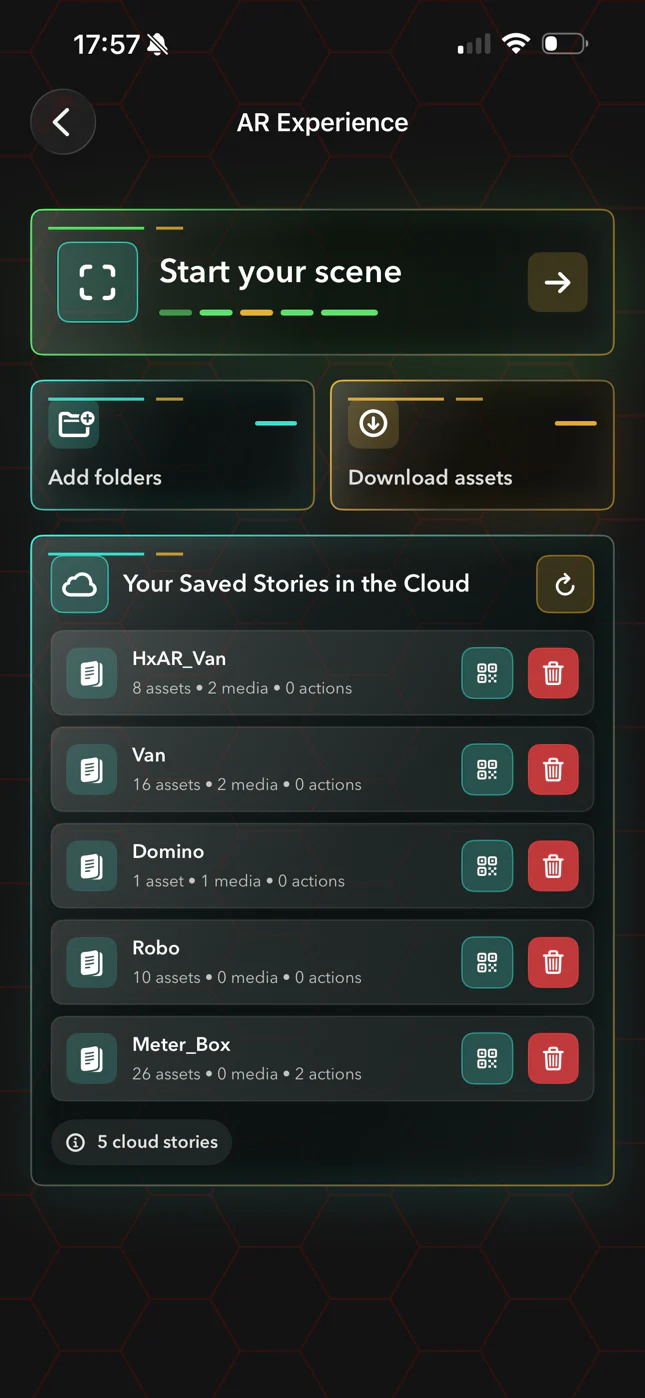
Keep the local scene if the upload fails. After success, confirm the Story appears under Your Saved Stories in the Cloud and review its title, asset-name, media and Action counts.
- 06
Show the QR only after upload
Use the QR control on the successful upload or its cloud row. The code contains a lookup link and Story title, not the Story files or a private access token.
- 07
Open Shared Story as a visitor
From the dashboard, rotate to Shared Story. Its top controls open My Saved Stories, the Story-name search and the QR scanner.
- 08
Search or scan
Enter the complete Story title and choose Find story, or scan a compatible HxAR Story QR. Capitalisation does not need to match. There is no public browse-all list, although Radar or a property assignment can also lead to a named Story.
- 09
Review the found Story
Check the title, content summary and estimated scene weight. If HxAR warns that the scene may be too heavy, open More Info and continue with Try Anyway only if you accept that the app may close.
- 10
Resolve missing 3D assets
Choose Download Missing Assets when offered, or use View AR Labels to open the available content with download markers. Only eligible models in HxAR’s Global Public Gallery can be recovered this way; private or removed files can remain unavailable.
- 11
Use the configured visitor controls
The opened Story can expose creator-defined Actions, information labels, media, Drive controls or a Gaming marker. Follow only the controls actually present in that Story.
- 12
Reopen it from My Saved Stories
Downloaded Stories appear under My Saved Stories for this app installation. Selecting one normally checks the cloud for a newer copy before opening and can fall back to the saved copy when the cloud is unavailable.
- 13
Reupload creator changes
To publish an update, reopen the original editable scene through AR Experience, make and test the changes, then upload again. Cloud catalogue rows do not edit the Story.
- 14
Delete the cloud copy carefully
The owner can use Delete on the cloud row after confirmation. This prevents future cloud retrieval but does not erase the editable scene or copies already saved on other devices.
A Shared Story begins as a tested local AR Experience
The editable scene and the uploaded Shared Story are separate copies. The creator first names and saves the device-local scene, completes Set The Stage and adds an Action, a Drive Group with a member, a Gaming Group containing at least one domino, or a media item before Upload Story becomes available.
Information Labels, the Time Machine CALL marker, Lighting AR and collision shapes can enrich an eligible Story, but none of them alone satisfies the current upload-readiness check. A static scene containing only a 3D model is also not ready.
The Story name is checked against HxAR’s public namespace without regard to letter case. Choose a distinctive name and keep the original local scene: cloud catalogue rows have QR and Delete controls but no Edit button and are not shortcuts back into the authoring scene.
Upload needs an active signed-in account and connection. No separate HxElectrum or Hexagon Token charge was found for uploading, finding or opening Shared Stories in the reviewed build.
The cloud list and QR are public lookup routes—not private invitations
Your Saved Stories in the Cloud lists the signed-in owner’s uploads newest first. Each row reports the number of unique asset names, media items and Actions. Those figures are a summary, not a placement count, quality score or storage allowance.
The Story QR contains an HxAR lookup link with the Story title. It does not embed the 3D models, media, scene data, an expiry or a private access secret. A person who has the QR—or knows the complete title—can use HxAR’s public lookup route.
Upload first and then distribute the QR. The authoring interface can display a QR for a ready local Story before a successful upload, but that code cannot make an absent cloud record available.
There is no browse-all public Story catalogue in the reviewed build. Discovery depends on the complete title, an official QR, a copy already saved on the device, or a Story assigned to a property and surfaced through Radar.
Finding a Story saves a local copy and resolves its required content
Shared Story provides My Saved Stories, Open shared story and Scan story QR code. A successful search or scan downloads the Story record and its attached uploaded media, saves a local Story copy and checks whether its named 3D assets are available.
Built-in models open with the app. Other missing USDZ assets are looked up in HxAR’s Global Public Gallery. Models that are private, removed or otherwise not globally public cannot be recovered through this route.
A direct dashboard, QR, Radar or property launch can automatically use a bounded, purgeable cache for eligible public models: no more than 64 MiB for one model and 128 MiB combined. This is temporary assistance rather than a promise that every model will download.
The manual Story search and in-app scanner can offer Download Missing Assets, which deliberately creates or uses the local Shared Story Assets folder for available models. View AR Labels opens what is available without requiring those detailed models. Cancelled or failed downloads can be retried.
When a detailed model remains unavailable, View AR Labels opens the available Story and adds a lightweight download marker at the missing model’s authored position. This keeps the creator’s information labels visible instead of presenting an unexplained empty scene.
Before opening, HxAR estimates the Story’s weight against device memory. A likely-too-heavy result moves Try Anyway behind More Info and warns that the app may close. Treat that as a real risk and simplify the creator scene when possible.
Shared Stories preserve the interactive result for visitors
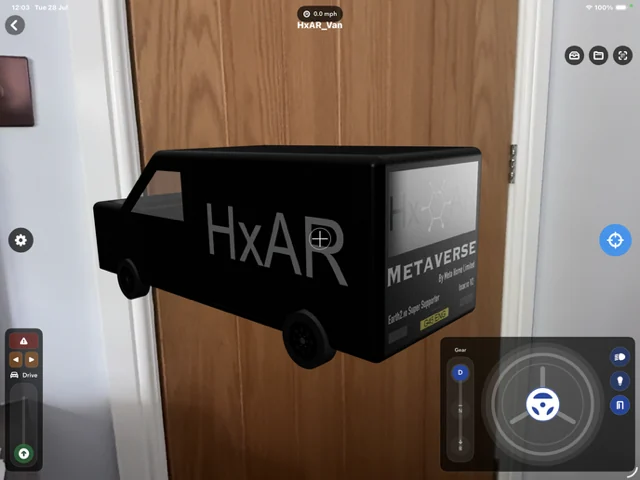
The van example is an opened Shared Story containing a Car Drive Group. The visitor can see the virtual assembly and the steering, gear and other vehicle controls that the creator configured. It does not operate or represent a real vehicle.
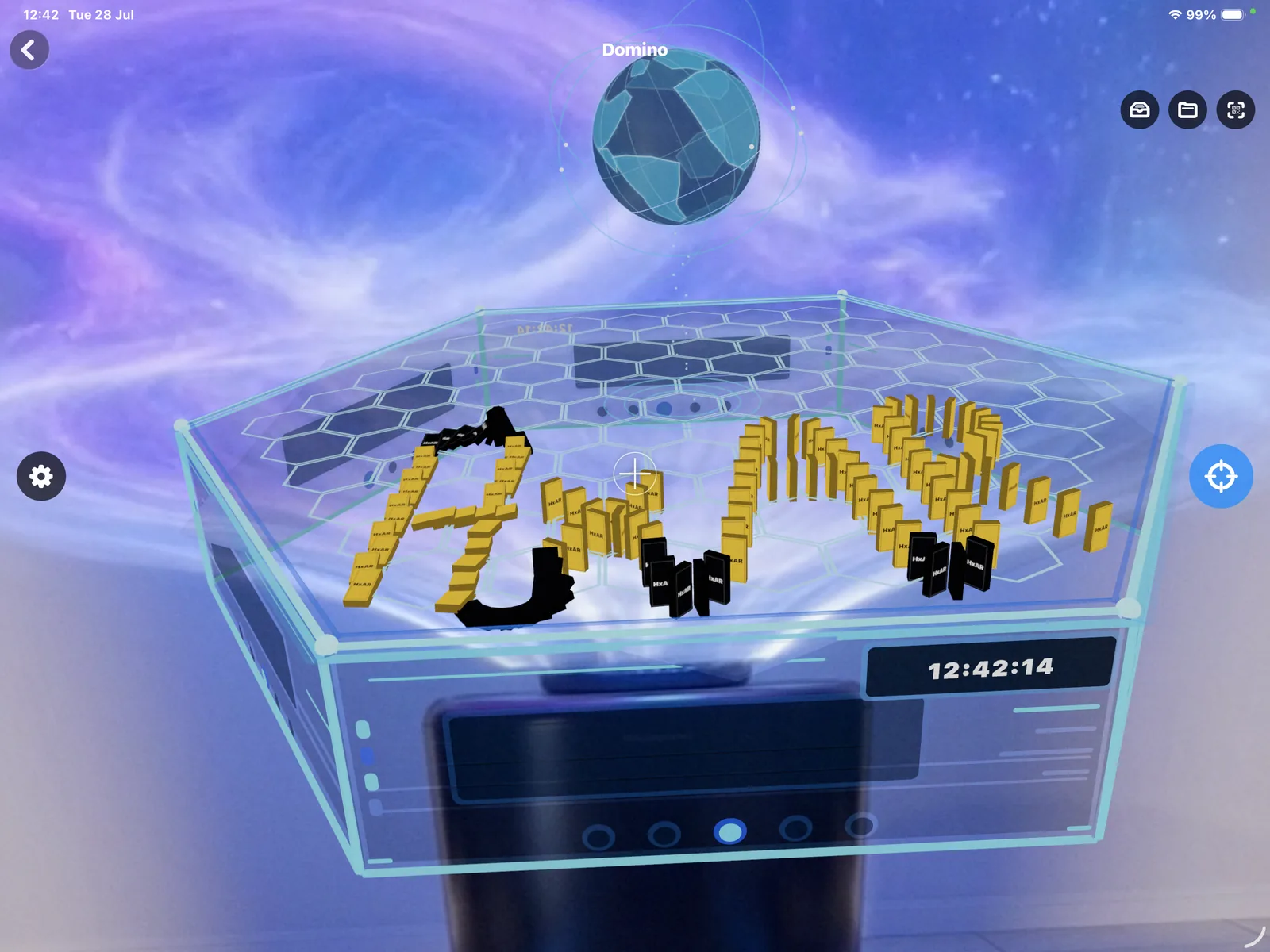
The Domino example is an opened Shared Story containing the current Gaming Group. It shows yellow and black runs on an AR platform, but the screenshot alone does not prove that every route will topple continuously or perform well on every device.
The current visitor runtime operates the first Drive Group and the first Gaming Group in the Story. Vehicle movement and door state are temporary visitor interactions, and dominoes return to their starting state when the Story is reopened.
Creators should test the downloaded cloud copy rather than only the local editor. Upload identity, unavailable assets, device performance or an incomplete Drive or Gaming setup can make the shared result differ from the authoring preview.
Saved copies can update, remain offline or hold local changes
A downloaded Story appears in My Saved Stories for that app installation. Selecting it normally checks CloudKit for a newer creator upload. When the cloud copy has changed, HxAR saves and opens the newer version; when the cloud is unavailable or its record has been deleted, it can still open the existing local files.
Saved Story entries, media and downloaded assets are not scoped to the signed-in account in the reviewed build. Signing out or changing accounts does not clear them, and the Shared Story panel has no local Delete control. Treat a shared device as capable of retaining those copies.
The current viewer is not completely read-only. Editing an information label with its pencil can create a visitor-local change and mark the title as not uploaded; a later open may protect that local version instead of refreshing from the cloud. The visitor still cannot overwrite the creator’s owned cloud Story through this flow.
Do not instruct visitors to use a separate Download Story or Update Story button: the current update-available button state is defined but is not reached by the reviewed flow.
Driving, opening doors, moving linked assets and toppling dominoes are visitor runtime interactions. They do not automatically rewrite the creator’s cloud Story. The creator must change the original scene and reupload deliberately.
Current uploads attach an owner, but older ownerless records need hardening
A current-format upload stores the creator’s owner reference. Another signed-in account cannot overwrite that owner’s Story simply by reusing its title.
Legacy cloud records created without an owner reference may not receive the same protection and can remain vulnerable to a same-title overwrite. HxAR should migrate or reject those records before making an absolute ownership-protection claim.
A visitor’s locally edited label does not grant ownership of the public cloud record and cannot be used to publish over a current owner’s Story.
Deleting the cloud upload cannot erase every downloaded copy
Delete Permanently verifies that a current-format uploaded Story belongs to the signed-in owner and removes its public cloud record. Related uploaded media is intended to be removed with it, preventing new cloud retrieval by title or QR.
Cloud deletion does not remove the editable local scene, the creator’s local Story, downloaded asset library or Story copies already saved by another person or account on an installation. It cannot remotely erase content that another device has already received.
The reviewed account-deletion routine does not explicitly remove ARStory or ARStoryMedia records and does not clear local scene or Story files. That conflicts with broader in-app deletion wording and remains an app-side privacy and retention defect that still needs correction.
Only upload content you are entitled and comfortable to share publicly
A Shared Story can include model names and placements, creator-written labels, Actions, lights, collision shapes, imported images or videos, remote-media links, Drive Groups and Gaming Groups. Its format does not store the live camera feed or GPS coordinates.
Creator media can still reveal people, homes, documents, branding or location clues. Imported images are re-rendered during upload, but supplied videos can retain embedded metadata. Review every frame, link and label and obtain the necessary copyright, trade-mark and privacy permissions.
Shared Stories are user-generated public content. The current development flow does not yet provide complete in-app filtering, reporting and user-blocking protection. Use the website reporting route for unsafe preview content while that Apple-facing release work remains incomplete.
Treat virtual content as an overlay, not a map of physical safety
Open Stories while stationary in a clear, well-lit space. Keep attention on people, roads, steps, furniture and restricted places. Virtual colliders, vehicle controls and game platforms do not detect or protect against real obstacles.
The three Shared Story top controls have accessibility labels, but long titles and summaries can be truncated, the QR image lacks a complete spoken description and the spatial RealityKit experience still needs real-device VoiceOver, Larger Text, switch-control, contrast and reduced-motion testing.
If a Story is too heavy, incomplete, uncomfortable or difficult to control, close it rather than continuing to move around the room. Report unsafe creator content through HxAR’s published support route.
Guide path
Move through HxAR one topic at a time.
New topics will be linked back into earlier guides whenever one action leads naturally to another.
Helpful now