
How To Topic 03 · Notifications
How to View and Manage HxAR Notifications
The orange bell gives you a quick, camera-first view of account activity. This guide explains the AR inbox controls, the notification categories HxAR currently supports and the difference between HxAR’s in-app feed and Apple system alerts.
What this guide achieves
Open the HxAR notification panel, understand each control, recognise supported activity and manage unread items without confusing the in-app feed with iPhone alerts.
- Topic
- 03
- Starting point
- Orange bell-shaped Notifications control on the HxAR dashboard
- Guide time
- About 7 minutes
- Screen status
- Development feature guide
Quick walkthrough
Check and manage notifications in seven steps.
Stop somewhere safe, open the orange bell, read the selected card and use the full list when you need standard text or inbox actions.
- 01
Stop and check the space around you
Use the AR inbox while stationary in a safe, well-lit place. Keep watching for people, steps, traffic and other obstacles before looking at the card.
- 02
Tap the orange Notifications bell
The bell opens an AR card approximately 30 centimetres ahead of the camera and refreshes the signed-in account’s notification feed.
- 03
Read the selected notification
HxAR selects the first unread item, or the newest item when everything is read. Selecting a card starts its read-status update before you press Open; CloudKit-backed changes need a connection to save.
- 04
Move between loaded cards
Use the left and right arrows when two or more items are available. The position label changes from NONE to a value such as 1 OF 3, and HxAR attempts to mark each selected card as read.
- 05
Open the details and destination
Select Open or tap the card once to reveal its details. Select the updated action a second time to continue to the relevant property, Snooker, Collect or Exchange destination when one is available.
- 06
Use All for the full inbox
Select All to open the standard notification list. It is easier to read, works better with VoiceOver and lets you swipe an item to Mark Read or Delete.
- 07
Close or check iPhone notification settings
Select X to close the AR panel. Apple banners, sounds and app-icon badges are separate system features and depend on the notification permission chosen in iPhone or iPad Settings.
The orange bell opens HxAR’s in-app AR inbox
The orange bell sits at the upper left of the signed-in dashboard, beside the yellow Hx Vault control. An unread badge appears on the bell when items are waiting; values above 99 are shown as 99+.
Tap the bell while stationary. HxAR closes other dashboard AR panels, requests the latest feed and places the notification card approximately 30 centimetres in front of the camera. This is a requested virtual placement, not a physical distance measurement, and the card may take longer to appear while camera tracking settles.
Opening the panel selects the first unread notification. If everything is already read, it selects the newest loaded item. Selection starts the read-status update, so you do not have to press Open; a CloudKit-backed change is saved only when that update succeeds.
What NONE, the arrows, Open, All and X do
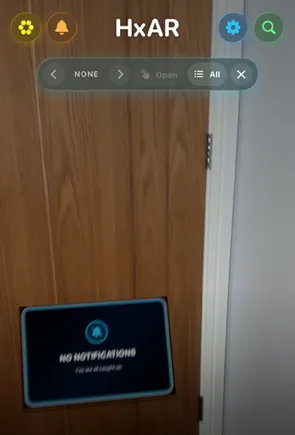
The compact strip above the card controls the AR inbox. These controls have VoiceOver labels, but the rendered 3D card itself uses fixed artwork and small text. Use All when you need the easier-to-read standard list.
Left arrow · Previous
Moves to the previous loaded notification and wraps around at the beginning. It is unavailable when fewer than two items are loaded.
NONE or 1 OF 3 · Position
NONE means that no notification is currently loaded into the AR panel. When items are available, this label shows the selected position and total.
Right arrow · Next
Moves to the next loaded notification and wraps around at the end. HxAR starts a read-status update for each newly selected card.
Open · Details and action
Open is unavailable when the feed is empty. The first selection expands the current card; the second uses its View, Snooker, Collect or Exchange action when supported.
All · Full notification list
Opens the standard list of currently loaded notifications. All does not mean Mark All Read.
X · Close
Closes the AR notification panel and returns to the dashboard. It does not delete or mark every item as read.
The notification categories HxAR currently supports
The HxAR 2.0 development interface recognises six notification categories. Availability depends on the feature, account activity and a matching record being created; this list does not promise that every category will always produce an alert or appear for every user.
Sponsorship request
A supported category for a request connected with a virtual property or HexTile. System-alert support exists, but this source review did not confirm a matching in-app record creator for every request.
Sponsorship accepted
Confirms that a property sponsorship request has been accepted and can provide a route to the relevant property details.
Sponsorship declined
Reports that a property sponsorship request has been declined.
Remote 2 Player Snooker invitation
Shows an active, unexpired invitation and can continue to the Remote 2 Player Snooker lobby.
Collectable discovery or offer
Reports a collectable discovery or offer and can continue to the Collectables area.
Collectable trade or exchange
A supported category that can continue to the Collectable Exchange. This source review did not confirm that every exchange event currently creates an in-app record.
How read status, deletion and the unread badge work
The red badge on the orange bell is the current unread count. Opening the panel and moving with the arrows starts a read-status update for each selected card, so browse only when you are ready for the count to change. CloudKit-backed changes require a successful save.
Select All for the standard list, then swipe a row to Mark Read or Delete. Deleting a normal in-app notification removes its CloudKit notification record; it does not undo the sponsorship, collectable activity or other event described by that message.
Remote Snooker read and dismissal state is stored on the device. Deleting one of those rows dismisses it locally rather than cancelling the invitation, and another device may show a different read state. The list is a recent feed rather than an unlimited archive.
HxAR’s AR inbox and iPhone alerts are different
The orange-bell panel is an in-app feed loaded for the signed-in HxAR account. It is not Apple Notification Centre. Some HxAR events can also create an iPhone or iPad banner, Lock Screen or Notification Centre item, sound or app-icon badge, but system delivery depends on Apple notification permission and the event involved.
Choosing not to allow Apple system alerts should not itself stop you from checking the orange-bell feed manually. The in-app feed still needs a valid HxAR account, iCloud and network access. Delivery is not guaranteed or necessarily immediate, and not every supported event creates both kinds of notification.
To change system permission later, open the device Settings app, choose Notifications, select HxAR and adjust the available alerts, sounds, badges and preview options. Keep previews private if a notification could include a username, property information, location or invitation.
Why the panel may show NONE
NONE and the “You are all caught up” card mean no notification is currently loaded. That may be a genuinely empty inbox, but the same view can appear while the feed is still fetching, when the device is offline, after a CloudKit query failure or when the signed-in account is not available.
Wait briefly without moving the device, check the network connection, close and reopen the orange bell, then select All to check the standard list. If the empty state continues when you expect a message, confirm that HxAR is signed into the intended iCloud account and use the support link below.
If the control strip appears but the card does not settle into the view, improve the lighting, point the camera at a textured surface and allow camera tracking to recover. Do not keep walking while troubleshooting an AR panel.
Guide path
Move through HxAR one topic at a time.
New topics will be linked back into earlier guides whenever one action leads naturally to another.
Helpful now