
How To Topic 01 · Getting started
How to Use the HxAR Dashboard
The HxAR dashboard keeps the live camera view visible while placing discovery, creation and account controls around it. This guide helps you recognise the screen and choose your first action with confidence.
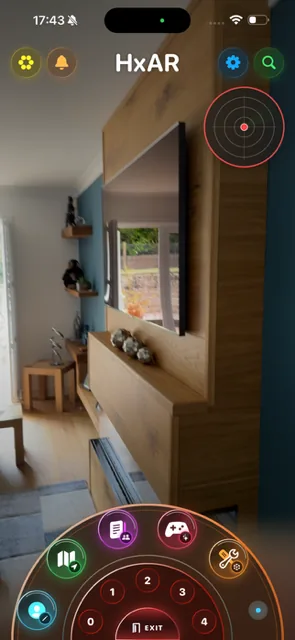
What this guide achieves
Recognise the main controls, rotate the navigation dials and open the feature you need without accidentally signing out.
- Topic
- 01
- Starting point
- Signed-in HxAR dashboard
- Guide time
- About 5 minutes
- Screen status
- HxAR 2.0 release guide
Quick walkthrough
Use the dashboard in six steps.
Start with the physical space, then choose between the direct controls, GEO AR radar and the two navigation dials.
- 01
Check the space around you
With camera permission granted, the live view appears behind the dashboard controls. Hold the device securely, look for people and obstacles, and move only when it is safe.
- 02
Choose a top control when you need a quick task
Use Hexagon Vault, Notifications, Settings or Search without rotating the navigation dial.
- 03
Use the GEO AR radar
Tap the circular radar to open GEO AR. Long-press it to turn nearby virtual HexTile radar on or off.
- 04
Rotate the outer navigation dial
Drag the bronze outer ring clockwise or anticlockwise, allow it to settle into a position, then tap the visible feature you want to open.
- 05
Use saved quick access when available
Drag the inner dial to move through its ten positions. Numbered positions are empty; a saved item replaces its number and can be opened directly.
- 06
Exit only when you intend to sign out
Tap the red EXIT control and confirm the prompt to sign out. Choose Cancel if you want to stay in HxAR.
The camera view is your spatial background
After a normal sign-in, HxAR opens to this camera-first dashboard when camera permission is available, rather than a conventional list of buttons. Pending app activity may lead you to another screen first. The dashboard keeps the real environment visible while you choose a map, story, AR tool or other destination.
The camera view can recognise a compatible Shared Story QR code, but the dashboard is not presented as a video-recording screen.
The camera feed does not make the physical space risk-free. Stay aware of roads, steps, furniture, other people and any place where device use is restricted.
The four controls across the top
The coloured circular controls around the HxAR title provide direct access to frequent tasks. These controls do not require you to rotate the dial.
Yellow hexagon · Hexagon Vault
Shows the Hexagon Vault in AR and provides a route into the full Hx Vault.
Orange bell · Notifications
Shows notifications as an AR panel approximately 30 centimetres ahead. An unread badge appears when new items are waiting.
Blue gear · Settings
Opens HxAR settings for account and experience preferences.
Green magnifier · Search
Searches HxAR properties and users through an AR panel approximately 30 centimetres ahead.
The GEO AR radar has two gestures
The circular radar at the upper right is both a destination and a switch. A normal tap opens the full GEO AR view. A long-press turns nearby virtual HexTile radar on or off. When relevant data is available, HxAR can also prompt you about an assigned nearby Shared Story.
Nearby results depend on location permission, GPS and available HxAR data. The radar does not detect people, objects or hazards, does not show surveyed physical boundaries, and is not a substitute for watching the real environment.
The outer dial holds HxAR destinations
Drag the bronze outer ring clockwise or anticlockwise. It snaps into place as it rotates, and a gentle selection response helps mark each position. Tap a visible circular shortcut only after the dial has settled.
The initial view shown in the screenshot includes My Profile, Map, Shared Story, Games Hub and Tools AR. Continue rotating to reveal Property Manager, AR Gallery, Collectables, Insights, AR Experience and Upload AR Assets.
The outer and inner dials remember their last rotation after you leave the dashboard.
My Profile
Opens your HxAR profile card and routes to your public profile or profile editor.
Map
Offers Map Search or Tracker View.
Shared Story
Opens Shared Story lookup.
Games Hub
Opens HxAR games and spatial-play destinations.
Tools AR
Opens the AR tools area. The development build includes Wired AR, an educational electrical-training simulation with saved plans. It is not accredited training or permission to work on live electrical equipment.
AR Gallery
Opens the account’s AR asset library, including saved assets, folders, public sharing choices and the forthcoming QR Gallery.
Collectables
Opens My Collectables, time-limited GEO discoveries and the protected Exchange status.
Insights
Opens service-wide analytics, Top Referrers and recent referral activity, with the current status of referral promotions explained separately.
AR Experience
Opens HxAR’s scene-creation hub for device-local asset folders, downloaded USDZ models, editable scenes and uploaded cloud Stories.
Upload AR Assets
Select one or more USDZ 3D models, review the combined HxElectrum cost and save each successful upload as Private Only for later organisation in AR Gallery.
Cyan dot · Position marker
The small cyan dot beside the dial is decorative. It is not a button and cannot be tapped.
The inner dial is for saved quick access
The smaller inner dial contains ten quick-access positions numbered 0 to 9. A number means that position is currently empty. When a supported saved item is available, its short label replaces the number.
In the current development build, saved Wired AR plans can appear here. Drag the inner dial clockwise or anticlockwise, let it settle, then tap the saved item to open it directly.
EXIT signs you out of HxAR
The red EXIT control sits in the centre of the dial. Tapping it does not immediately sign you out: HxAR asks for confirmation first.
Choose Exit only when you intend to end the signed-in session. Choose Cancel to return to the home screen.
Guide path
Move through HxAR one topic at a time.
New topics will be linked back into earlier guides whenever one action leads naturally to another.
Helpful now