
How To Topic 12 · AR Snooker
How to Play HxAR Snooker: 1 Player or Remote 2 Player
Learn Snooker offers two clearly different paths: free practice saved on this device, or a turn-based match shared between two signed-in HxAR players. Place the life-size table safely, learn the shot controls and understand exactly when Remote 2 Player uses HxElectrum.
What this guide achieves
Place the table safely, complete a solo practice shot or begin a funded Remote 2 Player frame without confusing local saves, cloud matches or HxElectrum entry costs.
- Topic
- 12
- Starting point
- Signed-in HxAR dashboard with Games Hub visible on the outer navigation dial
- Guide time
- About 12 minutes
- Screen status
- HxAR 2.0 release guide
Quick walkthrough
Play HxAR AR Snooker in twelve steps.
Choose the right play mode, place the complete table and use the safe route from the opening shot to local saving or a remote turn.
- 01
Open Games Hub
Rotate the dashboard’s outer dial until the pink game-controller shortcut appears, let the dial settle, tap Games Hub and open Learn Snooker.
- 02
Choose solo practice or Remote 2 Player
Use Start Free Practice for one-device play with no HxElectrum cost. Use Remote 2 Player for a turn-based match shared between two signed-in players.
- 03
Prepare a clear floor area
Allow camera access and clear the stated 4.069 × 2.278 metre footprint. Keep people, pets, furniture, steps and traffic outside the play area.
- 04
Place and rotate the table
Move the device slowly while HxAR looks for a horizontal surface. The table appears automatically; swipe left or right to rotate it, or use the options menu to find the floor again.
- 05
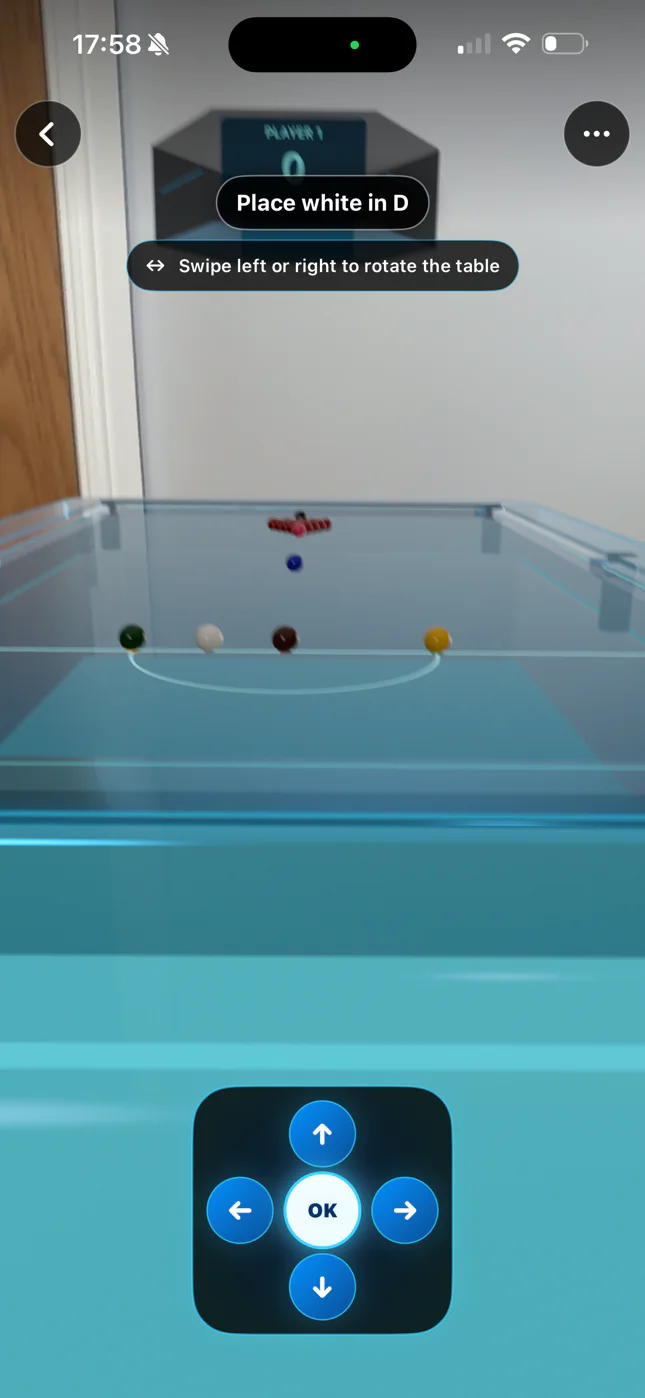
Place the white in the D
Use the four arrow controls to move the white ball inside the D, then select OK. The same control returns if the white is potted or leaves the table.
- 06
Aim, add spin and set power
Drag the outer circular control to aim, move the centre contact point for follow, screw or sidespin, then pull down the power control and release to take the shot.
- 07
Let solo progress save
After the balls settle, HxAR saves the practice frame and last completed shot on that device. The options menu can replay the last shot or start a completely new game.
- 08
Invite a remote player
Enter the other person’s exact HxAR username. They need their own signed-in device, an active iCloud account, an internet connection and to have opened Remote Match at least once.
- 09
Review the Remote 2 Player entry
The invitation itself costs nothing. If it is accepted, the host and invited player each fund 1 HxElectrum; the match stays unstarted until the complete 2 HxElectrum entry is recorded.
- 10
Flip the shared hex coin
After both entries are funded, the invited player flips the AR hex coin. Its winner takes the opening break after a synchronised ten-second countdown.
- 11
Take turns across both devices
Only the current player can take a shot. HxAR saves the result, then the other device replays that shot after a short delay and applies the shared table and score.
- 12
Handle interruptions before leaving
If a shot has not synced, stay on the screen and use Retry saving shot. Read the cancellation warning before Delete for Both Players because a fully funded entry is not refunded.
Open Learn Snooker from Games Hub
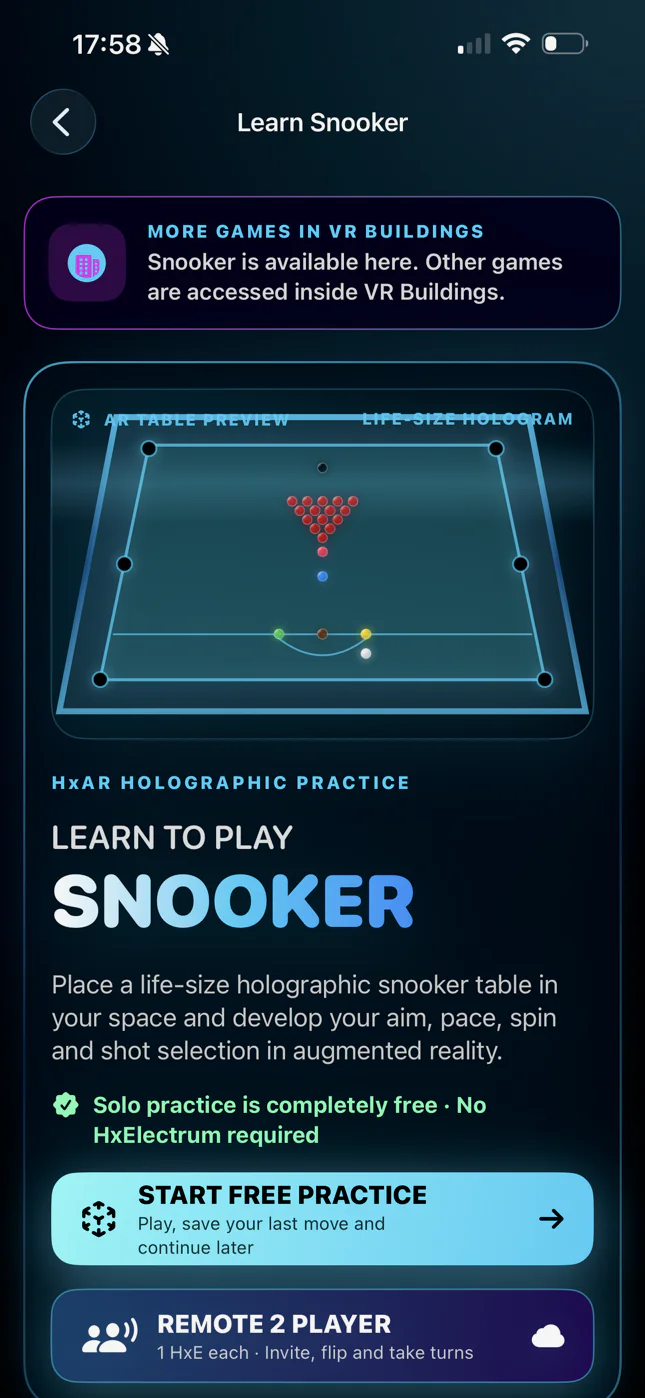
Games Hub is one of the destinations on the rotating outer dashboard dial. Rotate until the pink game-controller shortcut is visible, allow the dial to settle and tap it. Learn Snooker opens the mode-selection screen shown above.
The banner explains that Snooker is available here while other games are accessed inside VR Buildings. A supported AR Snooker placement inside a virtual room can also route to Learn Snooker, but Games Hub is the clearest starting point.
AR Snooker is included in the HxAR 2.0 App Store release. The detailed mode availability, costs and interface shown in this reviewed build can still change in later app updates; in-app confirmation is authoritative.
Choose free one-device practice or Remote 2 Player
Start Free Practice opens the AR table without using HxElectrum. The settled frame and most recent completed shot are saved on that device so you can leave, return and continue.
Remote 2 Player opens the CloudKit-backed invitation and match area. It is turn-based play between two signed-in HxAR users on two devices and currently costs 1 HxElectrum each after the invitation is accepted.
Solo practice does not include an AI opponent or a separately labelled same-device two-person mode. The current practice screen uses the game’s two-player scoring engine and can alternate PLAYER 1 and PLAYER 2 turns, so describe it as one-device practice rather than an AI single-player match.
Prepare enough real floor space before opening the table
The in-app placement message requests a clear footprint of 4.069 × 2.278 metres. Clear more than the virtual table outline so you can see and reach the controls without stepping into furniture, walls, doors, stairs, people or pets.
HxAR uses the camera and ARKit to find a horizontal surface. It cannot confirm that the full footprint is physically clear, structurally suitable or safe. Stop walking before using the controls, keep looking beyond the screen and never play near roads, moving machinery or another hazardous area.
The placement system prefers a recognised floor but can accept another suitable horizontal plane after waiting. If the table appears at the wrong height, angle or position, open the three-dot options menu and choose Find floor again rather than trying to play around a poor placement.
Let HxAR place the table, then rotate it to fit the room
Move the device slowly and aim towards a clear floor. Once a usable plane is available, HxAR places the life-size holographic table automatically at roughly three metres in front of the camera. There is no separate tap-to-place step in this flow.
Swipe left or right across the AR view to rotate the complete table. A full-width swipe turns it by approximately 180 degrees. The Swipe left or right to rotate the table reminder disappears after the first successful rotation.
The back control returns to Learn Snooker. The three-dot menu can swap the cue controls between sides and start floor finding again. In solo practice it also contains Replay last shot and Start new game.
Use the arrows to place the white inside the D
A new frame begins with Place white in D. Use the forward, back, left and right arrows to move the cue ball within the permitted D area, then select OK to confirm it. The status text and buttons in the second screenshot are repeated here so they do not have to be read from the image.
White-ball placement returns if the cue ball is potted or leaves the table. While placement is active, normal cue controls remain unavailable until the ball has been returned to a valid position and confirmed.
Adjust aim, cue-ball contact and pull power
The outer circular control changes the cue angle around the white. Its centre contact pad moves the strike point on the cue ball for follow, screw and left or right sidespin. The opposite PULL control sets shot power.
Drag PULL down and release when the shot is ready. A very short pull cancels rather than striking. While balls are moving, cue input is locked and the status area reports progress.
The floating scoreboard follows score, current break, turn and ball on. The development rules do not offer a separate colour-nomination control: after a red, the first colour contacted is treated as the nominated colour. Use HxAR as a practice simulation rather than a complete replacement for a referee or official tournament rules.
Solo practice saves the settled frame on this device
After a completed shot settles, HxAR automatically saves the resulting frame and the last shot in one local practice file. Reopening free practice on the same installation restores that frame and makes Replay last shot available.
Replay last shot temporarily returns to the position before the saved shot, replays it and then restores the authoritative saved result. Start new game clears the local practice file, resets the rack and returns to white-ball placement.
The save is not connected to the HxAR account and does not sync through iCloud. Signing out, changing HxAR accounts or requesting account deletion does not currently clear it, so another account using the same app installation can inherit the practice frame. Do not use solo save for private notes or personal information.
Remote play needs two prepared HxAR accounts and devices
Both players need a signed-in HxAR profile, an active iCloud account, an internet connection, camera access and an AR-capable device. The invited player must have opened Remote Match once so HxAR can prepare the CloudKit identity used for sharing.
Enter the other person’s exact HxAR username and review the Send a 1 HxE invitation confirmation. The lookup ignores letter case after trimming spaces, but the complete username must identify one existing profile. You cannot invite yourself, and only one open invitation is allowed between the same pair.
An unaccepted invitation expires after seven days. The invited person can also receive a Remote Snooker item through HxAR Notifications, but system notification permission and delivery are not required to reopen the Remote AR Snooker lobby manually.
An invitation is free; an accepted remote entry costs 1 HxE each
Sending the invitation does not immediately debit either player. The host confirms that they agree to pay 1 HxElectrum if the invited player accepts. The invited player separately reviews Accept and Pay 1 HxE. The coin toss stays locked until the complete 2 HxElectrum match entry has been funded.
If one player’s balance cannot cover their entry after acceptance, the player who has already paid can choose Pay both and fund the remaining 1 HxElectrum. They can also leave the match unstarted. Covering another entry is optional.
A partial payment is returned when the match is cancelled before the full 2 HxElectrum has been funded. Once both entries are funded, the current confirmation treats the complete entry as final and not refundable, even if a player later cancels the match.
HxElectrum is an in-app, non-financial resource. The entry is not a cash stake, cryptocurrency payment, bet or prize pool. The coin toss only decides who takes the opening break and awards no HxElectrum or other item.
The invited player flips; the winner breaks after ten seconds
After both entries are funded, the invited player receives Flip the AR Hex Coin. HxAR records one shared random result so both devices use the same winner. After the coin animation lands, a synchronised ten-second countdown begins and the winner takes the opening break.
Each player places the table separately in their own physical room. They do not see the other room. HxAR shares the current table, balls, scoring state, turn and latest recorded shot rather than a live video feed.
Remote play is turn-based rather than simultaneous. Only the current player receives cue input. After their balls stop, HxAR saves the updated frame and turn. The opponent waits about five seconds, sees the recorded shot replay and then receives the authoritative final state when it becomes their turn.
Keep an unsent shot open and understand Delete for Both Players
Remote play checks CloudKit for updates and can display Connection interrupted · retrying. If the latest shot has not reached the other player, it remains pending only on the open match screen and offers Retry saving shot. Stay on that screen and retry; force-quitting can lose that unsent pending shot.
If the shared match changed first, HxAR discards the stale local result and restores the authoritative table. This prevents two devices from committing different turns but can mean a locally seen shot is not accepted.
Delete for Both Players cancels the shared match and removes its latest frame, shot and active turn. It does not hard-delete every record: a small terminal CloudKit match record containing participant, funding and timing information remains. A fully funded entry is not refunded, and the cancelled match cannot be resumed.
There is no pause, forfeit, undo, instant rematch, live chat or spectator route in the current development flow. Either player can return to the lobby and create a fresh invitation when the previous one is closed.
Know what stays on the device and what Remote 2 Player shares
AR Snooker uses the camera for tracking and table placement. The reviewed feature does not request the microphone or location for gameplay. Remote play does not upload the camera view, room photograph or voice; ball, table, scoring and recorded-shot data is what moves between devices.
The remote match root is created in the host’s private CloudKit zone and shared read/write with the invited participant. A separate invitation record in CloudKit’s public database contains participant identifiers, usernames and display names, match and share references, status, dates and the entry fee. Do not treat Remote 2 Player as anonymous or end-to-end encrypted.
The reviewed account-deletion sweep does not explicitly remove the public Snooker invitation record, the private or shared remote match root or the local solo-practice file. Delete for Both Players is cancellation rather than complete erasure. Those retention and deletion routes need app-side correction and disclosure; this guide does not promise complete Snooker-data erasure.
Use the spoken controls and recover from common problems
The back button, status, options, placement arrows and OK control have accessibility labels. The angle, spin and pull controls provide adjustable VoiceOver actions. The complete RealityKit table, ball positions, scoreboard meaning, focus order, Larger Text and every physical-space interaction still need real-device accessibility testing, so this guide does not claim full nonvisual parity.
If HxAR keeps searching for a floor, improve the lighting, point towards a textured clear surface and move the device slowly. Use Find floor again when the table is misplaced. If the white cannot be played, complete Place white in D first.
If Remote 2 Player cannot find the username, confirm the complete HxAR username and ask that player to open Remote Match once. If entry funding stops, check each HxElectrum balance in Hx Vault. If a turn does not arrive, keep the match open, check the connection and wait for the retry status before repeating an action.
Guide path
Move through HxAR one topic at a time.
New topics will be linked back into earlier guides whenever one action leads naturally to another.
Helpful now