
How To Topic 04 · Settings
How to Personalise HxAR Settings
The blue gear opens HxAR’s control centre for appearance, distance units, public-profile visibility and optional nearby discovery. In HxAR 2.1, choose Miles, KM or Meters for Sign Post and wayfinding distances. This guide also explains which settings stay on your device and which are saved to your account.
What this guide achieves
Open Settings, choose distance units, make the interface comfortable to read and manage public-profile visibility and Nearby Collectables.
- Topic
- 04
- Starting point
- Blue gear-shaped Settings control on the HxAR dashboard
- Guide time
- About 9 minutes
- Screen status
- HxAR 2.1 release guide
Quick walkthrough
Personalise HxAR in eight steps.
Start with the blue dashboard gear, adjust only the controls you understand, and confirm cloud or permission changes before leaving the screen.
- 01
Open Settings from the dashboard
Tap the blue gear at the upper right of the signed-in HxAR dashboard. It opens a standard scrollable Settings screen rather than an AR card.
- 02
Check what will be stored
Distance units, appearance sliders and Nearby Collectables are device-based choices. Public-profile visibility saves through CloudKit, while a selected custom glow colour is stored locally and also submitted as the profile’s tile colour.
- 03
Choose Distance Units
Find Distance Units and select Miles, KM or Meters. Miles is the default. Your choice changes Sign Post and wayfinding distance labels and is remembered on this device.
- 04
Open Colour & Display
Select the pink Colour & Display card to adjust background contrast, glow brightness, custom glow colour and hex-line thickness.
- 05
Use the preview to protect readability
Make small changes and check the live hex-grid preview. Return to the dashboard and reduce extreme settings if text, controls or grid lines become difficult to distinguish.
- 06
Choose public HxElectrum visibility
Use Show Tokens Publicly only after reading its status. In the current development source, the public Tokens screen displays HxElectrum—not every Hx Vault balance.
- 07
Configure Nearby Collectables if wanted
Scroll below Appearance, review the explanation, then choose whether to enable low-power background discovery. Always Location controls closed-app detection; notification permission separately controls Lock Screen alerts.
- 08
Confirm, troubleshoot or go back
Wait for a successful CloudKit save, check each permission row, and use the back control to return. If an error remains, reopen Settings or follow the support guidance below.
Open Settings with the blue dashboard gear
The blue gear is the first control to the right of the HxAR title on the signed-in dashboard. It opens a conventional Settings page with a back control, so you can scroll and read without placing another panel in the camera view.
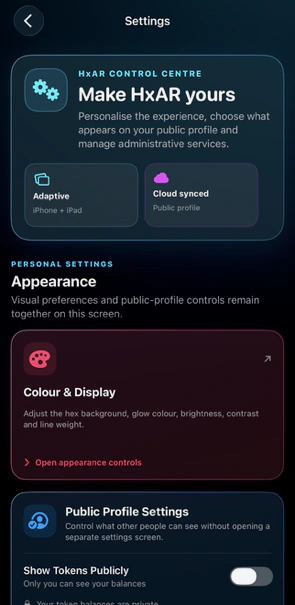
The earlier screenshot shows only the first viewport. It contains the control-centre summary, Colour & Display and the beginning of Public Profile Settings. In HxAR 2.1, scroll to Distance Units below Appearance, before Support & Safety. Scroll through Settings to review the remaining public-profile and Nearby Collectables controls too.
The Adaptive iPhone + iPad label describes a layout that rearranges for the available screen width. It does not mean every preference automatically follows the account to another device.
Understand what stays on the device and what uses CloudKit
The Cloud synced · Public profile badge refers to account-facing profile information, not the complete Settings page. HxAR currently uses different storage for different choices.
Changing a device-based preference on an iPhone does not promise that an iPad will match it. Apple permission choices are also managed separately on each device.
Stored on this device
Distance units, background contrast, glow brightness, hex-line thickness and the Nearby Collectables enabled switch use device storage. The discovery switch is not a CloudKit profile preference; signing out stops monitoring but does not clear the saved choice on that device.
Local and profile colour
A custom glow colour is kept on the device and, when the account is available, HxAR also submits that colour as the profile’s tile colour, which can be used as a public profile or owned-tile accent. Clear Custom Color removes the local custom choice in this build; it should not be treated as confirmation that a previously saved profile colour was removed.
Saved to the public-profile record
Show Tokens Publicly loads from and saves to the signed-in user’s CloudKit profile record. A connection and successful save are required.
Controlled by Apple Settings
Location and notification authorisation belong to iOS or iPadOS. Turning a HxAR feature off does not itself revoke permission already granted to the app.
Choose Distance Units: Miles, KM or Meters
HxAR 2.1 adds a Distance Units section below Appearance. Under Measure distances in, select Miles, KM or Meters to choose how Sign Post arms and wayfinding distances are displayed. Miles is selected by default until you change it.
The setting is saved on this device. Choose it separately on your iPhone and iPad if you want them to match; it is not a public-profile or CloudKit preference.
This changes distance labels, not the size of a HexTile or the location of a destination. It does not change every measurement in HxAR: the World View globe scale and speed controls have their own displays.
Miles
Uses miles for longer wayfinding distances. Distances below 0.1 mile are shown in metres to keep nearby destinations easy to read.
KM
Uses kilometres for longer wayfinding distances. Distances below 0.1 kilometre are shown in metres.
Meters
Uses metres throughout. The in-app option is spelled Meters.
Adjust Colour & Display without making HxAR harder to read
Select Open appearance controls to enter Colour Settings. The controls update the hex-grid preview as you adjust them, and the device remembers the selected values.
There is no single Reset All button in the development screen. Clear Custom Color affects the custom colour only, so change the other sliders manually if you want a more neutral appearance.
Background Contrast
Moves between a whiter and darker hex-grid background. The label reports Whiteness below the neutral point and Darkness at or above it.
Glow Brightness
Changes the intensity of the hex-grid glow from a restrained setting to a much brighter effect.
Glow Color
Opens Apple’s colour picker for a custom glow. Use Clear Custom Color to remove the local custom selection.
Line Thickness
Changes the visual weight of the hexagonal grid lines.
Preview
Shows the combined background, glow and line choices. It is a sample grid, so also check the dashboard and a normal content screen before keeping an extreme combination.
Choose appearance settings you can read comfortably
Start near the existing values and adjust one control at a time. If grid lines disappear, increase line thickness or glow gently. If a bright glow competes with labels and controls, reduce brightness or choose a less intense colour.
Colour should not be the only way you identify a control. Read its label and switch status, and keep enough contrast between the grid, cards and text. The website repeats the controls in readable HTML because the supplied phone screenshot is only 295 pixels wide.
The HxAR 2.0 interface is still under accessibility review. In the source reviewed for this guide, the Colour Settings sliders do not yet have dedicated accessibility labels. A responsive layout and native controls do not by themselves prove that every combination meets a contrast target or that every screen is fully accessible.
Control whether HxElectrum appears on the public profile
Public Profile Settings first loads the account’s CloudKit preference. While it is loading or saving, the switch is unavailable. The off switch in the screenshot belongs to the captured development account and is not evidence of a universal default.
When Show Tokens Publicly is off, another person opening the profile’s Tokens area receives a private notice. When it is on, the current public Tokens view loads and displays the account’s HxElectrum balance. Despite the plural label, the reviewed source does not expose every Hexagon Token, Ore or Hx Vault figure or the account’s transaction history through that screen.
After changing the switch, look for the brief Public profile preference saved message. If it disappears before you can confirm it, or an error appears, reopen Settings and check the saved switch state rather than assuming the change reached CloudKit.
Nearby Collectables is optional and uses two permissions
Scroll below Appearance to Detect Collectables Nearby. Turning the switch on first shows an explanation; choose Not Now to leave it unchanged, or Enable Nearby Collectables to begin Apple’s permission flow.
Always Location allows Apple’s significant-location service to wake HxAR after meaningful movement when the app is closed. Notification permission separately allows a Lock Screen alert. One permission does not replace the other, and the screen reports Background location, Lock-screen notifications and Pocket detection separately.
HxAR uses a recent device location to determine a roughly 400-metre discovery cell and broad area. The current offer record stores that coarse cell identifier and area name rather than adding exact coordinates to the offer or collectable. The cell still represents an approximate area and should be treated as location data. This does not mean the app never accesses device location: location is needed to determine the cell.
Crossing into another broad cell does not guarantee a collectable. An active campaign, eligibility, availability and the development encounter rules still apply. Turning the feature off stops HxAR’s monitoring, but it does not revoke permissions or delete previous offers, collected items, notification records or local discovery history.
Troubleshoot loading, saving and permission states
If Public Profile Settings does not load, confirm that HxAR is signed in, iCloud is available and the device is online. A missing profile record or CloudKit error leaves the switch unavailable.
If Nearby Collectables shows Finish Permission Setup, use it to open the HxAR page in Apple Settings. Choose the location and notification permissions you want, then return to HxAR and check the three status rows again. Pocket detection needs the feature enabled, background monitoring available and Always Location permission.
An account recognised as an administrator may also see Admin Services in this development screen. Those publishing and management tools are excluded from this public-user guide; their absence on a normal account is expected and does not mean Settings failed to load.
Guide path
Move through HxAR one topic at a time.
New topics will be linked back into earlier guides whenever one action leads naturally to another.
Helpful now