
How To Topic 27 · Advertising
Create an Advert Board in the HxAR Metaverse
Advert Boards give an actively owned Public Plaza HexTile a visible message in the HxAR Metaverse. Create a floating hexagonal board with a title, description, optional photograph and contact details. Visitors can read its information, choose a website or phone link, and follow an optional destination arrow.
What this guide achieves
Publish a readable Advert Board on your own Public Plaza, check the visitor experience, and understand how to edit or remove it.
- Topic
- 27
- Starting point
- HxAR Metaverse → your owned Public Plaza HexTile → HxAR Options → Advert
- Guide time
- About 8 minutes
- Screen status
- HxAR 2.1 release guide
Quick walkthrough
Prepare and publish an advert in eight steps.
Start with the correct land, then add the message and optional contact or destination details before choosing Publish.
- 01
Enter the HxAR Metaverse
Use World View or a property visit to enter the local HxAR Metaverse. Wait until preparation finishes.
- 02
Choose your Public Plaza
Select your actively owned Public Plaza HexTile. In HxAR Options, choose Advert, then Advertise Here.
- 03
Write the advert
In New Advert, enter a Title of up to 40 characters and an optional Description of up to 140.
- 04
Add contact details
Web address and Contact number are optional. Check that both are details you want visitors to see.
- 05
Set an optional destination
Under Take me there, use Address or place and Look up coordinates, or enter Latitude and Longitude.
- 06
Choose the picture and finish
Use Choose a Picture, inspect the preview, and select a Board Finish. Wait for Preparing picture to finish.
- 07
Publish and check
Tap Publish. Read any error, then inspect the saved board and tap it to check the visitor information.
- 08
Manage the advert later
Reopen Advert to use Edit Advert or Take Advert Down. Publish saves edits.
Which HexTiles can carry an Advert Board?
Advertising belongs on a Public Plaza HexTile that you actively own. The Advert option is offered for that combination of ownership and tile plan. A Sign Post may stand on public ground under different rules, but it does not grant the right to publish an advert there.
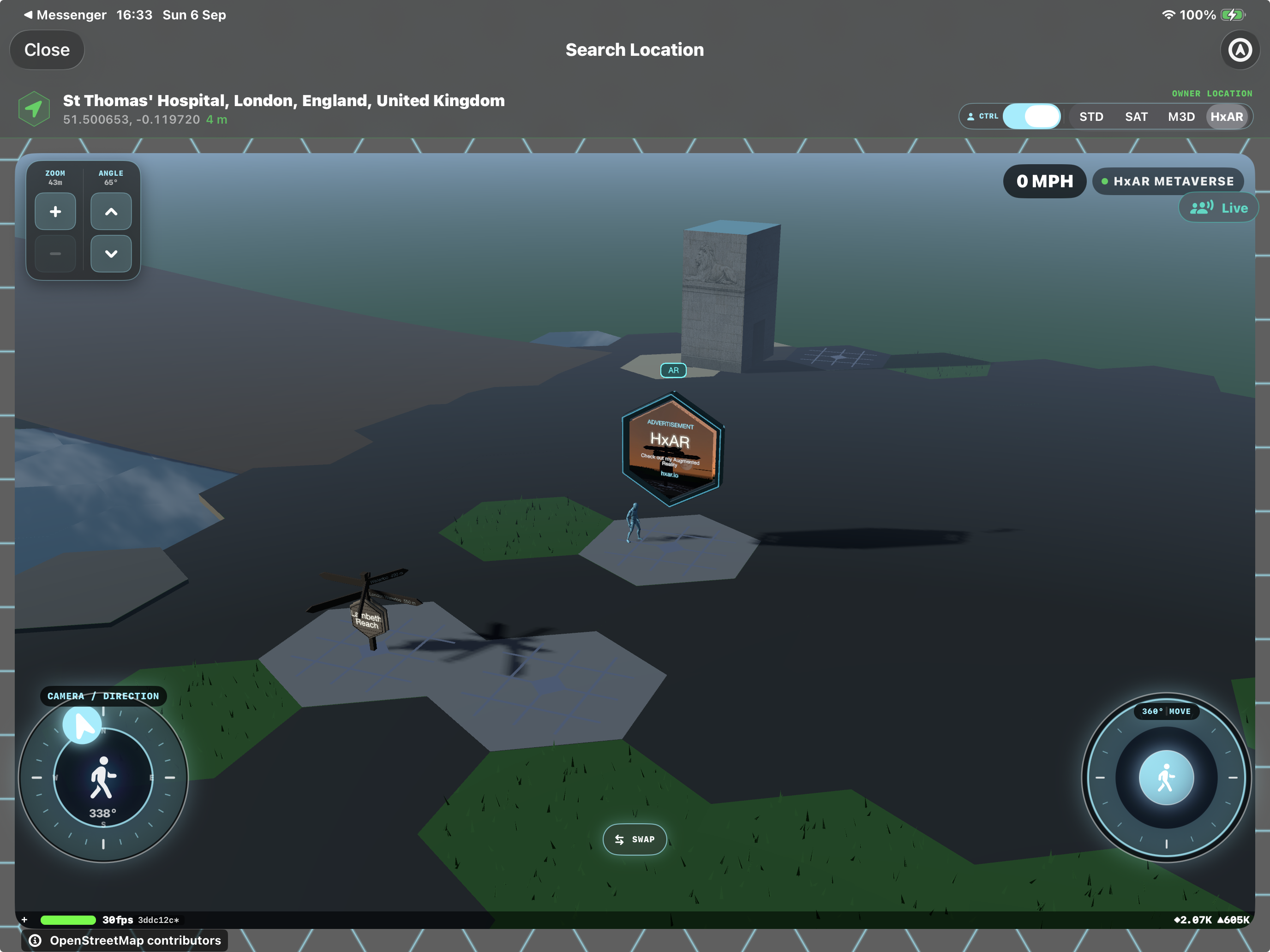
If the option is missing, check both the tile’s ownership and its saved HexTile type. The screenshot shows one board above one plaza tile; a large grouped plaza is not required just to create the board. Use the HexTile guide when preparing the land.
Write a clear title, description and contact details
The title is required, and Publish remains unavailable while it is blank. The description gives you space for a short explanation of the business, event or destination. HxAR checks the wording when you publish, so correct any message shown beside the form before trying again.
Contact fields are public information on the advert. Include only details you intend people to use. The website and telephone number are optional: the board can carry a message without either. A visitor first sees the advert’s details; the board does not automatically open a website or initiate a call.
Web address
Use a valid public website address. If HxAR asks for an address like example.com, check for spaces or a mistyped host.
Contact number
Use digits and familiar telephone punctuation such as +, parentheses and hyphens. HxAR checks the field’s format; you should still verify the actual number.
Add a picture that works inside the hexagon
Choose a Picture opens your photo selection. The image fills the board behind the wording on both faces. HxAR crops it to the sign’s proportions and dims it to keep the text readable, so a simple composition usually communicates more clearly than small text embedded in a photograph.
Use Change Picture or Remove Picture when editing. The preview shows the prepared image. If HxAR cannot read or prepare a selection, choose another image and wait for processing to finish.
Available finishes
Board → Finish offers Clear Glass, Frosted Glass, Warm Wood, Dark Metal and Brushed Steel. Choose the appearance that keeps your message easy to distinguish against the surrounding world.
Give visitors an optional Take me there destination
A destination is separate from the plaza carrying the advert. Look up an address to fill the coordinate fields, or type them directly. Pasting a latitude-and-longitude pair into Latitude can split the pair across both fields. Latitude must be between −90 and 90; longitude must be between −180 and 180.
Clear destination removes the optional position. Without a destination, visitors will not see Take me there. With one, that button starts a directional arrow in the virtual world. It stops within 10 metres of the destination, and tapping the arrow dismisses it earlier. Treat this as directional guidance, not a road or walking-route planner.
Read the advert and try its AR preview
Tap the board itself to open Advert. Read the ADVERTISEMENT heading, title and description, then deliberately choose any available contact link or Take me there action. Done closes the information sheet.
The small AR badge above the board opens a local camera preview of the advert. Its screen identifies it as LOCAL • NOT GEO-ANCHORED. This is a way to inspect the board in your immediate surroundings; it does not move or publish the advert at your physical location.
Edit, remove or report an advert
Use Edit Advert to refresh your message, picture or destination. Take Advert Down removes the board while leaving the Public Plaza land in place. If you see Advert Wasn’t Published, the save did not complete; check the message, connection, ownership and plaza plan before retrying.
Visitors can choose Report Advert and a reason. Hide this advertiser is a private viewing choice that takes effect the next time the world reloads. Public adverts can be reviewed and taken down by HxAR, so check your published details regularly.
Guide path
Move through HxAR one topic at a time.
New topics will be linked back into earlier guides whenever one action leads naturally to another.
Helpful now