
How To Topic 21 · HexTile types
How to Change HexTile Types and Colours in HxAR
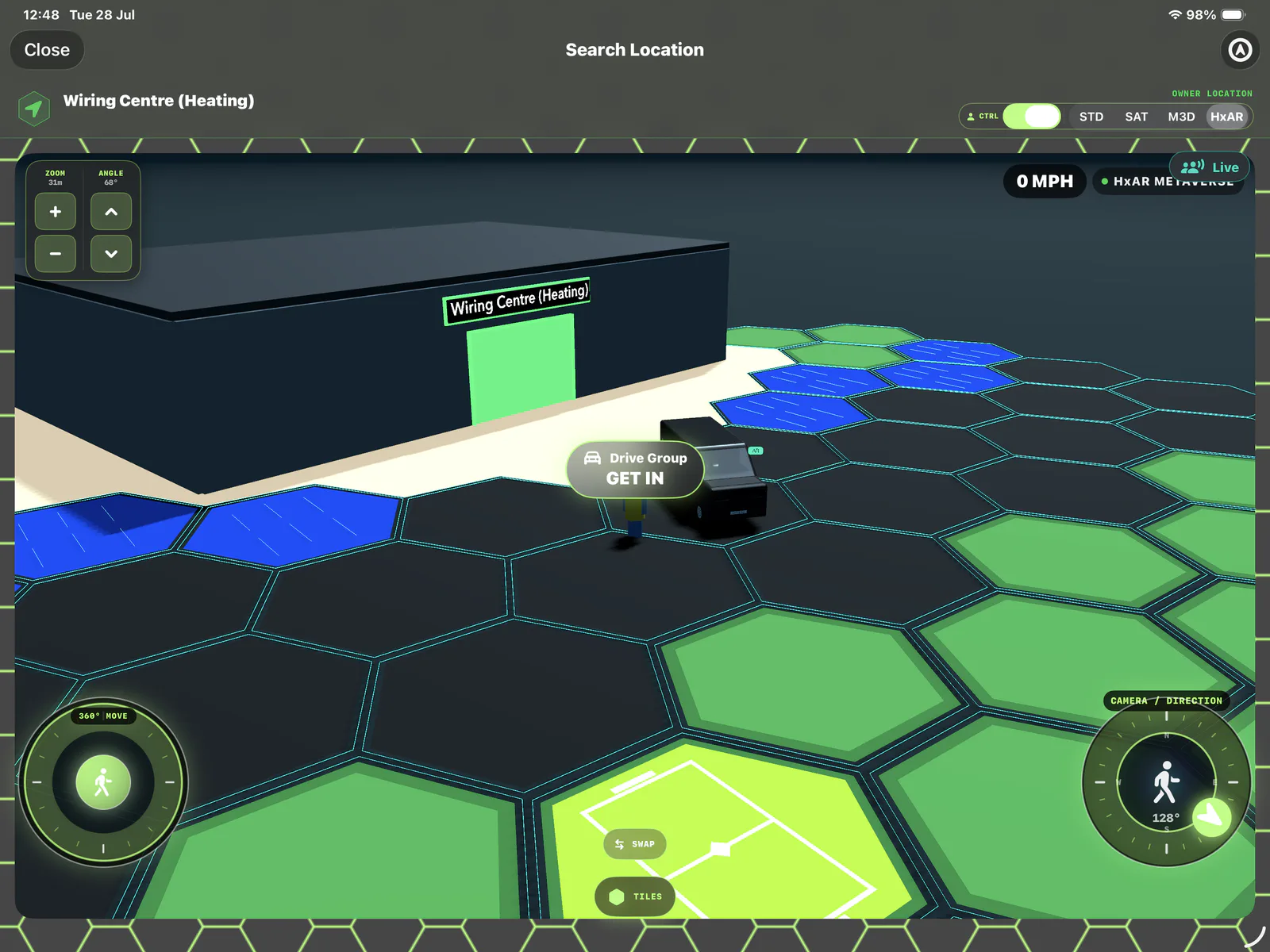
The HxAR Metaverse has 22 active HexTile colour choices. Ten are base terrain types with current movement or building rules; the other twelve add their named colour and pattern now, while the behaviour attached to those types can change as HxAR develops.
What this guide achieves
Select the intended virtual HexTile, choose one of the active colour types and understand who can change and protect that choice.
- Topic
- 21
- Starting point
- An actively owned property in Property Management, ready to open with Visit Location
- Guide time
- About 12 minutes
- Screen status
- HxAR 2.0 release guide
Quick walkthrough
Visit, select and style a HexTile in ten steps.
Begin from an owned property, reveal the virtual grid, then keep colour choice, current behaviour, assignment and ownership clearly separated.
- 01
Open an actively owned property
In Property Management, open a property whose virtual ownership is active and choose Visit Location. An individual property’s Visit Location route is currently an owner feature.
- 02
Use the HxAR view
Property Visit opens in HxAR by default. If you switched views, choose HxAR so the app-owned terrain colours and additional type patterns are visible.
- 03
Show the grid with TILES
Tap TILES if the grid is hidden. The button only shows or hides the grid; it does not change a tile, save a colour or open an editor.
- 04
Tap the intended HexTile
Orient the map, stop moving and select one visible hexagon. Check the virtual position and property information before changing anything.
- 05
Use the correct editing route
For an unowned tile, a signed-in user can choose from HexTile Options and each permitted choice saves immediately. For your actively owned tile, the same HexTile Options card opens from the tile you tapped, in a Property Visit or in Search Location → HxAR Metaverse; its editing choices appear for the owner only.
- 06
Choose the active terrain
Select Road, Grass, Water or Property Land. This is the underlying type that controls the current HxAR Metaverse movement or building behaviour.
- 07
Choose an additional active colour type
You can choose Bridge, Railway, HxArcade, Football Stadium or another additional type. Its visible colour and pattern work now. The behaviour associated with that type may change as HxAR develops.
- 08
Confirm the rendered result
Return to the HxAR view and check both the colour and pattern. Do not rely on colour alone when two shades are similar.
- 09
Protect a choice only when ownership helps
An unowned tile remains changeable by other signed-in users even after somebody assigns it. Active renewable virtual ownership restricts these choices to the owner; assignment alone does not.
- 10
Compare it with HxAR Pixel Maps
Open the website’s read-only Pixel Maps page to see the live shared colour mosaic. One HexTile corresponds to one logical map cell, and the protected Production feed publishes only the safe visual colour state needed for this Central London canvas.
Continue with the HxAR 2.1 guides
This guide records the earlier HexTile workflow. HxAR 2.1 adds the HxAR Options controls described in the updated guide. Its Water, River and Lake terrain supports wading; Sea retains the sink-and-return behaviour.
Visit an owned property, then use TILES to reveal the grid
Open Property Management, choose an actively owned individual property and use Visit Location. The outdoor Property Visit starts in HxAR Metaverse, where all active terrain and additional colour types can be rendered.
TILES is a visibility control. When it is on, the local grid is visible and each rendered HexTile can be selected; when it is off, the grid and tile selection are disabled. It does not mean Titles and it does not edit or save a colour.
The grid is a virtual coordinate layer. A HexTile outline is not a surveyed boundary, physical land title, access route or invitation to enter the real place.
The route depends on whether the virtual tile is owned
For an unowned HexTile, any signed-in HxAR user can currently open HexTile Options and choose an allowed terrain or additional colour type. Tapping a choice saves it immediately to the shared tile record; no separate token debit was found for that change.
For an actively owned HexTile, the owner changes it in the same place: tap the tile in the HxAR Metaverse view, from a Property Visit or Search Location, and HexTile Options opens with the editing choices for the owner only. The cloud save checks ownership again, so somebody whose entitlement is no longer active cannot continue changing the protected tile.
Assignment is personal organisation, not protection. Another signed-in user can still change an unowned assigned tile, and active renewable ownership—not assignment—is what restricts management to the owner.
The four active terrain colours control today’s HxAR rules
Active terrain is the base type underneath every additional colour layer. The colour makes that type visible in the HxAR Metaverse; the stored terrain value, not the colour by itself, controls the current movement and building rule.
A vehicle’s own Drive Group configuration can impose a lower limit. The figures below describe the current virtual-world terrain rules, never real-road guidance.
Road · Black · #000000
Road adds no terrain speed ceiling. Car Drive Groups currently use 70 mph forward and 20 mph reverse; Simple, Robot and Bike groups use their configured speed.
Grass · Green · #136B29
Grass is the off-road terrain and currently limits virtual driving to 10 mph.
Water · Blue · #0652ED
Earlier behaviour, before HxAR 2.1: a grounded avatar or vehicle submerges in Water, then returns to the last recorded non-water coordinate or the nearest visible non-water tile when one is available. The updated water guide explains the new wading behaviour.
Property Land · Sandstone · #D8C4A3
Property Land is the building-compatible terrain used for eligible connected owned properties and their VR Buildings; ownership and building setup remain separate requirements.
Twelve additional colours are active now; their behaviour can evolve
These twelve choices are stored separately from Road, Grass, Water or Property Land. HxAR draws the selected full colour and identifying pattern over the tile now, while the underlying base terrain continues to control the movement, water and building behaviour that is currently implemented.
The colours are not placeholders waiting to be switched on. They are active visual HexTile types today. What each type does can expand or change in later HxAR updates.
Their labels describe the virtual HxAR layer only. They do not claim that a bridge, railway, venue, shop or other physical feature exists at that real-world location.
Bridge · Brown · #A16207
Shown now with bridge-style rails and planks; the behaviour attached to Bridge can evolve.
Railway · Slate · #64748B
Four active, owner-held Railway HexTiles in one straight consecutive line can form a virtual Train Station. The Railway layer and Train never claim a physical or working rail route.
HxArcade · Cyan · #06B6D4
Shown now with controller-and-arcade markings; its attached playable behaviour may develop further.
Football Stadium · Lime · #84CC16
Shown now with pitch markings; it does not claim a physical match or stadium.
Racecourse · Red · #DC2626
Shown now with an oval and start marking; its attached behaviour may develop further.
Wooden Hexagon House · Cedar Brown · #92400E
Shown with a six-wall timber-house pattern; it is a virtual house plan and never claims that a physical building, access right or safe route exists at that location.
Beach · Yellow · #FACC15
Shown with shoreline bands; it does not identify safe water or public access.
Shop · Orange · #F97316
Shown with a shop outline and awning; it does not activate physical-goods checkout.
Event Space · Purple · #9333EA
Shown with stage and light markings; it does not mean an event is taking place.
Cinema · Indigo · #4F46E5
Shown with a screen and aisle pattern; it does not create licensed film playback.
Arts Venue · Pink · #EC4899
Shown with an abstract arts pattern; it does not grant rights to exhibit content.
Public Plaza · Off White · #E5E7EB
Shown with a paved grid and meeting point; it does not make private land public.
One HexTile becomes one logical HxAR Pixel Maps cell
HxAR Pixel Maps is a separate website visualisation, not a fifth in-app map mode. Each app HexTile corresponds to one logical Pixel Maps cell. The browser draws that cell at whatever on-screen size the viewport and zoom level require.
There is no user-facing rule that one HexTile changes four pixels. The four in the canvas implementation refers to the red, green, blue and alpha colour channels used for one raster pixel—not four editable pixels for one HexTile.
The expanded Central London viewer contains a fixed 214,016-HexTile canvas: 352 staggered rows × 608 cells, covering approximately 4 km × 2 km and four times the previous geographic area. A shared London base pattern supplies the starting colour of every HexTile, while a protected read-only Production feed supplies only sparse explicit overrides without publishing owners, addresses or location history. The website can display those colours but cannot paint, save, assign, buy or protect a tile.
Use labels and patterns as well as colour
The HxAR renderer gives additional types recognisable patterns as well as stable colours, and this guide records every text label and colour value. Individual 3D tile selection is still mainly visual and touch-driven, so the development preview should not be described as fully accessible until it completes real-device VoiceOver, Larger Text, contrast and colour-vision testing.
A virtual terrain or additional colour type does not change Apple Maps, Mapbox, the physical location or anybody’s real-world rights. Stop before reading or editing a tile, never use the controls while driving, and respect water, traffic, restricted locations and private property.
A saved colour becomes shared virtual-location information. Do not use its label, attached Story or property details to publish a home address, another person’s information or content you do not have permission to share.
Guide path
Move through HxAR one topic at a time.
New topics will be linked back into earlier guides whenever one action leads naturally to another.
Helpful now