
How To Topic 05 · Search
How to Search for Properties and Users in HxAR
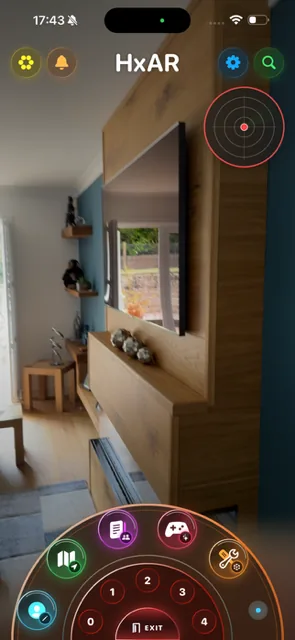
The green magnifier opens HxAR Search in the camera view. Choose property Keywords for nearby virtual places or Users for a public profile, then use the result controls without mistaking the AR panel for a broad web search.
What this guide achieves
Search safely, choose the correct mode, understand exact matching and location use, open the intended result and protect public-profile information.
- Topic
- 05
- Starting point
- Green magnifier-shaped Search control on the HxAR dashboard
- Guide time
- About 8 minutes
- Screen status
- Development feature guide
Quick walkthrough
Search HxAR in seven steps.
Stop in a safe place, select Keywords or Users, enter a precise search and understand the limits of both the AR panel and separate conventional screen.
- 01
Stop somewhere safe and open Search
From the signed-in dashboard, stop moving and tap the green magnifier at the upper right. HxAR places the search controls and result card in the camera view when AR tracking is ready.
- 02
Choose Keywords or Users
Select Keywords to find nearby HxAR properties by their exact tags. Select Users only when you know the account’s exact, case-sensitive username.
- 03
Enter a precise search
For Keywords, enter the main property tag and, if useful, an exact extension tag such as alarm. For Users, enter the username without an @ symbol.
- 04
Run the search and wait
Tap the green search button or use Search on the keyboard. The panel reports SEARCHING while the fields, mode, Search, navigation and result controls are temporarily unavailable; Normal and X remain available. Keyword search also needs a location currently available to HxAR.
- 05
Move through property matches
Use the left and right arrows when more than one property is available. The position changes to 1 OF N and the results wrap from the last property to the first.
- 06
Open the selected destination
Choose Open for the selected property, Profile for a matched user, or the separate person control when a keyword creator profile is available. Tapping a user card by itself does not open the profile.
- 07
Use Normal or close the panel
Choose Normal to leave the AR panel and open a blank conventional Search screen, then re-enter the search you need there. Choose X to close Search; reopening it during the same dashboard session can restore the AR query and result.
Open Search with the green dashboard magnifier
The green magnifier is the rightmost direct control beside the HxAR title. Opening it closes any dashboard Vault, Notifications, Profile or Property Management panel that is already on screen, then places Search approximately 30 centimetres in front of the camera after AR tracking becomes normal.
The result card stays anchored at that position in the real world; it does not follow the device as you turn. Close and reopen Search to place it in front of the camera again. If tracking remains limited, the current preview does not show an explanation or recovery control, so a missing card does not necessarily mean the search failed.
Hold the device securely and stop walking before typing or reading a result. An AR card is not evidence that a real place is open, safe to enter or accessible to the public, and a virtual property never grants access to physical land or buildings.
If the controls do not settle into view, improve the lighting, point the camera towards a textured surface and allow tracking to recover. Use the standard non-AR view when the camera presentation is uncomfortable or difficult to read.
Keywords and Users answer different questions
Use the segmented control before typing. Switching mode keeps the main text but clears the optional extension and the result already loaded, so check the text again before searching. Changing either text field also clears the old result. The mode control and fields are unavailable while a request is in progress.
Keywords · nearby virtual properties
Enter the exact main tag attached to a virtual property. This is exact tag membership, not a fuzzy, partial or general web search. It does not search property titles, addresses, descriptions, sponsors or fragments; multiple words remain one exact phrase.
Optional extension keyword
The second field appears only in Keywords mode. When supplied, the property must contain both the exact main tag and the exact extension tag.
Users · a known public profile
Enter the complete username. The current development match is case-sensitive and returns at most one account, so spelling and letter case must agree. It does not search partial usernames, display names, business names, addresses or Founder Keywords.
How property Keyword search works
HxAR trims and lowercases the property keywords before it queries the tagged property records. The development service returns an unordered batch of up to 50 exact-main-tag records. On the device, HxAR keeps only the records within 50 miles of the location currently available to it, applies the optional exact extension filter and presents the remaining subset nearest first. It does not fetch every main-tag match before filtering, so these are not necessarily the nearest 50 and the search is not exhaustive.
The available location may be a recent device update, a cached HxAR location or another location already selected in HxAR. Distance is straight-line distance to the HexTile centre, not road distance, journey time, a surveyed boundary or a navigation instruction.
A property result can include a sponsored title or property title, distance, advert rating, sponsor username, sponsor description or full address, and a Keyword Creator, property-owner username or tile ID. A listed sponsor is not described as verified or currently active. Check the result before selecting Open.
Keyword search also looks for one public profile whose Founder Keyword exactly matches the main term. That Keyword Creator is not necessarily the selected property’s owner or sponsor. When found, a separate person-shaped control opens the creator’s public profile without changing the selected property.
How exact User search works
User search does not use location in its search branch. It trims surrounding spaces, checks the complete case-sensitive username and shows FOUND when one public profile matches. FOUND means a username match, not a property result. Both arrows remain unavailable in Users mode.
Use Profile to open that public-profile page; tapping the AR result card alone does not open it. The current card footer says Tap Open even though the real control is labelled Profile—follow the labelled Profile control.
The card displays selected public-profile fields, including display name, username, business name, Founder Keyword, website and an address when present. It does not display messages, balances or purchase history. Behind that card, the current implementation still fetches the complete UserProfile record rather than only the displayed fields; that data-minimisation issue is explained below.
Opening the complete public profile can expose further optional public contact details and linked content. Public does not mean harmless to share: use only a business or other public contact address—never a home address—and obtain consent before republishing another person’s name, handle or profile capture. The HxElectrum visibility choice in Settings does not hide the profile from Search.
Read every control on the AR panel
The small status and navigation row changes with the selected mode. The readable labels below repeat what each control does so you do not have to rely on the small screenshot.
NONE, 1 OF N, USER or FOUND · Result status
Keywords shows NONE until a property is loaded, then the selected position such as 1 OF 3. A Keyword Creator can still appear while status remains NONE. Users shows USER before a match and FOUND after one exact username is loaded.
Left and right arrows · Property navigation
Available only when at least two property results exist. They wrap through the set. Tapping the property card also advances when several properties are loaded.
Open · Property details
Available in Keywords mode when a property is selected. It opens the currently displayed virtual-property details.
Profile · User result
Available in Users mode and enabled only after a profile is found. It opens the matched HxAR public profile. The development card may say Tap Open, but the actual control above it is labelled Profile.
Person control · Keyword creator
Appears separately when HxAR finds the main keyword’s creator profile. Use this person icon even if the creator card says Tap Open; Open remains a property control and can be unavailable when status is NONE.
Normal · Standard Search screen
Closes the AR presentation and opens a new, blank conventional Search Properties screen. The AR query, mode and results do not carry across, so enter them again. Normal describes the presentation; it is not the panel’s reset or default-state control.
X · Close Search
Closes the AR Search and dismisses the keyboard. It does not clear the query and result held for the current dashboard session.
Normal is a separate development view, not an identical fallback
The AR result is drawn into a fixed bitmap and used as a RealityKit texture. The current source does not give that card accessibility semantics, so VoiceOver cannot read its result title, distance, rating, sponsor, description or profile details. It also does not support Dynamic Type or announce changed status and result positions.
The surrounding controls have accessibility labels, but they are only 30–36 points high, use fixed small text and sit close together. That is below Apple’s general 44-point touch-target recommendation and can crowd or truncate with Larger Text or localisation.
Normal opens a blank conventional screen with standard text, mode controls and a tagged-property list, which some people may find steadier to read. It is not yet a feature-equivalent fallback: the development screen looks up Users while text is being typed, only offers its property-search action after a Keyword Creator is found, and does not explicitly sort its property results. Re-enter the query and confirm the result rather than assuming the AR state moved across.
The website repeats every control and important rule in readable HTML so this guide does not depend on text embedded in the 295-pixel-wide screenshot. HxAR 2.0 remains under accessibility review; neither Search presentation should be described as fully accessible yet.
Protect location and profile data, then troubleshoot carefully
Search terms are sent to HxAR’s public CloudKit database to find matching public records. Keyword distance filtering happens on the device using the location currently available to HxAR; the coordinate is not inserted into the property-search predicate. This source audit found no dedicated SearchHistory record, although some entered terms are written to app diagnostic logs. Do not describe searches as anonymous, never logged or fully private.
The reviewed User and Founder Keyword searches fetch complete UserProfile records rather than requesting only the fields needed for the card, and the reviewed Settings source has no profile-discoverability switch. Those data-minimisation and user-choice gaps still need app-side privacy review; this development guide does not claim they are available in the App Store build.
An empty keyword or username produces a prompt to enter one. If location is unavailable, Keyword search reports that current location is unavailable. No property match reports no properties within 50 miles; no User match reminds you that usernames are case-sensitive.
A no-property state can also follow a temporary CloudKit failure because the development callback does not expose that failure separately. It means no match was returned from the limited batch HxAR checked; it is not proof that no matching property exists. Check the exact tag or username, letter case, available location and connection, then close and reopen Search.
An unsponsored tagged property can currently appear, but opening it may leave the property-details loader spinning. If that happens, go back rather than waiting indefinitely and report the affected result. The source audit also found no in-app Search control for reporting content or blocking another user; use HxAR’s report route below while that Apple Guideline 1.2 requirement is addressed in the app.
Guide path
Move through HxAR one topic at a time.
New topics will be linked back into earlier guides whenever one action leads naturally to another.
Helpful now