
How To Topic 11 · Upload AR Assets
How to Upload USDZ 3D Models and AR Assets to HxAR
Upload AR Assets prepares reusable USDZ 3D models for your HxAR account. Select one model or a bundle, review the combined HxElectrum cost and add the details that will travel with the assets. Every successful user upload starts as Private Only; previewing, organising into folders and choosing whether to share it happen afterwards in AR Gallery.
What this guide achieves
Select permitted USDZ files, understand the total HxElectrum charge, complete the shared asset details and verify each successful upload in AR Gallery.
- Topic
- 11
- Starting point
- Signed-in HxAR dashboard with Upload AR Assets visible on the outer navigation dial
- Guide time
- About 10 minutes
- Screen status
- Development feature guide
Quick walkthrough
Upload USDZ assets in nine steps.
Prepare the models, read the complete charge before confirming, then use AR Gallery to organise every successful upload.
- 01
Open Upload AR Assets
Rotate the dashboard’s outer dial until Upload AR Assets appears, let the dial settle, then tap the shortcut.
- 02
Select one or more USDZ files
Choose only USDZ 3D models that you own or are authorised to store and use in HxAR.
- 03
Wait for every thumbnail
HxAR prepares a temporary copy and thumbnail for each model. Upload remains unavailable until every selected file has a thumbnail.
- 04
Review the model or bundle
A single model offers Preview in AR and an editable title. A bundle lists each filename, thumbnail, individual HxElectrum cost and current status.
- 05
Complete the asset details
Keep a single title within 20 characters. The required description and optional website URL are shared by every selected model; bundle titles come from the filenames.
- 06
Check the price plan and total
Each file must be smaller than 200 MB under the current development calculation. The bundle total is the sum of all accepted files’ HxElectrum costs.
- 07
Read the confirmation before proceeding
HxAR checks the account’s HxElectrum balance and displays the complete charge. Choose Cancel if the files or total are not what you intended.
- 08
Wait for every upload result
After confirmation, HxAR debits the displayed total and uploads the files one at a time. Read each status and the final count before leaving or trying again.
- 09
Verify and organise the assets in AR Gallery
Successful uploads start as Private Only and should appear in Saved AR Assets. Select them there and move them into the relevant named folders.
Open Upload AR Assets from the dashboard
Upload AR Assets is a separate destination on the rotating outer dashboard dial. Rotate until its teal shortcut is visible, allow the dial to settle and tap it. The back control at the upper left returns to the previous screen.
This screen prepares new USDZ files. AR Gallery is the next stage: successful uploads appear there for preview, folder organisation and visibility choices. The AR Gallery landing screen itself does not contain an upload button.
You need a signed-in HxAR account, a usable HxElectrum balance, access to the chosen file in Apple’s Files picker and a connection that can complete the CloudKit transfer.
Read the empty upload form correctly
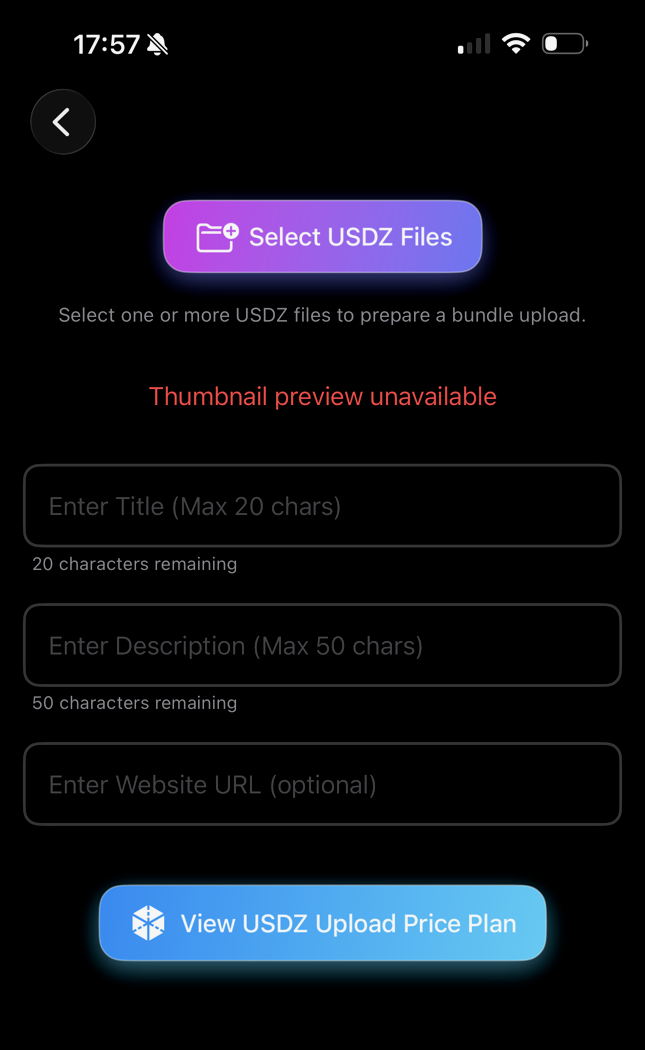
Select USDZ Files opens the Apple file picker and permits one or several models. Before anything is selected, the instruction says to prepare a bundle upload and the screen shows Thumbnail preview unavailable. In this empty state, that red message simply means there is no chosen model from which to make a thumbnail.
The title field applies to a single selected asset. Description is required for both a single asset and a bundle. Website URL is optional. View USDZ Upload Price Plan opens the current development size tiers and the warning about changing costs and storage retention.
The screenshot’s low-contrast labels are repeated in readable HTML throughout this guide. It does not show a selected file, calculated cost, upload button, failure or completed upload.
Select USDZ files and wait while HxAR prepares them
The picker accepts Apple’s USDZ file type and allows multiple selection. HxAR copies each chosen file into its temporary working area, reads its size, derives a title from the filename and asks Quick Look to create a thumbnail.
Every selected file needs a generated thumbnail before the upload control becomes available. With one model, Preview in AR can open the prepared temporary copy so you can check its appearance before paying to upload it.
The current view sets no visible maximum number of files or combined bundle-size limit. It copies complete files before rejecting an over-limit model and uploads accepted files one at a time without pause, cancellation or background-resume controls. Use a manageable bundle, a dependable connection and enough free device space.
A single upload and a bundle use different titles
For one selected model, HxAR fills the title from the filename without the .usdz extension and leaves it editable. The single-file view also shows the generated thumbnail and Preview in AR control.
For two or more selected models, the title field is replaced by a message explaining that every file will use its filename as the asset title. Rename the files clearly before selecting them if those names are not suitable for AR Gallery.
One description and one optional website URL apply to every model in the selected bundle. If the assets need different descriptions or supporting links, upload them separately rather than using one bundle.
Check every size tier and the combined HxElectrum cost
The app labels file sizes as MB, while the current calculator divides bytes into 1,024-based MiB. Leave some margin below a boundary. Exactly 200 MiB is rejected even though the in-app table currently says Over 200 MB is not allowed; the website follows the calculator’s stricter rule.
HxAR calculates each accepted file separately and adds those charges into one bundle total. HxElectrum is an in-app virtual resource rather than cash, cryptocurrency or a bank balance. This screen spends an existing balance and does not sell HxElectrum.
These are development rules rather than a permanent price promise. The confirmation shown by the current app should always be checked before proceeding.
Under 1 MiB · 1 HxElectrum
The smallest current upload tier.
1 MiB to under 5 MiB · 1 HxElectrum
The same current charge applies until the file reaches 5 MiB.
5 MiB to under 10 MiB · 2 HxElectrum
The 2-HxElectrum tier begins at 5 MiB.
10 MiB to under 20 MiB · 4 HxElectrum
The 4-HxElectrum tier begins at 10 MiB.
20 MiB to under 50 MiB · 8 HxElectrum
The 8-HxElectrum tier begins at 20 MiB.
50 MiB to under 100 MiB · 12 HxElectrum
The 12-HxElectrum tier begins at 50 MiB.
100 MiB to under 200 MiB · 20 HxElectrum
This is the largest accepted current tier.
200 MiB or more · Not accepted
Reduce the model below the limit or contact HxAR Support.
Add short, accurate details you are permitted to publish
The form advertises a maximum of 20 characters for a title and 50 for a description. The current preview counts the characters but does not reliably prevent longer text, and bundle filenames can also exceed the title guidance. Keep within those displayed limits yourself so cards and search results remain readable.
A description must contain something other than spaces. The website field is optional. If a scheme is missing, the upload code tries https://; it checks only whether the result can be parsed as a URL, not whether the page is safe, reachable or controlled by you.
Do not include personal addresses, private contact details, credentials or tracking secrets. The URL is stored with the asset, but the current Public Gallery does not expose it as a visitor-facing button. Upload only models, thumbnails, names, descriptions and links that you own or have permission to use.
Confirm the complete charge before the first upload begins
When every thumbnail is ready and the required fields are filled, choose the upload control. HxAR requests the account’s current HxElectrum balance. If it is below the bundle total, the screen reports that there is not enough HxElectrum.
If the balance is sufficient, Confirm Upload states the number of USDZ files and the total HxElectrum cost. Cancel returns to the form. Proceed debits that complete total first, then starts saving the selected assets to CloudKit one after another.
During transfer, the button reports an uploaded-item count and each file changes between Ready, Uploading, Uploaded or a short failure message. This is item progress rather than byte progress, and the current flow cannot be paused or resumed after the app closes.
Check AR Gallery before repeating a partial or completed upload
The current development flow is not one atomic payment-and-upload transaction. It debits the complete HxElectrum total before saving the first asset, and no automatic refund is issued when one file, its website URL or the connection later fails.
A partial retry can attempt every selected file again, including files that already succeeded, so duplicate AR Gallery records can be created. After a complete success, the selected bundle also remains on screen and the upload button becomes available again; another deliberate tap can create another charge and another copy.
Read the final Uploaded X of Y message, then open AR Gallery and refresh Saved AR Assets before pressing Upload again. If the charge and saved assets do not match, keep the displayed details and contact Support rather than repeatedly resubmitting the same bundle.
Successful uploads arrive in AR Gallery as Private Only
Every successful user upload is created with HxAR’s Private Only visibility value. It should appear in AR Gallery’s unfiled Saved AR Assets list after the list refreshes. It is not automatically published to a profile or the wider Public Gallery.
Select one or more new assets in AR Gallery, choose Move to Folder and place them into the relevant named collection. Moving is not copying: a filed asset disappears from the main unfiled list and remains available inside its folder.
AR Gallery is also where you preview the saved model, edit its supporting website URL, delete it or deliberately change visibility. Treat Public on Profile and Global Public Gallery as public choices in the current development build.
When you want to compose a scene, AR Experience downloads an eligible cloud asset into its own local folder. Upload, AR Gallery organisation and AR Experience scene preparation are three connected but separate steps.
Understand what is stored and keep your own original files
HxAR saves the USDZ and generated PNG thumbnail, their sizes, title, description, account reference, creation time, Private Only visibility, title-search tokens and optional website URL in CloudKit. It also writes separate upload and HxElectrum-spend analytics containing an account identifier, date and upload details.
Private Only is an HxAR visibility setting on a record in CloudKit’s public database scope. It keeps the asset out of the current public-gallery queries, but it is not a claim of end-to-end encryption; actual record access also depends on the deployed CloudKit permissions.
The price screen warns that server retention is not guaranteed indefinitely. Keep the lawful source model and project files somewhere you control. The reviewed account-deletion route removes owned AR asset and folder records, but it does not explicitly remove the separate USDZ-upload or spend-analytics records.
If an asset is later made public, other users may see its title, description and thumbnail and download the USDZ for the in-app preview. HxAR still needs complete filtering, reporting and blocking controls before public user-created assets are release-ready.
Use the status text and recover carefully from common problems
The Files picker, buttons and text fields receive basic Apple interface support, but this upload view does not yet provide useful spoken thumbnail labels, VoiceOver announcements for asynchronous preparation and completion, or a fully tested Larger Text and reduced-motion experience. The screenshot’s muted placeholders and counters also need stronger contrast.
If the screen remains on Preparing thumbnails, one model may not have produced a Quick Look thumbnail. Re-select a valid USDZ, try a smaller or simpler model and contact Support if the same file repeatedly fails. The initial Thumbnail preview unavailable message before selection is not itself an upload error.
If the form reports an over-limit file, keep it below 200 MiB. If it reports insufficient HxElectrum, cancel and review Hx Vault. If selection, balance checking or upload fails, confirm the connection and inspect AR Gallery before starting the same operation again.
Guide path
Move through HxAR one topic at a time.
New topics will be linked back into earlier guides whenever one action leads naturally to another.
Helpful now