
How To Topic 08 · AR Gallery
How to Use the AR Gallery and Organise Assets in HxAR
The in-app AR Gallery is your account’s library for cloud-saved augmented-reality assets. It brings together the unfiled assets currently loaded on the landing screen, named folders and public sharing choices. It is different from the Gallery page on this website, which is a showcase of HxAR screenshots and stories.
What this guide achieves
Find and preview a saved AR asset, organise it without losing track of it and choose visibility without accidentally publishing private or unlicensed content.
- Topic
- 08
- Starting point
- Signed-in HxAR dashboard with the outer navigation dial
- Guide time
- About 9 minutes
- Screen status
- HxAR 2.0 release guide
Quick walkthrough
Use the AR Gallery in nine steps.
Start with the landing screen, find or add an asset, then choose whether to preview, organise, keep private or publish it.
- 01
Open AR Gallery from the dashboard
Rotate the outer dashboard dial until AR Gallery is visible, let the dial settle, then tap the shortcut.
- 02
Read the loaded state
The badge reports how many unfiled assets are currently loaded on this screen. It is not a lifetime total or storage limit.
- 03
Find existing assets or add a USDZ
Check Folders for assets already organised there. If the account is empty, return to the dashboard and use the separate Upload AR Assets destination.
- 04
Preview a saved asset
Tap an asset card to prepare its cloud-saved USDZ file and open the model preview.
- 05
Select one or more assets
Use the selection circle for batch actions, or press and hold one card for its management menu.
- 06
Organise with folders
Open Folders, use the plus control to create a named collection, then move—not copy—the selected assets into it.
- 07
Choose visibility carefully
Use Private Only for content that should stay out of public browsing. Treat both public choices as visible to other HxAR users in the current development build.
- 08
Explore the Public Gallery
Browse public assets or search for an asset or creator, then tap a model to download it for an AR preview.
- 09
Treat QR Gallery as forthcoming
The QR Gallery card is marked Soon and currently opens an information page rather than a working scanner or collection.
Open the in-app AR Gallery from the dashboard
AR Gallery is one of the destinations on the rotating outer dashboard dial. Rotate until its cyan shortcut appears, allow the dial to settle and tap it. The back control at the upper left returns to the previous screen.
Do not confuse this signed-in asset library with the website’s Gallery navigation item. The website Gallery showcases development screenshots; the app’s AR Gallery stores and manages the assets linked to your HxAR account.
Upload AR Assets is another, separate destination on the dashboard dial. The AR Gallery landing screen does not contain an add or upload button.
Read the four areas on the landing screen
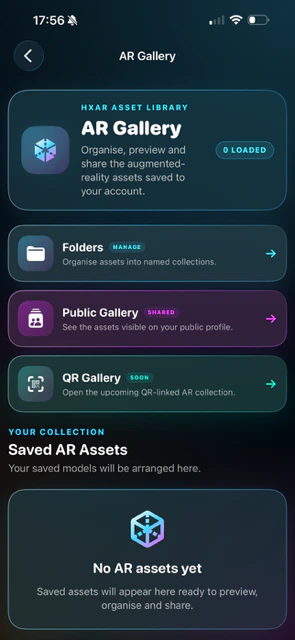
The cyan 0 LOADED badge in this example counts the unfiled assets currently loaded into the main Saved AR Assets list. The list loads in groups of 12 as you scroll. It is not the account’s lifetime upload total, a storage allowance or a promise that no assets exist elsewhere.
Folders · Manage opens the working named-collection area. Public Gallery · Shared opens the assets made public through profile or wider-gallery visibility. QR Gallery · Soon opens a development holding page. Saved AR Assets is the main unfiled list, where a successful empty load shows No AR assets yet.
An asset moved into a folder is deliberately hidden from the main Saved AR Assets list. If the badge shows zero, check Folders before assuming the account has no assets.
Use Upload AR Assets when the library is genuinely empty
Return to the dashboard, rotate to Upload AR Assets and choose the USDZ files you are permitted to use. Upload is a separate workflow, so this AR Gallery screen is for reviewing and managing assets after they have been saved.
New user uploads begin as Private Only. In the current development rules, each USDZ must be smaller than 200 MB and costs from 1 to 20 HxElectrum according to its file size. Review the calculated cost before confirming and keep your own original file because the in-app price notice does not guarantee indefinite server retention.
After a successful upload, return to AR Gallery. The asset should appear in Saved AR Assets unless it has since been moved into a folder.
Tap to preview, or select assets to manage them
Tap one of your saved asset cards to prepare its cloud-saved USDZ file and open the model preview. Preparing a model can take longer than loading its title and thumbnail, particularly on a slower connection or with a larger file.
Use the circle on an asset card when you want to select it. You can select several assets, see the selected count at the top and use Clear to remove the selection. The bottom action bar then offers folder, visibility, website-link, delete and clear controls.
Press and hold a single card to open its context menu. If a press-and-hold gesture is difficult to use, the visible selection circle and labelled batch-action bar provide the clearer route to the same main management choices.
Folders move assets into named cloud collections
Select Folders · Manage, then use the plus control and New Folder prompt to create a named collection. Folder records and their asset associations sync through HxAR’s CloudKit records, so you must be signed in and online for those changes.
Move to Folder is a move, not a copy. HxAR associates the asset with the chosen folder, hides it from the main Saved AR Assets query and removes it from the landing list. Open Folders to find it again.
Inside a folder you can preview assets, change visibility, edit the saved website URL, delete assets or move them to another folder. The current development interface does not offer folder rename, folder deletion or a way to return an asset to the unfiled main list, so this guide does not instruct those actions.
AR Experience uses a second, device-local folder system for models downloaded into its scene editor. An AR Gallery cloud folder and an AR Experience local folder are not the same collection.
Understand the asset management actions
Move to Folder organises the selected records. Set Visibility changes who can discover them. Edit Website URL stores or removes a supporting web address on the asset record, but the current Public Gallery does not display or open that URL as a visitor button, so do not rely on it as a public call to action.
Delete asks for confirmation and then removes the selected AR asset record from CloudKit. Treat deletion as permanent: the interface offers no restore action. Asset deletion should not be described as deleting every separate account or analytics record.
A failed batch can move, update or delete some assets while others remain. Read any result message, then reload the relevant list before repeating the action so you do not apply it twice to an item that already changed.
Treat both public visibility choices as public
Private Only keeps the asset out of the Public Gallery queries. Public on Profile is labelled for the creator’s public profile. Global Public Gallery is the broader labelled sharing choice.
In the current development source, both Public on Profile and Global Public Gallery assets can be returned by Browse all and by a public asset-name search. Until that behaviour is changed and retested, treat either public setting as making the asset discoverable to other HxAR users—not as profile-only sharing.
A public record can reveal its title, description, thumbnail and downloadable USDZ model. Remove personal information, private-location details and confidential material before publishing. Changing an asset back to Private Only cannot undo a view or download that has already happened.
Browse public assets and creators
Public Gallery first opens the public collection associated with the selected profile. Choose Browse all to move into the combined public collection, or This profile to return. More assets load in groups of 12 as you continue scrolling.
Use Assets to search public asset names. Use Creators when you know the complete, case-sensitive username; a partial name, display name or differently capitalised username is not the same lookup.
Public cards initially load the title, description and thumbnail. Tapping a card downloads the full model and opens the AR viewer. This action does not copy the asset into your own Saved AR Assets list and does not provide an export or social-sharing control.
The public AR viewer looks for a horizontal surface and places the model when one is found. Use it in a clear, well-lit space, stop walking before interacting and stay aware of people, furniture, steps and other hazards.
QR Gallery is marked Soon, Coming Soon and In Development
The mint QR Gallery card does not currently open a working scanner. It leads to a holding page that describes a future Scan, Discover and Place journey.
There is no supported QR collection to scan from this AR Gallery route yet. Keep using the existing Saved AR Assets, Folders and Public Gallery areas, and wait for an app update before following QR Gallery instructions.
Protect privacy, ownership and community safety
HxAR stores the USDZ, thumbnail, title, description, owner reference, visibility, timestamp, file-size information and optional website URL in CloudKit. Folder names and folder associations are also account-linked cloud records. Do not describe this library as on-device-only or as an iCloud Drive folder.
Upload only material you own or have permission to use and share. The creator or lawful rights holder keeps ownership; opening a public asset does not transfer its copyright or grant permission to extract, sell, redistribute, re-upload or use it outside HxAR.
The reviewed Public Gallery does not yet contain dedicated in-app controls for reporting an AR asset or blocking its creator. Those controls are important release work for a service containing user-created public content. For this development preview, use the website Report Content and Support routes below rather than claiming that an in-app report action exists.
Use readable controls and recover from common problems
The small screenshot labels are repeated as normal text throughout this guide. The app includes accessibility labels for folder creation, selection and batch-management controls, but the saved-asset card, context menu, touch targets, Larger Text and complete VoiceOver journey still need final accessibility review before HxAR 2.0 can be described as fully accessible.
No AR assets yet follows a successful empty load. Unable to load your AR assets indicates a failure and presents Try Again. If more pages fail, use Retry. Check that you are signed in, confirm the internet connection and avoid repeating an upload or destructive action until the refreshed list shows its result.
If an asset has disappeared from Saved AR Assets, open Folders. If a public search seems empty, check the asset’s visibility or the exact spelling and letter case of a creator username. If an AR preview cannot place the model, allow camera access and try a clear, well-lit horizontal surface.
Guide path
Move through HxAR one topic at a time.
New topics will be linked back into earlier guides whenever one action leads naturally to another.
Helpful now